

A Brother label printer MyPost Business setup sounds easy until the first label comes out sideways, clipped, or shrunk into one corner. You bought the printer to stop mucking around with A4 sheets, not to spend an afternoon fighting print settings.
The good news is that Brother's wide QL models can work well for Australia Post labels. The annoying bit is that MyPost Business, PDF viewers and Brother DK label sizes all need to agree before the barcode prints cleanly.

In this article:
- Can you use a Brother label printer with MyPost Business?
- Choose the right Brother printer for Australia Post labels
- Set up your Brother label printer for MyPost Business
- Print MyPost Business labels without shrinking the barcode
- Fix common Brother MyPost label printing problems
- Related reading
- Final Brother MyPost setup checklist
Can you use a Brother label printer with MyPost Business?
Yes, you can use a Brother label printer with MyPost Business, provided it is one of the wide-format models that can handle shipping labels. The Brother QL-1100 and Brother QL-1110NWB are the two models most Australian sellers look at for this job.
Brother's Australian product pages list both as wide label printers, and the support pages provide the drivers and software you need for Windows and macOS. MyPost Business creates printable shipping labels, so the real setup work happens in the printer driver and PDF print dialog.
Do not treat a Brother QL-700, QL-800, or other narrow label printer as a shipping label printer. Those models are useful for address labels and small stickers, but they are not the right fit for standard 100x150mm shipping labels.
The setup is most reliable when you use a desktop computer, install the full Brother driver and print from a proper PDF viewer. Browser print windows can work, but they often hide the setting that caused the problem in the first place.
Useful official pages:
- Australia Post MyPost Business
- Brother QL-1100 Australia product page
- Brother QL-1110NWB Australia product page
- Brother QL-1100 support
- Brother QL-1110NWB support
Choose the right Brother printer for Australia Post labels
The Brother QL-1100 and QL-1110NWB both suit MyPost Business labels because they support wide shipping label media. The choice comes down to how you print during the day.
Brother QL-1100 for simple USB printing
The QL-1100 is the simpler option. Plug it into one computer with USB, install the driver, choose the right media size and print your labels from that computer.
That makes sense if you run a small eBay, Shopify, Etsy, or Amazon AU store from one desk. It also removes a lot of network troubleshooting because the printer has one clear connection path.
The trade-off is that it is not as flexible for a shared packing bench. If two people need to print labels from different computers, USB can become a bottleneck.
Brother QL-1110NWB for Wi-Fi and shared packing benches
The QL-1110NWB adds Ethernet, Wi-Fi and Bluetooth. That makes it a better fit for a small warehouse, a shared office, or a packing station where more than one device needs access.
Network printing does add a few traps. Windows or macOS can create more than one printer queue, especially if you install it over Wi-Fi and USB at different times. One queue may have the right Brother driver, while another uses a generic driver with missing label sizes.
For MyPost Business labels, print from the queue that shows the full Brother media options. If one queue keeps defaulting to A4 or hides your shipping label size, remove it and reinstall the full Brother package.
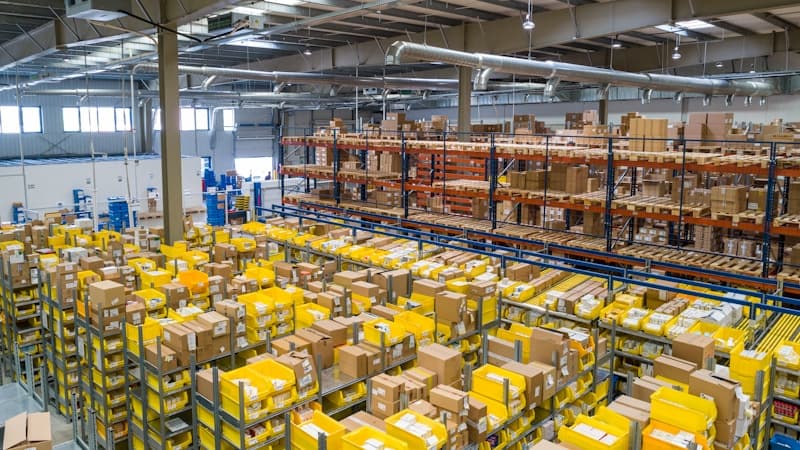
What label rolls should you buy?
Most Australia Post and MyPost Business shipping labels are treated as 100x150mm, also called 4x6 labels. Brother's own wide shipping label stock may appear as 103x164mm in the driver, depending on the roll.
That small difference matters. If your physical labels are 100x150mm but the driver thinks the roll is 103x164mm, the print may sit too high, feed extra blank label, or clip near an edge.
Before you buy bulk rolls, check the media size listed by the seller and compare it with the sizes available in the Brother driver. If you use third-party compatible labels, print one test label before trusting a 50-order batch.
Set up your Brother label printer for MyPost Business
A Brother label printer MyPost Business setup works best when you set the printer up first, then fix the MyPost and PDF settings. Do not start by changing five things at once. You will not know which setting fixed the issue.
Step 1: install the full Brother driver
Go to Brother's Australian support page for your model and download the full driver or software package for your operating system. Use the QL-1100 support page for the USB model and the QL-1110NWB support page for the network model.
Avoid relying on the basic driver that Windows or macOS installs automatically if label sizes are missing. Generic drivers are fine for basic office printers, but shipping labels need the correct media list.
After installation, restart the computer if Brother asks you to. Then open your system printer settings and confirm that the printer appears by its proper Brother model name.
Step 2: load the right label roll
Load the DK roll or compatible shipping labels with the printable side facing the right way. If the printer feeds blank labels, stop and check the roll before changing software settings.
Direct thermal labels only print on one side. If the roll is upside down, the printer can feed perfectly while producing nothing useful.
Check that the roll sits flush and the guides are not pinching it. A slight skew at the start can turn into a barcode that runs close to the edge.
Step 3: set the default paper size
Open the Brother printer preferences and set the default media size. Use 100x150mm if the driver offers it for your stock, or the Brother 103x164mm shipping label preset if that matches your roll.
This setting matters because some PDF viewers inherit the printer default. If the printer default is still A4, MyPost labels can print tiny even when the preview looks normal.
On macOS, check whether you are using the full Brother driver or an AirPrint-style queue. If you cannot see the label sizes you expect, add the printer again and choose the Brother driver where available.
Step 4: print a test before a real order batch
Create or download one MyPost Business label and print it as a test. Do not start with twenty customer orders.
Check four things:
- The whole label sits inside the sticker area.
- The barcode is not stretched or squashed.
- The address text is readable.
- The printer does not feed a large blank section after each label.
If any of those fail, fix the media size before changing the rest of your workflow.
Print MyPost Business labels without shrinking the barcode
Most Brother shipping label problems come from scaling. A label that is technically printable can still be a bad parcel label if the barcode is too small, blurry, or clipped.
Australia Post scanners need a clean barcode with enough white space around it. Your goal is not to make the label fill every millimetre of the sticker. Your goal is a readable label that prints in the same place every time.
Use the right MyPost Business label format
In MyPost Business, use the thermal or A6-style label format where your account settings allow it. The existing LabelChop guide on printing MyPost Business labels on a thermal printer walks through that broader setup.
If you are printing an A4 PDF that contains the label in one corner, your Brother printer may treat the whole A4 page as the print area. That is when you see a tiny label, a cropped label, or a lot of blank feed. For a quick test before changing more Brother settings, run the file through the free A4 to 4x6 shipping label converter, then print the converted PDF at 100 percent.
Some sellers work around that by cropping the PDF. That works, but it is painful if you ship every day.
Use actual size or 100 percent scaling
Open the label in a PDF viewer and choose your Brother printer. Set the paper size to the same label size you chose in the Brother driver.
Then choose actual size or 100 percent scaling. Avoid shrink-to-fit if it makes the barcode smaller. Avoid fit-to-page unless the first test label is clearly clipping and the preview confirms the barcode remains readable.
The exact wording changes between Adobe Acrobat, Preview, Chrome and Edge. Look for the scaling section and read it before you hit print.
Watch the orientation
If the label prints sideways, check orientation in both the PDF viewer and Brother driver. Do not keep rotating the PDF and the driver at the same time because you can cancel out your own fix.
Change one setting, print one test, then decide whether to keep it. That sounds slow, but it is quicker than wasting a roll of labels.

Printing eBay Australia labels
Many eBay AU sellers end up in the same place because eBay postage labels often flow through Australia Post services. eBay's own help page covers printing postage labels, but it does not replace your printer setup.
If the label comes from eBay, still check the same three places: marketplace label format, PDF scaling and Brother media size. The printer does not care whether the PDF started in eBay, Shopify, Etsy, Amazon AU, or MyPost Business.
Fix common Brother MyPost label printing problems
Brother printers are not hard to use once the settings line up. The trouble is that one wrong default can make every label look broken.
The label prints too small
This usually means the source PDF is A4, the printer default is A4, or the PDF viewer is shrinking the label. Set MyPost Business to A6 or thermal format where possible, then set the Brother paper size to your physical label stock.
Print from a PDF viewer at actual size. If the preview still shows the label sitting on a big A4 page, you are not sending a proper 4x6-style job to the printer.
If you need to crop A4 labels often, see how to print 4x6 labels from an A4 PDF.
The barcode is clipped
A clipped barcode is normally a paper-size mismatch. Your PDF may be 100x150mm while the Brother driver is using a different DK preset, or the roll loaded in the printer does not match the selected size.
Set the media size again and print one test. If you use compatible labels, check the exact dimensions on the box or listing, not just the phrase "shipping labels".
The printer feeds blank labels
Blank output usually points to the roll first. Check that the labels are direct thermal, loaded the right way and seated correctly.
If the roll is correct, check that you are not printing a blank page from a multi-page PDF. Some label exports include receipts, packing slips, or instruction pages after the shipping label.
The QL-1110NWB prints from the wrong queue
Network installs can leave duplicate printer queues. One might be the full Brother driver over USB, another might be a network queue, and another might be an AirPrint-style queue.
Rename the working printer queue once you find it. For example, call it "Brother QL-1110NWB shipping labels" so staff do not pick the wrong one during a busy packing run.
P-touch Editor is confusing
P-touch Editor is useful for testing media and making your own labels. It is usually not the place to redesign an official Australia Post shipping label.
For MyPost Business, print the generated PDF at the correct scale. Use P-touch Editor for custom stickers, returns labels, shelf labels, or a media test layout, not for recreating Australia Post barcodes by hand.

Related reading
If you are still choosing a printer, start with the best thermal printers for Australia Post labels in 2026. It compares Brother, Dymo, Zebra and MUNBYN options for Australian sellers.
If you already own another brand, the Dymo 4XL MyPost Business setup guide and Zebra Australia Post setup guide cover the same label-size problem for those printers. If you use the same Brother QL-1100 or QL-1110NWB with UK postage, the Brother Royal Mail Click and Drop setup shows how the driver, queue and PDF-size checks translate to 6x4 Royal Mail labels.
For the broader workflow, read why MyPost Business exports A4 PDFs and watch folder automatic label printing. Those explain why the manual crop-and-print routine becomes annoying once order volume grows. If you only need to rescue one label right now, use the free A4 to 4x6 converter.
Final Brother MyPost setup checklist
Here is the short version for a clean Brother label printer MyPost Business setup:
- Use a wide Brother model such as the QL-1100 or QL-1110NWB.
- Install the full Brother driver from Brother's Australian support site.
- Load direct thermal shipping labels that match the driver media size.
- Set MyPost Business to A6 or thermal label output where possible.
- Print from a PDF viewer at actual size or 100 percent.
- Test one label before batch printing orders.
- Rename the working printer queue if you use a QL-1110NWB on a network.
Once those settings are stable, the printer should stop being the slow part of packing orders.
If you are still downloading A4 MyPost PDFs and cropping them by hand, LabelChop can do that boring bit for you. It watches your Downloads folder, crops MyPost labels to 100x150mm and sends them to your thermal printer automatically. See the pricing or check the FAQ when you are ready to stop babysitting print dialogs.