

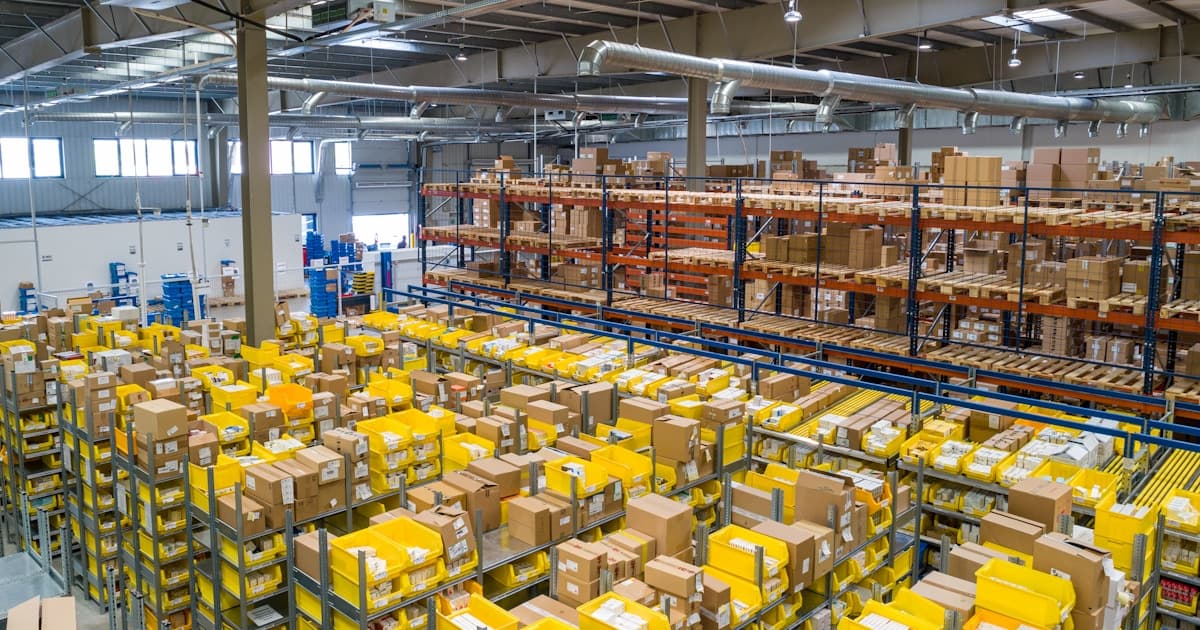
You sold your first item on eBay. Now you need to ship it, and the label printing process is surprisingly confusing for something that should be simple.
Do you print from eBay or from MyPost Business? What size label do you need? Why does the PDF look wrong on your thermal printer? This guide answers all of that, in plain language, without assuming you already know how Australia Post works.
In this article:
- How eBay shipping works in Australia
- Setting up MyPost Business for eBay
- Two ways to print your eBay shipping label
- What printer do you need?
- Printing your label: step by step
- Common mistakes (and how to fix them)
How eBay shipping works in Australia
eBay Australia uses Australia Post as its default carrier. When a buyer pays, eBay gives you the option to purchase postage directly through the listing flow. The label goes to your email or downloads folder as a PDF.
You have two paths from there:
- Print on any printer using A4 paper, then stick the label to the parcel
- Print on a thermal printer using 4x6 (100x150mm) label rolls
Both work. Thermal is faster once you're set up. A4 is fine when you're just starting out and shipping a handful of items a week.
What Australia Post products are available on eBay?
eBay offers several Australia Post services for domestic parcels:
- Parcel Post (3-6 business days) — standard, cheapest tracked option
- Express Post (1-3 business days) — faster delivery, premium price
- Parcel Post + Signature — adds a signature requirement on delivery
Pricing depends on parcel weight and dimensions. eBay calculates it at checkout if you've set up your item with dimensions and weight.
Setting up MyPost Business for eBay
You can print eBay labels without a MyPost Business account, but linking one gets you discounted postage rates and more control over your shipping workflow.

Here's how to set it up:
- Go to Australia Post MyPost Business and create a free account
- Log in and go to Settings > eCommerce Integrations
- Select eBay, then click Connect
- Sign into eBay when prompted and authorise the connection
- Your eBay orders will start appearing in MyPost Business automatically
Once connected, you can print labels from inside MyPost Business instead of eBay's interface. This gives you access to MyPost Business's savings bands, which let you save up to 40% on shipping costs once your volume is high enough.
Do you need MyPost Business right away?
Not necessarily. If you're selling a few items a month, printing from eBay's built-in flow is fine. As your volume grows and you start thinking about thermal printers and batch printing, MyPost Business becomes worth the setup time.
Two ways to print your eBay shipping label
Once you've purchased postage, you have two ways to get the label out.
Option 1: Print directly from eBay
After paying for postage in your eBay Seller Hub:
- Go to Orders > Awaiting shipment
- Click the order, then Print postage label
- A PDF downloads to your computer
- Print it on A4 (or 4x6 if your printer supports it)
This is the simplest path. No separate account needed. The PDF comes out as an A4 page with the label in the top half or centre.
Option 2: Print through MyPost Business
Once you've linked eBay to MyPost Business:
- Log into MyPost Business
- Go to Orders — your eBay sales appear there
- Select the order(s) you want to ship
- Click Create Shipment, choose your service and weight
- Click Create & Print Labels
MyPost Business lets you batch-print multiple labels at once, which saves time when you're shipping 10+ orders a day.
What printer do you need?
You don't need a thermal printer to get started. An ordinary home inkjet or laser printer works fine for A4 labels. Print, fold, and stick.
But if you're shipping more than a few parcels a week, a thermal printer will save you time and money on ink.
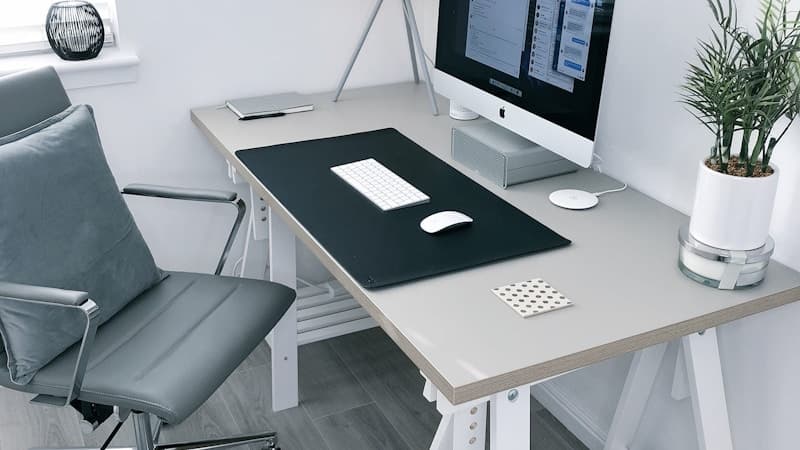
A4 inkjet or laser (for beginners)
- Print on plain A4 paper
- Cut or fold to cover the label area
- Use a self-adhesive pocket or sticky tape to attach
- Good for under 5 parcels per week
Thermal printer (for regular sellers)
Thermal printers use heat instead of ink, so you don't pay for cartridges. They print 4x6 (100x150mm) labels on rolls, which stick directly to your parcel.
Common models used by Australian eBay sellers:
- Dymo LabelWriter 4XL or 5XL — popular, USB, good software support
- Zebra ZD421 or ZD220 — reliable, widely used in warehouse settings
- Brother QL-1100 — good for mixed use, supports different label sizes
- MUNBYN thermal printers — budget-friendly, sold widely on Amazon AU; check the MUNBYN Australia setup guide if you want the low-cost route
All of these print 100x150mm labels and work with MyPost Business labels once you configure the PDF size correctly. More on that below.
Printing your label: step by step
If you're printing on A4
- Download the label PDF from eBay or MyPost Business
- Open the PDF in your browser (Chrome, Edge) or Preview on Mac
- Print at 100% scale (not "fit to page" — this distorts the barcode)
- Cut around the label
- Tape or use a self-adhesive document pocket to attach to the parcel
Keep the barcode clean and unobscured. Australia Post scans it at every facility.
If you're printing on a thermal printer
This is where most new sellers run into trouble. The problem is not always the printer. It is usually the PDF size and print settings. Some MyPost Business workflows can output A6 or one-label-per-page files, while older downloads, international labels, marketplace exports or saved settings can still leave you with an A4 PDF. Your 4x6 printer does not know which part of an A4 page you intended to print.
The fix is in your MyPost Business settings:
- Log into MyPost Business
- Go to Settings > Carriers > MyPost Business > Print Settings
- Change the label size from A4 (2 per page) to A6 (1 per page)
- Save, then re-download your labels
With a label-sized output selected, the PDF starts closer to the 4x6 or 100x150mm shape your thermal printer expects. Still check the actual downloaded PDF before printing a batch, because saved browser settings and old files can behave differently.
When printing:
- Set your paper size to 100x150mm or 4x6
- Set scale to 100% or Actual size (never "Shrink to fit")
- Select your thermal printer from the dropdown
If the label still comes out off-centre, tiny or wrong size, check that the paper size in your OS printer settings matches the paper size in the print dialog. The eBay shipping label too-small troubleshooting guide walks through the PDF-size, 4x6 paper and actual-size checks for this exact symptom. If you only have an A4 PDF and need a quick one-off fix, use the free A4 to 4x6 shipping label converter before sending the file to your thermal printer.
Common mistakes (and how to fix them)
Mistake 1: Printing at the wrong scale
Barcodes printed at the wrong scale won't scan. Always print at 100% and never let the PDF viewer rescale to fit the page.
Mistake 2: Not switching to A6 in MyPost Business
The default A4 format only works with standard printers. If you have a thermal printer and labels are coming out blank, cut off, or tiny, change the label format to A6 in your MyPost Business Print Settings.
Mistake 3: Entering wrong parcel dimensions
If the weight or dimensions you entered at listing don't match the actual parcel, the label price will be wrong. Australia Post can charge you extra at lodgement if the parcel is heavier than declared. Weigh and measure before printing.
Mistake 4: Not tracking the lodgement
Once you drop the parcel at an Australia Post outlet or red street box, the tracking number becomes active. Share it with your buyer via eBay's order messaging. It builds trust and reduces "where's my parcel?" messages.
Mistake 5: Using the wrong label size in MyPost Business with a thermal printer
Even after switching to A6, some sellers find labels still come out wrong because they're printing through Acrobat with scaling on. Use your browser's built-in PDF viewer for simpler, more reliable results.
If you're hitting the A4-to-thermal wall repeatedly and want to skip the PDF fiddling entirely, LabelChop is a desktop app that watches your Downloads folder, detects MyPost Business A4 labels, crops them to 4x6 automatically, and fires them to your thermal printer. Worth looking at once you're shipping more than 10 parcels a week.
Related reading
If you're building out your eBay shipping setup, these posts cover adjacent ground:
- MyPost Business label setup for eBay and Shopify — connecting your store, configuring your printer, getting labels to work
- How to crop MyPost Business A4 labels to 4x6 — manual and automated cropping options compared
- Free A4 to 4x6 shipping label converter — quick one-off conversion when eBay or MyPost downloads an A4 PDF
- Print MyPost Business labels on a thermal printer — full walkthrough for Dymo, Zebra, and Brother printers
- Best thermal printers for Australia Post 2026 — printer comparison for Australian sellers
Getting started
eBay shipping in Australia is more straightforward than it looks once you understand the two paths: print from eBay, or link MyPost Business and print from there.
For most new sellers, printing on A4 is fine. Once you're shipping regularly, a thermal printer pays for itself quickly in time saved per label.
The one thing that catches nearly every seller is the A4-to-4x6 label size problem. Change your MyPost Business Print Settings to A6, print at 100%, and that issue goes away.
If you want to go a step further and automate the whole process, check out LabelChop — you can try it free for 14 days, no credit card needed. It's built for exactly this problem.