

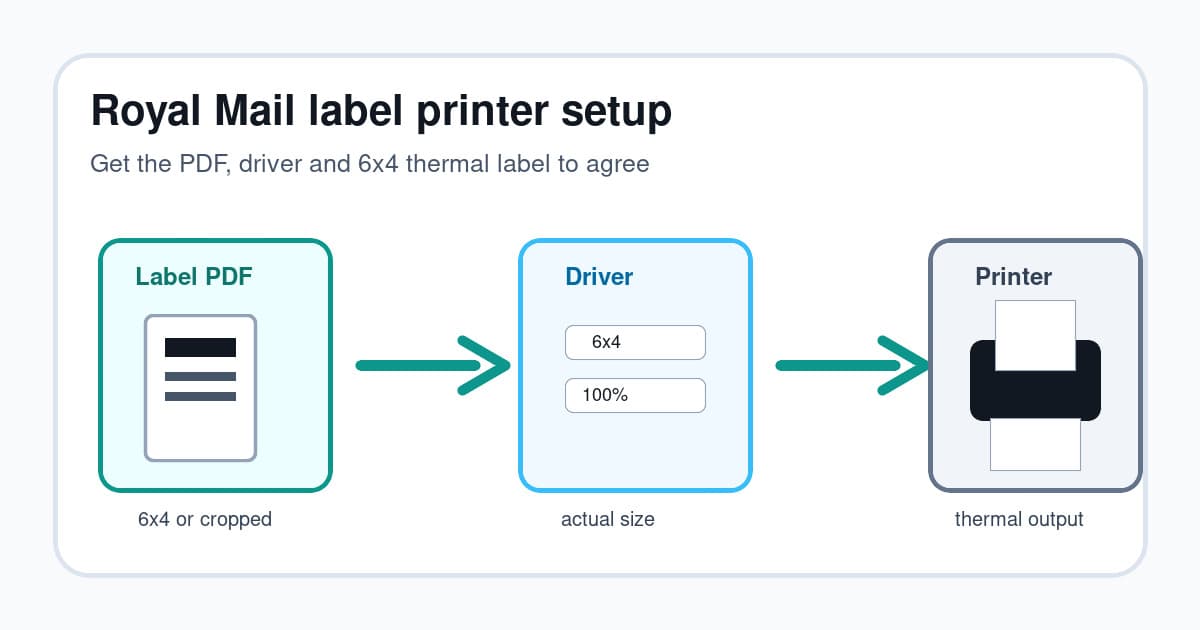
A Royal Mail label printer setup should be boring. Buy postage, download the label, print a clean 6x4 label, stick it on the parcel.
In real seller life, it often turns into A4 PDFs, browser print settings, tiny labels, cropped barcodes and wasted thermal stock. The printer is not always the problem. Most failures come from a mismatch between the Royal Mail or Click & Drop PDF, the printer driver paper size and the scale setting in the app you print from.
This refreshed guide is for small UK sellers using Royal Mail, Click & Drop, marketplace labels and 6x4 thermal printers. It focuses on the checks that stop labels printing too small or getting cut off.
If your postage flow gave you a QR code rather than a PDF, read the Royal Mail QR code label printing guide first. A QR-code handoff and a downloaded PDF label are different workflows. If you already have the PDF and just want the home-print sequence, use the Royal Mail label at home 6x4 workflow.
In this article:
- What to check before changing the printer
- The quick Royal Mail label printer setup
- Royal Mail 6x4 label size basics
- Click & Drop printer settings to check
- Fix Royal Mail labels printing too small
- Fix labels that are cut off or drifting
- Thermal printer setup checklist
- When automatic PDF cropping helps
- Related LabelChop guides
- Common Royal Mail label printer questions
- Final setup checklist
What to check before changing the printer
Search results for Royal Mail label printing now split the job across a few pages: Click & Drop label printing, printer setup, and 6x4 thermal stock. That is useful, but it still leaves sellers to connect the PDF page size with the driver setting.
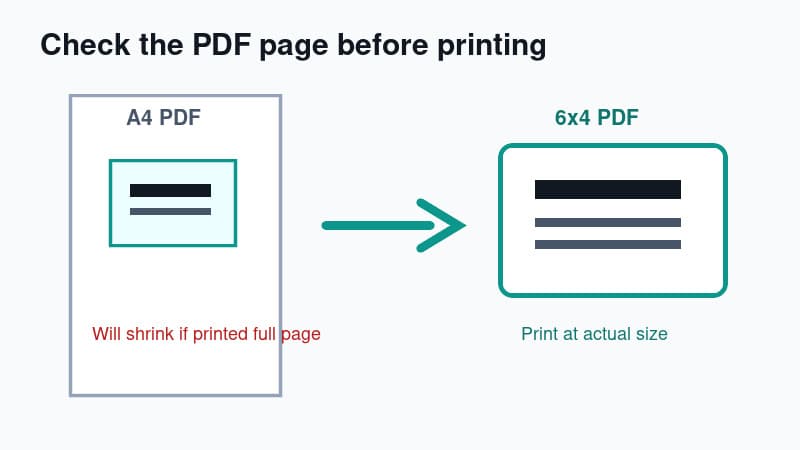
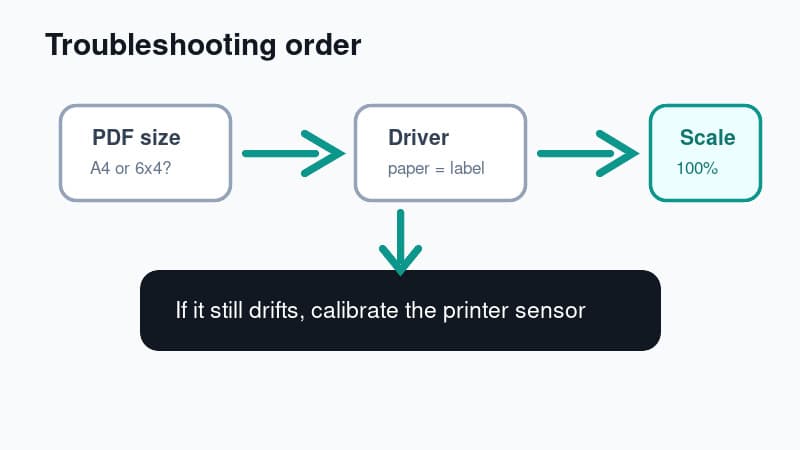
Start with the file, not the hardware. If the PDF page is already 6x4, print at actual size. If the label sits on an A4 page, fix the PDF first. Changing darkness, speed or roll brand will not stop an A4 page being shrunk onto one thermal label.
Royal Mail's own shop describes its thermal roll as 152 x 102mm, or 6 by 4, with 500 labels per roll. That is the physical target. Your driver, Click & Drop output and PDF viewer still need to agree with it.
The quick Royal Mail label printer setup
For most sellers, the target workflow is simple:
- Create the label in Royal Mail Click & Drop or your usual postage workflow.
- Download or open a thermal friendly label PDF.
- Set the printer driver to 6x4 inch, 4x6 inch or the exact metric size of your stock.
- Print at actual size, not fit to page.
- Calibrate the printer if the print starts drifting.
- Save the preset so tomorrow's labels use the same settings.
That sounds basic because it is. Thermal printers are fussy about boring details. They expect the PDF page size, driver setting and physical label to match.
If the PDF is already a 6x4 page, print it at 100 percent scale. If the PDF is an A4 page with a label sitting inside it, crop or convert it before sending it to a 6x4 printer.
What LabelChop can and cannot do here
LabelChop is not an official Royal Mail integration. It does not replace your Royal Mail account, Click & Drop account or marketplace postage workflow.
It helps after a compatible shipping-label PDF already exists. If your workflow gives you an awkward A4, Letter or wrongly sized PDF, LabelChop can watch your Downloads folder, detect the label PDF, crop or resize it to 4x6 output and send it to your thermal printer.
Think of it as the PDF cleanup step between the carrier portal and the printer.
Royal Mail 6x4 label size basics
A Royal Mail label printer usually means a 4 inch wide thermal printer printing 6x4 inch shipping labels. You may also see the same stock described as 4x6, 100x150mm or 102x152mm depending on the supplier.
For a deeper sizing breakdown, read the Royal Mail label size guide. If you only need to check whether one PDF, driver preset and scale setting match, use the Royal Mail 6x4 label settings checker.
The setup rule is simple: match the driver to the stock you physically loaded.
| Label name | Common size | What to check | |---|---:|---| | 6x4 inch | 152.4x101.6mm | Common UK wording for shipping labels | | 4x6 inch | 101.6x152.4mm | Same stock, often described width first | | 100x150mm | 100x150mm | Common metric thermal stock | | 102x152mm | 102x152mm | Close to 4x6 inch | | A6 | 105x148mm | Close, but not identical | | A4 | 210x297mm | Office paper size, not thermal output |
A few millimetres rarely ruins a label if everything is centred. It can cause clipping if your driver expects one size and the roll is another.
If you buy labels away from Royal Mail, check the actual dimensions, core size, roll diameter, perforations and whether the stock is direct thermal. A listing that says "Royal Mail labels" is not enough if the roll will not feed through your printer.
Use actual size for true 6x4 PDFs
If your Royal Mail or Click & Drop label opens as a 6x4 page, use actual size or 100 percent scale.
Avoid these print settings unless you have tested them:
- Fit to page
- Shrink oversized pages
- Scale to printable area
- Fill entire page
- Borderless enlargement
Those options can help with office documents. For shipping labels, they often shrink the barcode or push the address block toward the edge.
Click & Drop printer settings to check
Royal Mail Click & Drop screens can change, so do not rely on one old screenshot. Check the output format and printer settings whenever you set up a new printer, workstation or browser.
Choose a thermal friendly label format where available
If your account or workflow lets you choose a 6x4 or thermal label format, use that before trying any cropping workaround.
A native thermal label is better than fixing an A4 label later. It means the PDF page is closer to the physical label size, so the printer has less guessing to do.
If the workflow still gives you an A4 PDF, do not send the full A4 page straight to the thermal printer. That is the tiny-label trap.
This also applies when a marketplace, shipping platform or older download gives you a Royal Mail label inside a larger PDF. The label itself may be valid. The page around it is what makes the printer shrink or clip it.
Save printer defaults in the driver
Set the printer default paper size at the operating-system level, not only in Chrome, Edge, Preview or Acrobat.
For Windows, open printer preferences and set the paper size to 6x4, 4x6 or your custom metric label. For macOS, create or select the matching paper size when printing, then save that preset for labels.
The goal is boring consistency. When you download a new Royal Mail label, the print dialog should already know the printer, paper size and scale.
Print one test label before a batch
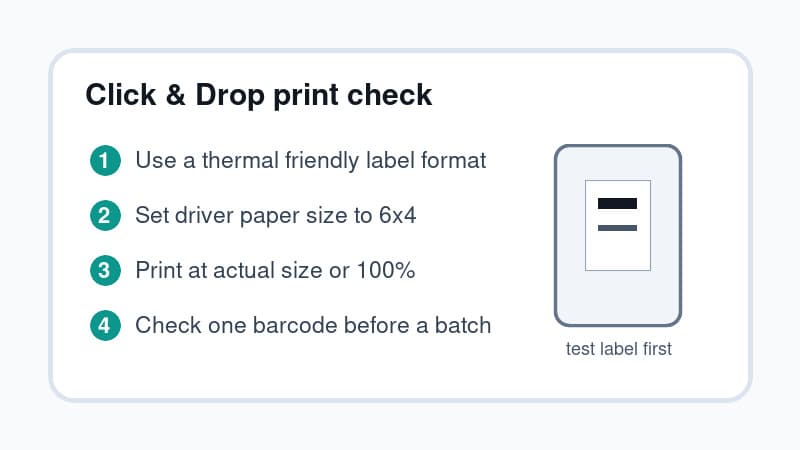
Before printing 20 orders, print one test label or one low-risk live label.
Check that:
- The barcode is dark and sharp.
- The full barcode sits inside the label edge.
- The address block is not clipped.
- The return address is visible if required.
- The label is not rotated sideways.
- The next label starts in the right place.
If the first label is wrong, stop. Thermal printers repeat bad settings faster than you can peel bad labels off parcels.
Fix Royal Mail labels printing too small
Tiny Royal Mail labels usually come from a page size mismatch.
Problem: the label is tiny in the corner
This usually means an A4 PDF is being shrunk onto a 6x4 label.
Fix it like this:
- Open the PDF and check the page size.
- If it is A4, crop or convert the label area first.
- Set the thermal printer paper size to 6x4 or your exact loaded stock.
- Print at actual size after cropping.
- Do not use fit to page on a full A4 label PDF.
A full A4 page can contain a perfectly good Royal Mail label. The A4 canvas around it is the problem. The thermal printer sees the whole page unless the file is cropped.
Problem: the preview looks correct but the print is small
This often means the app preview and driver setting disagree.
Try printing from a dedicated PDF app instead of the browser. Then open the printer properties inside the print dialog and confirm the driver is also set to 6x4 or 100x150mm.
Some browsers remember paper size per printer. Some PDF apps remember it per document. That inconsistency is why a saved driver preset helps.
Fix labels that are cut off or drifting
Cutoff and drift usually point to stock size, margins, calibration or roll alignment.
Problem: the barcode is cut off
A cut off barcode usually means the PDF page is larger than the paper size, the scale is wrong, or the printer is starting in the wrong spot.
Try these fixes:
- Set the driver paper size to the loaded stock.
- Disable borderless or enlargement settings.
- Recalibrate the printer after loading labels.
- Check the side guides are holding the stock straight.
- Print from a PDF app if the browser keeps changing scale.
If the whole Royal Mail label is enlarged, spans two stickers or touches the preview edge before printing, switch to the shipping label printing too big checklist. That symptom is usually scale or page size, not barcode darkness.
Never ship a label with a clipped barcode. It may move, but you are asking for scanning trouble.
Problem: the label is sideways
Sideways printing usually comes from orientation mismatch. A 6x4 label can be described upright or rotated depending on whether the app says width first or height first.
Try rotating only if the PDF page size is already correct. If the file is A4, crop first. Rotating a bad A4 page still leaves you with a bad A4 page.
Problem: every label drifts lower down the roll
That is usually calibration or sensor trouble, not a Royal Mail problem.
Feed a few blank labels through the printer calibration routine. Check that the printer sensor matches your stock type, usually gap labels or black mark labels. Also check that the roll is not squeezed too tightly by the side guides.
For a broader troubleshooting path, use Shipping label cut off? Fix 4x6 margins and cropping.
Thermal printer setup checklist
Use this checklist for Dymo, Zebra, Brother, MUNBYN, Rollo and other 4 inch thermal printers.
Driver and paper size
Install the proper driver for your model. Generic drivers can print, but they often hide the paper-size and sensor options you need.
Then set:
- Paper size: 6x4, 4x6 or exact custom metric size.
- Scale: actual size or 100 percent.
- Print quality: dark enough for a clean barcode.
- Orientation: whichever fills the stock without clipping.
- Media type: direct thermal if the driver asks.
If your labels are 100x150mm, create that custom size if the driver does not list it. Do not assume A6 is close enough if you see clipping.
Calibration
Calibration tells the printer where each label starts and ends.
Run it after:
- Loading a new roll or fanfold stack.
- Changing label size.
- Moving from gap labels to black mark labels.
- Fixing a jam.
- Updating or reinstalling the driver.
Keep the exact model manual handy. Dymo, Zebra, Brother and budget thermal printers all handle this differently.
Barcode darkness
A label can look readable to you and still scan poorly. Barcodes need crisp black lines with clean white gaps.
If the print is faint, increase darkness or print density one step at a time. If the barcode bars bleed together, reduce it. Also check that you are using direct thermal labels and that the roll is loaded the right way up.
When automatic PDF cropping helps
Manual setup is fine if your Royal Mail labels already download as clean 6x4 PDFs and you only print a few orders a week.
Automation starts to make sense when you keep repeating the same steps:
- Download label.
- Open PDF.
- Notice it is A4.
- Crop or screenshot the label area.
- Change paper size.
- Print one test label.
- Fix scale.
- Repeat tomorrow.
That is the workflow LabelChop is built to remove. You keep using your carrier, marketplace or shipping tool. LabelChop watches the download folder, recognises compatible shipping-label PDFs, crops or resizes them to 4x6 output and sends them to the thermal printer.
For Royal Mail workflows, the safe wording is this: LabelChop helps with compatible PDFs from Royal Mail and Click & Drop workflows. It is not an official Royal Mail integration, and you should still check your first few labels before trusting any new setup with a full batch.
If you want to test the idea manually first, use the free A4 to 4x6 shipping label converter. It lets you see whether cropping the PDF before printing fixes the tiny-label problem.
Related LabelChop guides
If you are setting up a full shipping bench, these guides help with nearby problems:
- Best label printer for Royal Mail Click & Drop
- Dymo 4XL Royal Mail 6x4 setup checklist
- Brother QL-1100 Royal Mail Click and Drop setup
- Royal Mail label size guide for 6x4, A4 and thermal printers
- Royal Mail 6x4 label settings checker
- How to print a Royal Mail label at home on 6x4
- Shipping label printing problems and fixes
- Shipping label cut off? Fix 4x6 margins and cropping
- 4x6 shipping labels: print settings and PDF setup
If you are ready to automate the repeated crop-and-print step, compare the app options on LabelChop pricing.
Common Royal Mail label printer questions
Can I print a Royal Mail QR code on my thermal printer?
A Royal Mail QR code is not the same thing as a downloaded 6x4 PDF label. If the post office or drop-off location scans the QR code and prints the label for you, you may not need your own printer for that parcel.
If you already downloaded a PDF label, then you are back in the printer setup workflow: check the PDF size, driver paper size and print scale. The Royal Mail QR code label printing guide explains that split in more detail.
Should I choose 6x4, 4x6 or 100x150mm in the driver?
Choose the option that matches the stock you loaded and the orientation shown in the preview. UK suppliers often say 6x4. Printer drivers may say 4x6, 102x152mm or 100x150mm.
Print one test label after changing the setting. If the barcode is centred and complete, save that preset and stop changing it between batches.
Final setup checklist
Before you call the setup finished, confirm these one by one:
- Your Royal Mail or Click & Drop workflow is producing the most thermal friendly label format available.
- The PDF page size matches the thermal label, or awkward A4 PDFs are cropped before printing.
- The printer driver paper size matches the loaded stock.
- The print dialog uses actual size or 100 percent scale.
- The printer has been calibrated after loading the roll.
- A test label prints with a sharp, complete barcode.
- You have saved the printer preset so tomorrow's labels do not need another settings hunt.
A clean Royal Mail label printer setup is mostly about removing hidden resizing. Once the PDF, driver and physical label agree, the printer usually behaves.
If the same awkward PDF problem keeps coming back, automate that part instead of fighting the print dialog every shipping day.