

A Royal Mail QR code can be useful because it may mean you do not need to print a label yourself. That is great if you are dropping off one parcel and the QR code is meant for a counter, collection point or label-printing service.
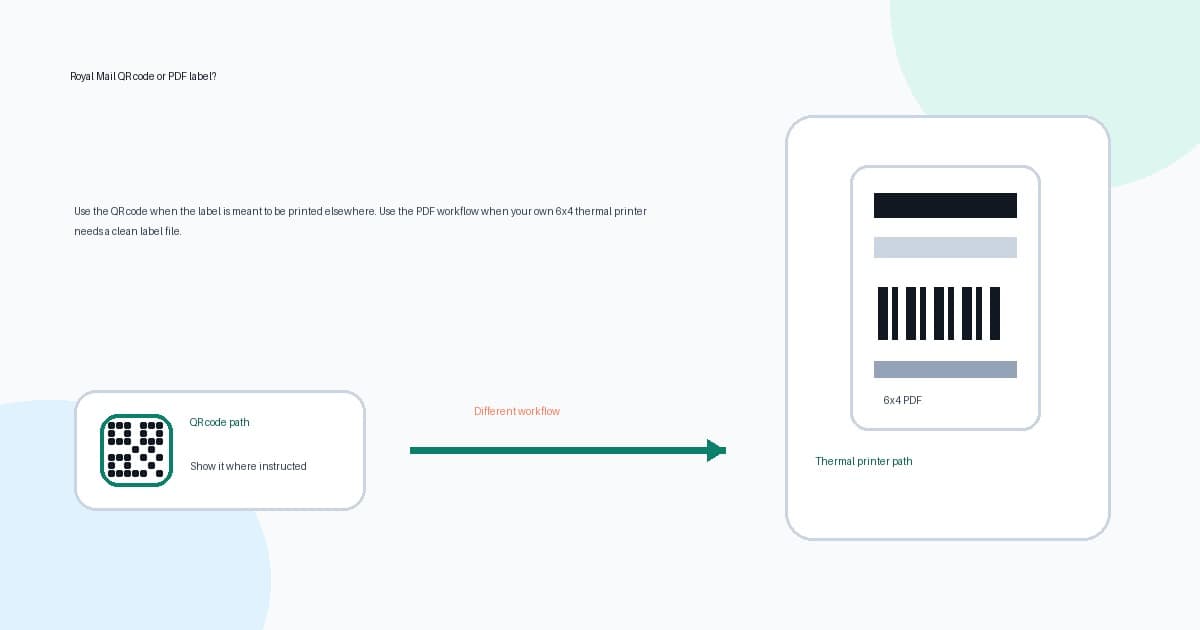
It is a different problem when you have downloaded an actual Royal Mail or Click & Drop PDF and want to print it on a 6x4 thermal printer. A QR code is usually a handoff to someone else's printer. A PDF label is the file your own printer has to handle correctly.
This guide separates the two workflows so you do not waste time trying to crop a QR code, or worse, trying to send an A4 PDF straight to a 6x4 thermal printer.
In this article:
- The short answer
- When a Royal Mail QR code means you do not need a printer
- When you need a PDF label instead
- The 6x4 thermal-printer path
- Fix tiny, cut-off or sideways Royal Mail PDFs
- What LabelChop can and cannot automate
- Related Royal Mail label guides
The short answer
If Royal Mail, Click & Drop, eBay, Etsy or another postage flow gives you a QR code with instructions to show it at a label-printing location, you usually do not need to print that label at home. Follow the instructions from the place where you bought the postage.
If the workflow gives you a downloadable PDF label, you are in a printer setup workflow. That is where 6x4 label size, A4 pages, browser scaling and thermal-printer presets matter.
Use this split before doing anything else.
| What you have | Best next step | Where LabelChop fits | |---|---|---| | QR code for label printing | Take or show the code where the postage flow says it can be scanned | Not useful until there is a PDF label | | Native 6x4 PDF | Print at actual size on matching 6x4 or 100x150mm stock | Can help automate repeated print workflows | | A4 PDF with label inside | Crop or convert the label area before thermal printing | Strong fit for repeated awkward PDFs | | Screenshot of a label | Go back to the original PDF if possible | Avoid screenshots because barcodes can blur |
If you already have a PDF and just need the printer settings, start with the Royal Mail label printer setup guide. If you want the short home-print sequence for a downloaded PDF, use the Royal Mail label at home 6x4 guide. If you are unsure what size the file is, use the shipping label size checker.
When a Royal Mail QR code means you do not need a printer
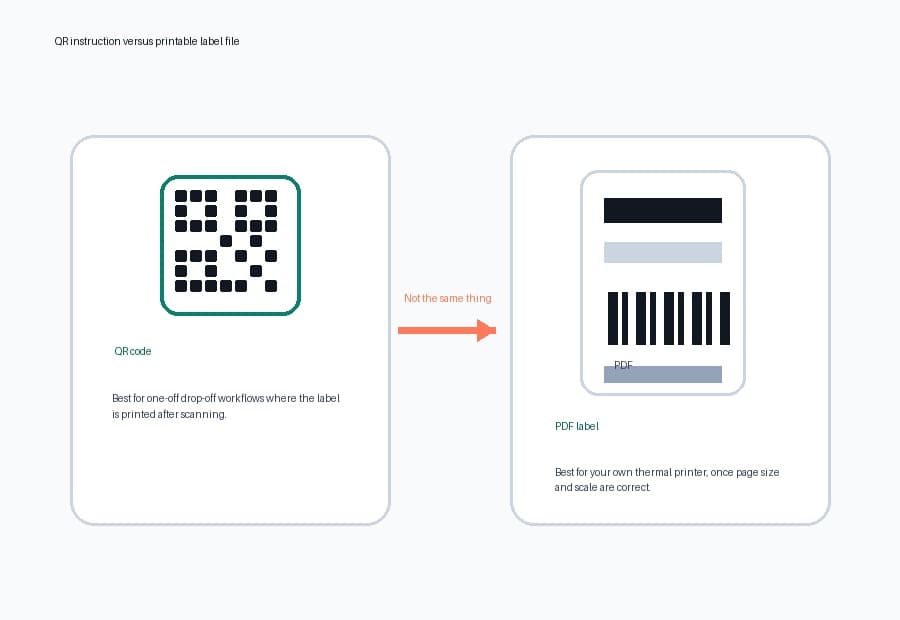
A QR-code workflow is usually designed for people who do not want to print a postage label themselves. The code points the label-printing system to the postage details. The actual sticker is printed after the code is scanned by the service that accepts it.
That can be the easiest path for casual sellers, returns and one-off parcels. You buy postage, receive the QR code, show it at the correct place, and the label is printed there.
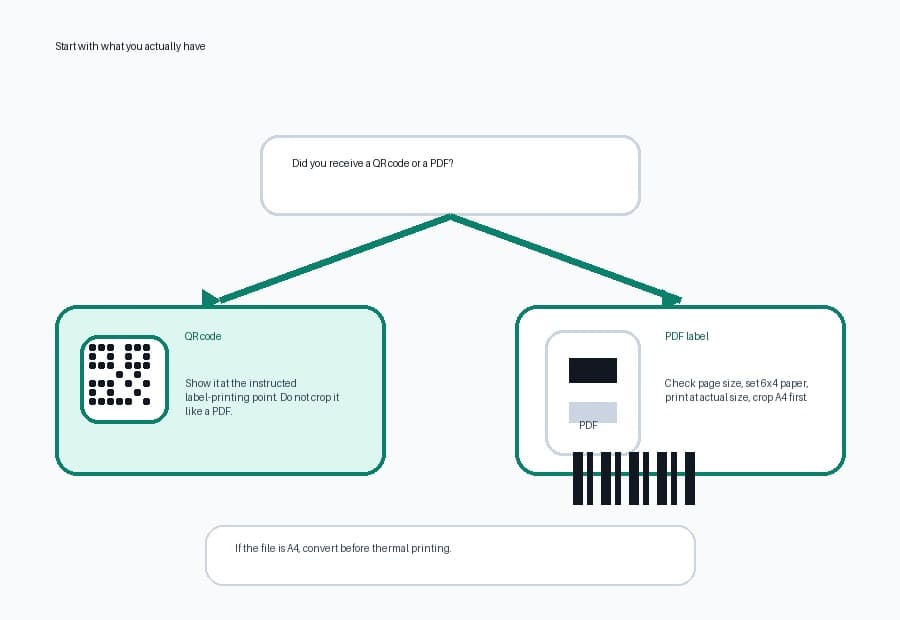
Do not treat the QR image as the shipping label unless the instructions explicitly say so. A QR code on your phone is not the same thing as a 6x4 PDF label on a thermal roll.
Before leaving the house, check these points in the original postage flow:
- Whether the QR code is accepted at the drop-off point you plan to use.
- Whether you also received a downloadable PDF label.
- Whether the QR code is for an outbound label, a return label, or a collection workflow.
- Whether you need the parcel scanned at a counter or locker.
- Whether the service requires any extra paperwork or customs information.
The safe rule is simple: if the instructions say show the QR code, show the QR code. If they say download and print a label, move to the PDF workflow.
When you need a PDF label instead
Thermal printers do not print a QR-code instruction. They print a file. For Royal Mail and Click & Drop workflows, that usually means a PDF label.
A PDF label can arrive in different shapes:
| PDF type | What it looks like | Printing risk | |---|---|---| | Clean 6x4 PDF | One label fills one small page | Low, if driver size and scale match | | 100x150mm PDF | Metric thermal-label page | Low, if stock and driver match | | A4 PDF with one label | Office-paper page with a label inside | High, if sent straight to 6x4 | | A4 PDF with multiple labels | Sheet or batch output | High, if you need one thermal label per page | | Screenshot or image | Label captured as pixels | Barcode blur and wrong aspect ratio |
If you can choose a thermal or 6x4 label format in the postage workflow, use it. A native thermal PDF is better than fixing an A4 file later. If that means buying hardware, use the Royal Mail Click & Drop label printer checklist before comparing printer brands.
If you cannot choose that format, the PDF may still be usable. You just need to crop, convert or inspect it before printing.
The 6x4 thermal-printer path
Once you have a PDF label, the setup is the same boring chain used for most Royal Mail thermal printing.
- Download the PDF instead of printing blindly from the browser.
- Open the file and check whether the page is 6x4, 100x150mm, A6 or A4.
- If it is already 6x4 or close, set the printer driver to the matching stock.
- Print at actual size or 100 percent.
- If it is A4, crop or convert the label area before printing.
- Print one test label before sending a batch.
The printer driver should match the labels in the printer, not the office-paper size of a bad source PDF. For most UK thermal setups, that means 6x4 inch, 4x6 inch, 100x150mm, 102x152mm or a custom size that matches your roll.
Do not choose A4 in the thermal-printer driver unless you are physically printing on A4 paper. A4 is a paper size, not a magic crop setting.
If you have already narrowed the problem to the printer model, use a model-specific path instead of guessing. The Dymo 4XL Royal Mail setup checklist covers Dymo paper-size presets, and the Brother QL-1100 Click and Drop setup covers Brother QL queue, roll and scale checks.
If you need a deeper size reference, use the Royal Mail label size guide for 6x4 printing.
Fix tiny, cut-off or sideways Royal Mail PDFs
Most Royal Mail PDF printing problems are caused by one mismatch in the chain.
The label prints tiny
This usually means the PDF is A4, and the print dialog scaled the whole A4 page down onto one 6x4 label.
Fix it like this:
- Cancel the print job.
- Check the PDF page size.
- If it is A4, crop or convert the label area first.
- Set the printer driver to 6x4 or your exact metric stock.
- Print the converted PDF at actual size.
The A4 to 4x6 shipping label converter is the quickest way to test whether the crop step fixes the problem.
The barcode or address is cut off
Cut-off labels usually mean the PDF page, driver paper size and physical label stock do not agree.
Check the paper size first. Then check orientation, scale, browser margins and calibration. If only one side is clipped, do not keep printing the same file and hoping the next one lands better. Use the shipping label cut-off troubleshooting guide to isolate the edge problem.
The label prints sideways
Sideways labels happen when one screen describes the label as 6x4 and another treats it as 4x6. Look at the print preview, rotate only once if needed, then save the working preset.
If the source file is A4, crop first. Rotating a bad A4 page still leaves you with a bad A4 page.
The barcode is blurry
Avoid screenshots. A screenshot can turn a sharp PDF barcode into a resized image with fuzzy edges. If the label came from a PDF, keep the workflow PDF-based.
For barcode quality checks, use the blurry shipping label barcode troubleshooting guide.
What LabelChop can and cannot automate
LabelChop cannot turn a QR code into postage. It is not a Royal Mail account, Click & Drop account, printer driver or official Royal Mail integration.
It helps after you have a compatible shipping-label PDF. That PDF might come from Royal Mail, Click & Drop, eBay, Etsy, Shopify or another workflow. If the PDF is awkwardly sized, sitting on A4, rotated, or repeatedly needs the same crop before it prints on 6x4 stock, LabelChop can remove the manual step.
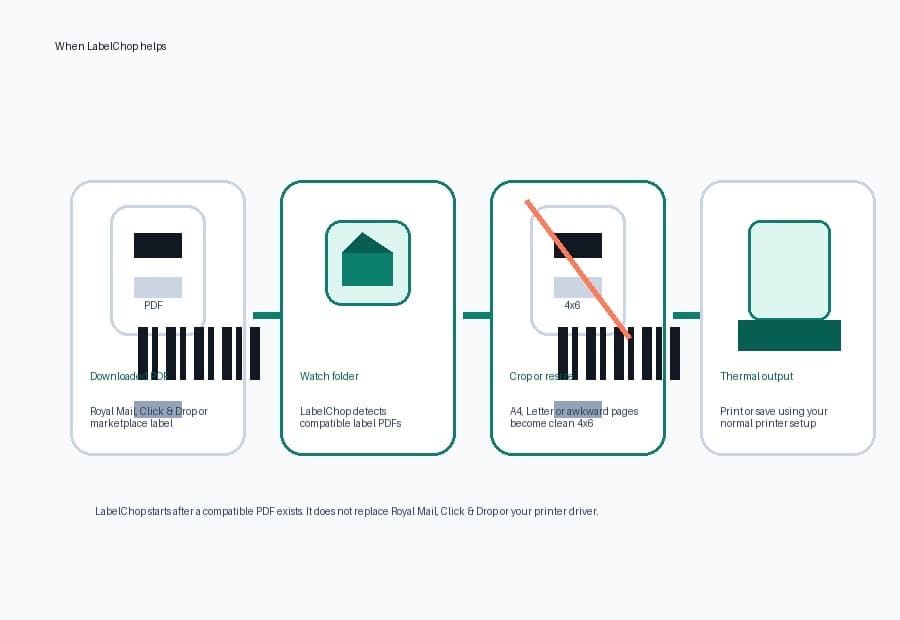
The recurring manual workflow looks like this:
- Download the label.
- Open the PDF.
- Realise it is A4 or awkwardly sized.
- Crop or convert it.
- Check print scale again.
- Print one test label.
- Repeat tomorrow.
LabelChop watches your Downloads folder, detects compatible shipping-label PDFs, prepares clean 4x6 or 100x150mm output, then prints or saves the result through your normal thermal-printer setup.
For one label, the free converter may be enough. For daily shipping, compare the repeated manual time against LabelChop pricing.
Related Royal Mail label guides
Use these depending on what you actually have.
- 4x6 shipping labels print settings, if you need the broader paper-size and scale baseline.
- How to print a Royal Mail label at home on 6x4, if you already have a PDF and need the print sequence.
- How to crop a shipping label PDF to 4x6, if the PDF is A4 and you need a clean thermal-label workflow.
- Shipping label printing too small guide, if the full A4 page is being shrunk onto one label.
The important split is QR code versus PDF. A QR code is usually for a label-printing service to scan. A PDF is the file your own printer has to scale, crop and print correctly.
Once you know which one you have, the fix becomes much less mysterious.