

A shipping label cut off at the top, side or barcode is usually a settings mismatch, not a broken printer.
The annoying part is that the preview can look almost right. Then the real label loses the tracking number, trims the QR code, or chops the return address because the PDF, paper size, scale and printable area are not lined up.
Use this checklist to isolate the cut-off point before you waste a roll of 4x6 labels. If the label is not clipped but comes out tiny, start with the shipping label printing too small guide instead. eBay sellers can use the eBay-specific tiny label checklist when the PDF came from an eBay order, MyPost Business handoff or connected carrier workflow. If the preview is enlarged before it reaches the printer, the shipping label printing too big guide covers scale values, wrong paper sizes and labels spread across two stickers.
In this article:
- Fast cut-off label checklist
- Why shipping labels get cut off
- Find which edge is being clipped
- Check the PDF page size before the printer
- Set the printer paper size to 4x6 or 100x150mm
- Remove margins, headers and fit-to-page surprises
- Protect the barcode quiet zone
- Fix orientation and feed-direction problems
- Calibrate the thermal printer after size changes
- Check platform settings, media type and updates
- Run a neutral test before blaming the carrier
- When to crop or convert the PDF first
- Related articles and tools
- Final test before printing a batch
Fast cut-off label checklist
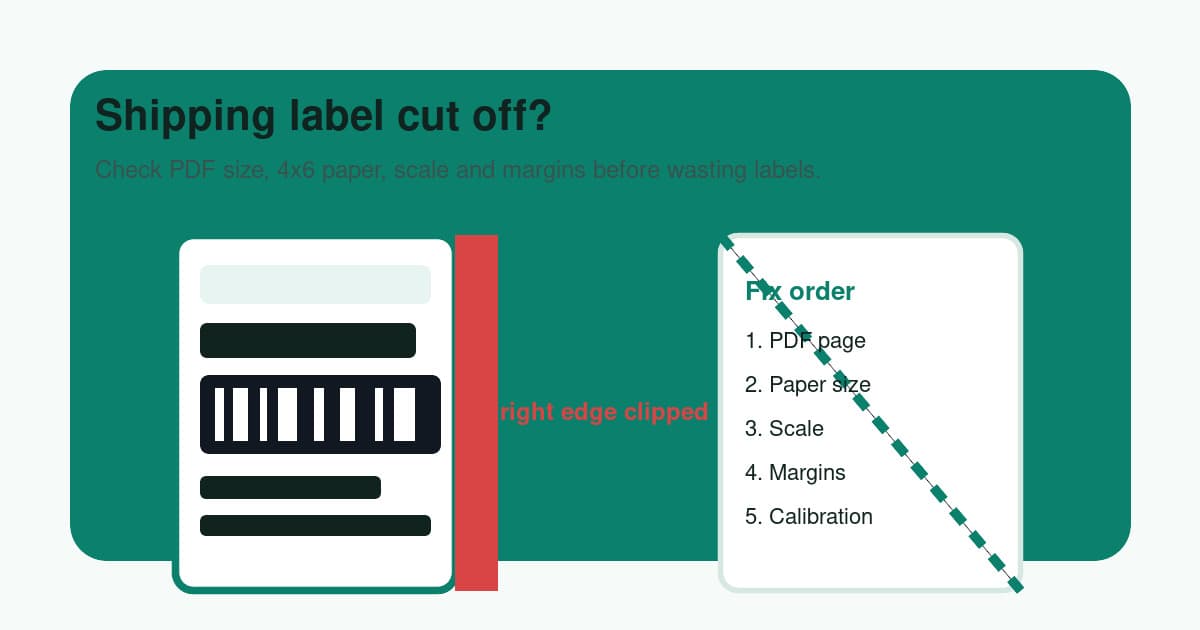
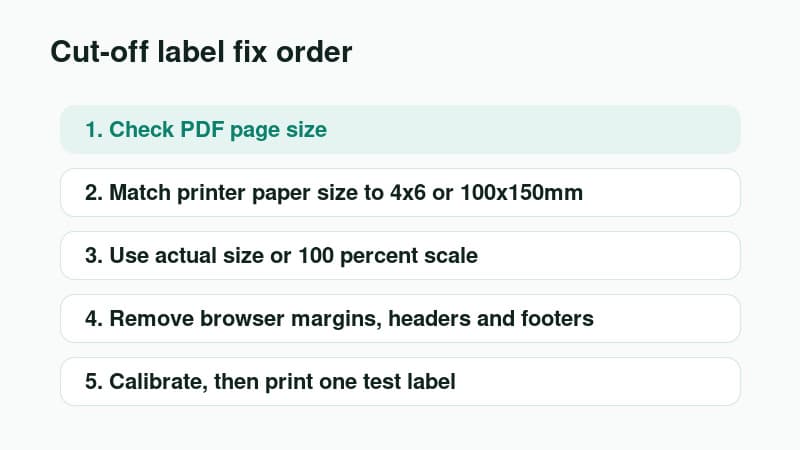
If parcels are waiting, run these checks in order.
- Open the PDF and confirm whether it is A4, Letter, A6, 4x6 or 100x150mm.
- Check the carrier, marketplace or shipping app label format.
- Set the printer driver paper size to match the physical label stock.
- Print a true 4x6 PDF at actual size or 100 percent scale.
- Turn off browser headers, footers and margins if printing from a browser.
- Check the preview for any barcode, QR code or address touching the edge.
- If the PDF is A4 or Letter, crop or convert the label to 4x6 before printing.
- Confirm the media type is gap, black mark or continuous to match your stock.
- Run the printer calibration or feed process after changing rolls, sizes or drivers.
- Print one test label before sending a batch.
Do not start by changing darkness, print speed or label brand. Those matter for barcode quality, but they do not fix a label that is physically outside the printable area. If the whole barcode is present but fuzzy or hard to scan, move to the blurry shipping label barcode guide after confirming the edges are not clipped.
Fixing cut-off labels every week? Keep this checklist for one-offs. For recurring PDFs, Automate every label with LabelChop and let the Windows app watch your Downloads folder, crop compatible labels to 4x6 and prepare them for your thermal printer.
Why shipping labels get cut off
A thermal label print job has four layers that all need to agree.
| Layer | What it controls | Cut-off symptom | |---|---|---| | PDF page size | The digital label you downloaded | A larger page gets cropped by a smaller label | | Printer paper size | The physical stock in the driver | The printer thinks the label is shorter, wider or narrower | | Print scale | Whether the PDF is resized | The label expands beyond the edge or shrinks oddly | | Margins and printable area | Extra space added by the viewer or browser | Barcode, QR code or address block is pushed off the label |
A cut-off label often happens when only one of those layers is wrong. A 4x6 PDF sent to a driver set to A6 can clip. An A4 PDF sent straight to a 4x6 printer can clip or shrink. A browser print dialog can add headers and footers that push the label area down.
The fix is to find the first wrong layer, change it, then test again. Changing every setting at once makes it harder to know what worked.
Find which edge is being clipped
Look at the failed label before you reprint.
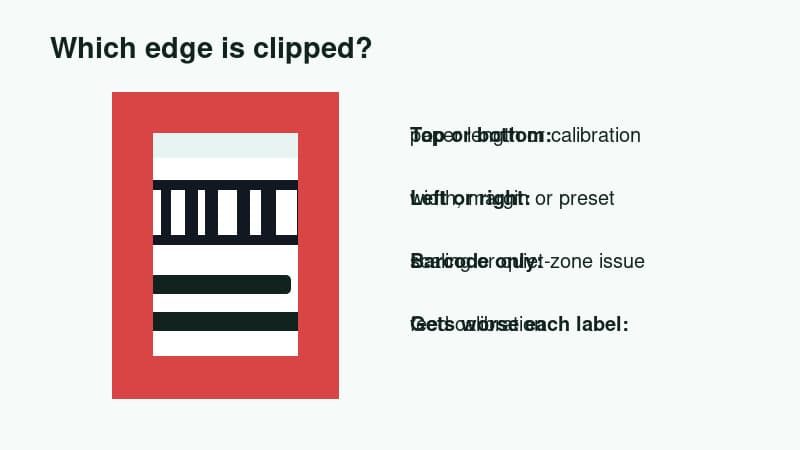
If the top or bottom is missing, the printer may think the label length is shorter than it really is. Check the paper height, feed direction and calibration.
If the left or right side is missing, the width may be wrong, the PDF may be shifted, or the printer may be using a saved preset from a different label roll.
If only the barcode is clipped, the label content might be too close to the edge after scaling. Do not enlarge the label blindly. First confirm the PDF is already a proper 4x6 page and that margins are not being added.
If each label drifts further down the roll, that is usually calibration or gap detection. The first label may look close, then the third or fourth label gets cut off because the printer has lost the label boundary.
Check the PDF page size before the printer
Before you blame the hardware, inspect the PDF itself.
A true 4x6 shipping-label PDF should already be one label per page. The address, barcode and service information should fill the page in the same rough shape as your thermal stock.
An A4 or Letter PDF is different. The label may sit in the top-left corner, in the centre of a full sheet, or as one of several labels on the page. That can be fine for an office printer, but it is not ready for direct 4x6 thermal printing unless the print flow supports that layout.
Some carriers, marketplaces and shipping tools let you choose 4x6, A6 or one-label-per-page output. Others may still produce awkward PDFs depending on the service, account setting, browser flow, international label, old download or marketplace export.
UK Click & Drop sellers have an extra naming wrinkle: Royal Mail often says 6x4 while printer drivers and label listings may say 4x6 or 102x152mm. The Royal Mail label printer setup guide walks through that specific 6x4 workflow.
The practical question is simple: does the PDF page match the physical label stock? If not, fix the PDF first.
Set the printer paper size to 4x6 or 100x150mm
For most ecommerce thermal printers, the target size is 4x6 inches or 100x150mm. Use the wording that matches your label roll and driver. The broader 4x6 shipping labels print settings guide covers the baseline paper size, scale and PDF setup if you want to reset the whole workflow.
On Windows, open the printer preferences and confirm the custom paper size. Some drivers need the size created in Print server properties before it appears in the final app print dialog.
On macOS, check both Page Setup and the print dialog. A saved preset can be overwritten by Chrome, Preview, Acrobat or the marketplace download screen.
Use this baseline while troubleshooting.
| Setting | Choose first | Avoid until fixed | |---|---|---| | Paper size | 4x6 inches or 100x150mm | A4, Letter, A6, 100x100mm | | Scale | Actual size or 100 percent | Fit to page as a permanent fix | | Margins | None or minimum | Browser default margins | | Orientation | The preview that fills the label correctly | Blind portrait or landscape guesses | | Output | One PDF page to one physical label | Full office-paper sheets on one label |
If the driver offers 101x152mm instead of 100x150mm, test one label and inspect the edges. Small differences are usually workable, but they can matter if the carrier barcode sits close to the border.
Remove margins, headers and fit-to-page surprises
A shipping label should not have a browser URL, page title, date or page number printed on it. Those extras are a sign the browser is treating the label like a normal web page.
If printing from a browser, turn off headers and footers. Set margins to none or minimum. Then check the preview again.
For a PDF that is already 4x6, actual size or 100 percent scale is the safest default. Fit to page can shrink a correct label because the driver reports a tiny non-printable area. It can also expand or reposition a label in ways that look fine on screen but clip at the edge. If you want to compare those outcomes before printing again, use the shipping label print scale calculator with your PDF page size, printer stock and current scale setting.
If a true 4x6 PDF is cut off at actual size, compare the same file in another viewer. Acrobat, Preview, Chrome and Edge can expose different scaling options. The goal is not to find a favourite app. The goal is to prove whether the file or the print dialog is causing the clipping.
Protect the barcode quiet zone
A barcode can fail even when most of the label looks readable. The blank space around the barcode, often called the quiet zone, helps scanners find the start and end of the code. If the label is shifted or enlarged so the bars sit against the edge, the carrier scanner may reject it.
Check this before reprinting a live parcel label.
- The barcode is fully visible on all sides.
- There is white space around the barcode, not a border, app header or cut edge.
- The tracking number below the barcode is not clipped.
- A QR code or 2D code is square and complete.
- The return address, service mark and routing text sit inside the label, not on the tear line.
If the barcode quiet zone is gone, do not solve it by making the print darker. Darkness helps faint bars. It does not restore missing white space.
Fix orientation and feed-direction problems
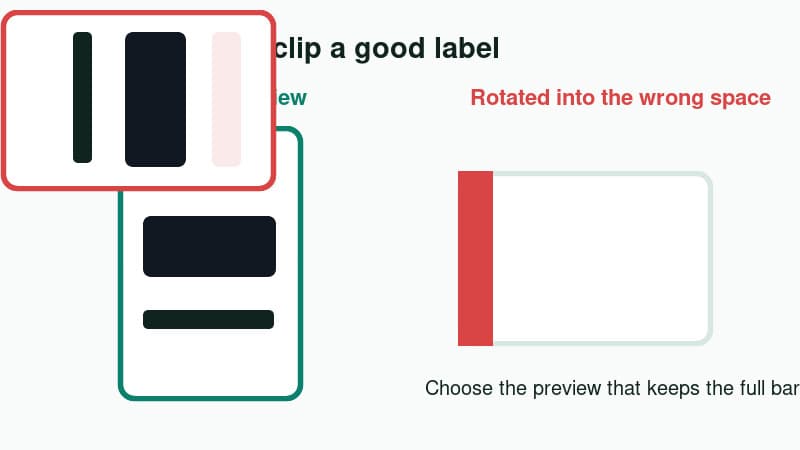
A 4x6 shipping label is usually four inches wide and six inches long. Some drivers describe the same stock as 6x4 depending on feed direction.
That wording can cause sideways prints and clipped edges. If the preview shows the label rotated into a short, wide space, swap orientation and test one label.
Do not choose portrait or landscape by name alone. Choose the option where the whole label, including barcode quiet zones, fits inside the preview without touching the edge.
If you use roll labels, also confirm the roll is loaded squarely and the guides are snug without bending the stock. A physical skew can make one side look cut off even when the digital setup is correct.
Calibrate the thermal printer after size changes
Calibration tells the printer where one label ends and the next starts. It matters most after changing rolls, switching label sizes or moving the printer.
Run the feed or calibration process for your printer brand. The exact button sequence differs between Dymo, Zebra, Brother, Rollo and MUNBYN models, so use the brand manual if you are unsure.
Poor calibration usually shows up as drift. The first label might be close, the second label slightly lower, then the third label loses the barcode or address line.
Calibration will not turn an A4 PDF into a 4x6 label. It only fixes the physical feed boundary. If the preview is already cut off before you print, go back to PDF size, scale and margins first.
Check platform settings, media type and updates
Carrier and marketplace settings can cause clipping even when the printer is fine.
Check the label format inside the platform before reinstalling the driver. Shipping tools can have their own label size setting, and it needs to match the workstation printer preference. For thermal printers, look for 4x6, 6x4, 100x150mm, 102x152mm or a named thermal label option. For office printers, use A4 or Letter instead.
Australia Post is a good example. Domestic MyPost Business labels can use A6 for many thermal-printer workflows, and MyPost Business includes sample label and margin-position checks. International paperwork can still behave differently. From 12 February 2026, Australia Post made A6 CN23 labels available to Contract business customers through Parcel Send, eParcel and API, but that does not mean every international label a seller downloads will be thermal ready.
If only part of each label prints, check media type before blaming the PDF. Pitney Bowes documents cut-off JZ20 labels as a paper-size and media setting issue: width 4 inches, height 6 inches, then the correct roll type. Pirate Ship's support flow points to feed, sensor, roll loading and calibration when labels stop mid-print. UPS tells sellers to check stock dimensions first, then label loading, jams, gap sensors and printhead cleaning.
Updates can reset boring settings. After a browser, shipping platform or driver update, re-select the printer, paper size, scale, orientation, margins, DPI and media type before sending a batch.
Run a neutral test before blaming the carrier
A neutral 4x6 test label tells you whether the printer can print to the edge it needs without using paid postage.
Use the thermal printer test label PDF or the sample 4x6 shipping label PDF guide. Print the test file at 100 percent with the same 4x6 or 100x150mm preset.
If the test file is also cut off, fix the printer setup: paper size, margins, orientation, roll loading and calibration. If the test file prints cleanly but the carrier label is clipped, the real PDF is the problem. Check whether it is A4, Letter, A6, 4x6, 6x4 or a multi-label sheet before changing the printer again.
This mirrors a common pattern in seller forums: people replace rolls, reinstall drivers and change darkness when the actual issue is a downloaded PDF that does not match the thermal label stock.
When to crop or convert the PDF first
If your PDF is A4, Letter or another large page, convert it before printing on a thermal printer.
For a one-off label, use the free A4 to 4x6 shipping label converter. It is built for the common case where the actual label is trapped inside a bigger PDF page.
For a recurring workflow, the manual crop step becomes the bottleneck. Opening a PDF, cropping, checking scale and printing one test label is fine once. Doing it every day while packing orders is the kind of tiny admin task that eats afternoons.
LabelChop is built for those recurring awkward-PDF workflows. It watches your Downloads folder, detects compatible shipping-label PDFs, crops or resizes them to 4x6 / 100x150mm, then prints or saves the result automatically. If you are comparing manual fixes with automation, the LabelChop FAQ explains what the app does and does not officially integrate with.
It can help with PDF workflows from carriers and marketplaces like USPS, Royal Mail, Australia Post, eBay, Shopify and Etsy. That does not mean LabelChop is an official integration with those services. It means it helps when the PDF you already downloaded needs clean thermal-printer output.
If the label is not cut off but is printing tiny, go back to PDF page size and print scale before changing hardware. If you want to remove carrier layout from the test, print the free thermal printer test label PDF, then use the 4x6 label test print troubleshooting checklist to decide whether the next problem is scale, margins, orientation, barcode quality or blank output.
Related articles and tools
Use these next if the cut-off check points to another symptom.
- Shipping label too big troubleshooting, when the preview is enlarged, the barcode runs off the side or one PDF spans two labels.
- 4x6 shipping labels print settings, for the baseline paper size, 100 percent scale and PDF setup.
- Blurry shipping label barcode troubleshooting, when the barcode is complete but faint, fuzzy or stretched.
- 4x6 label test print troubleshooting, for testing the printer with a neutral PDF before reprinting paid postage.
- Shipping label printing problems and fixes, when you need to separate clipping from tiny, blank, sideways or blurry labels.
- Cut-off shipping label diagnostic, for a guided check across PDF size, margins, orientation and calibration.
Final test before printing a batch
Before you print twenty labels, print one and inspect it like a warehouse operator. If you want a structured pass before using the print on a live parcel, run the carrier requirements label checker after you confirm the PDF size and scale.
The barcode should be complete, sharp and surrounded by clear white space. The address should be readable. The service name, tracking number, return address and any QR code should be fully inside the label.
Run this final pass.
- PDF page size matches the label stock, or has been converted to 4x6.
- Printer paper size is 4x6 inches or 100x150mm.
- Scale is actual size or 100 percent for a true 4x6 PDF.
- Browser headers, footers and extra margins are off.
- Orientation fills the label without clipping the barcode.
- Calibration feeds one physical label at a time.
- One test print is centred and complete before the batch starts.
A cut-off shipping label is frustrating because it feels random. It is rarely random. Once the PDF, driver, scale, margins and calibration line up, the printer usually becomes boring again. That is exactly what you want during fulfilment.