

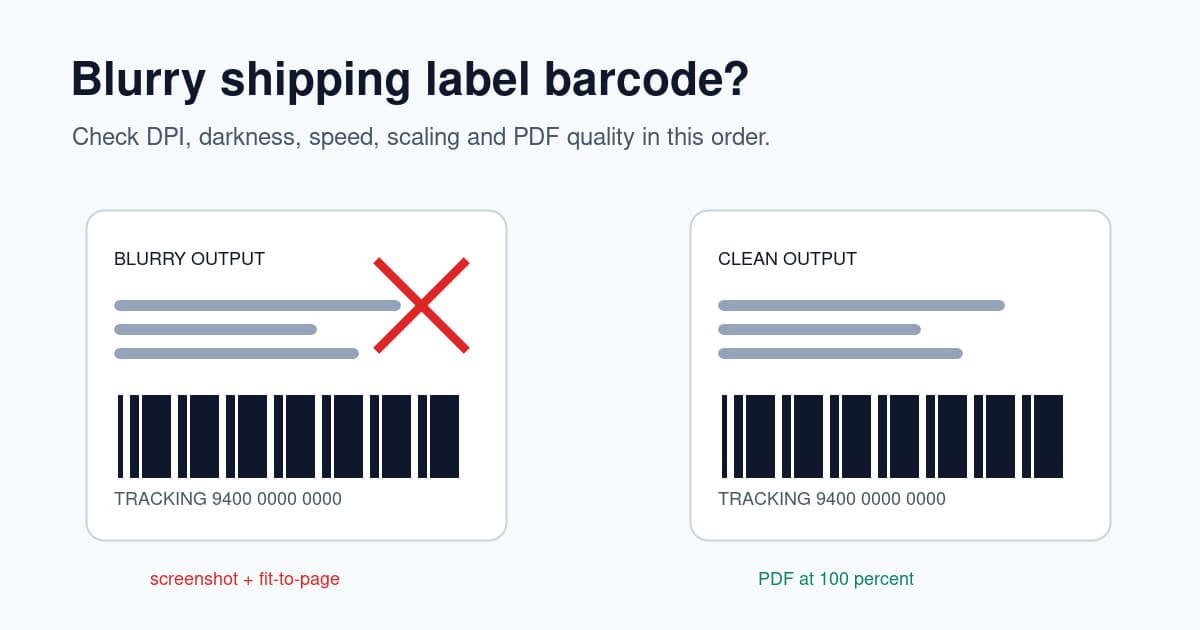
A blurry shipping label barcode is one of those problems that looks small until a parcel gets delayed. The address may still be readable, but the barcode is what scanners care about. If the bars are soft, stretched, too dark, too pale or clipped, the label is not doing its job.
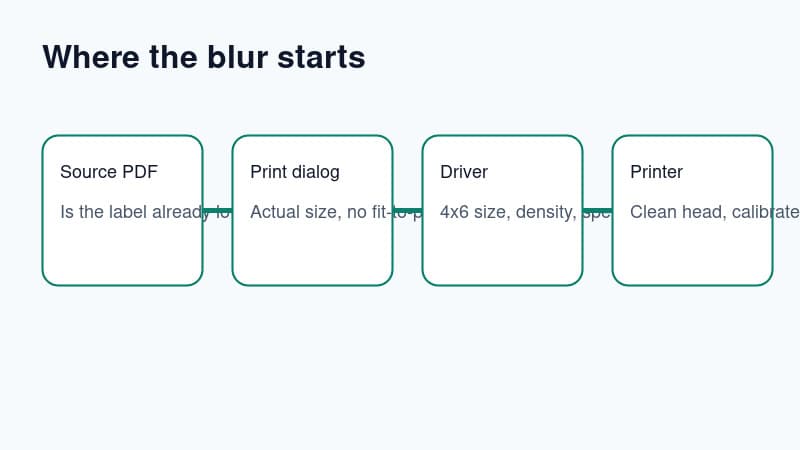
The good news is that you do not need to guess. Blurry barcodes usually come from one layer in the workflow: the source PDF, the print dialog, the printer driver, the label stock or the print head. Fix those in order and you can stop wasting 4x6 labels.
If you want a quick diagnosis before reading the full guide, use the free blurry shipping label barcode checker. It asks about the source file, scale setting, barcode symptom and test-label result, then points you at the most likely fix.
This guide is for ecommerce sellers using thermal printers with USPS, Royal Mail, Australia Post, eBay, Shopify, Etsy and similar shipping-label PDFs. If your label is tiny rather than blurry, start with the shipping label printing too small guide. If the barcode is missing at the edge, use the shipping label cut-off guide. If the printer feeds blank labels, use the blank thermal label checklist.
In this article:
- Fast fix checklist
- Work out whether the blur comes from the PDF or the printer
- Print at actual size, not fit to page
- Stop screenshotting and resizing shipping labels
- Set the right 4x6 or 100x150mm paper size
- Tune darkness, density and print speed
- Clean the print head and check label stock
- Know what 203 DPI can and cannot do
- Where LabelChop fits
- Final barcode test before sending orders
Fast fix checklist
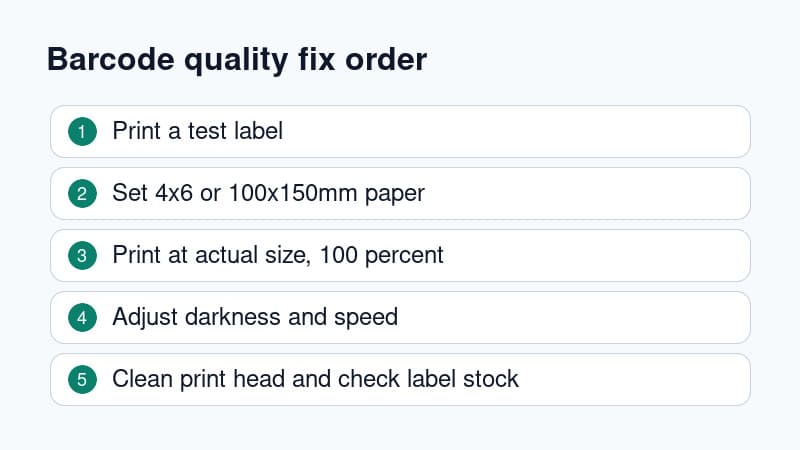
If orders need to leave today, run this list before changing every setting in sight.
- Print one printer test label or simple 4x6 PDF, not the live carrier label.
- Confirm the paper size is 4x6 inches or 100x150mm in the printer driver.
- In the print dialog, choose actual size or 100 percent.
- Turn off fit to page, shrink to printable area and any browser scaling presets.
- Avoid screenshotting the label, pasting it into Word or Canva, then resizing it.
- Increase darkness only if the print is pale.
- Reduce darkness or slow print speed if the barcode bars are bleeding together.
- Clean the print head if every label has faded lines or uneven patches.
- Check that the label stock is direct thermal and not old, heat damaged or poor quality.
- Print one real label and scan the barcode before printing a batch.
Do not use a live order label as your test file unless you have no choice. Use a void sample, a carrier test label, or the free thermal printer test label PDF so you can change settings without burning customer labels.
Work out whether the blur comes from the PDF or the printer
Start by separating the file from the hardware.
Print a simple test label that was created as a clean 4x6 page. If that test label is sharp, your printer can produce a good barcode. The problem is probably the carrier PDF, the browser preview, the app you used to resize the label, or the scale settings in the final print dialog.
If the test label is blurry too, the problem is lower in the stack. Check the driver, darkness, print speed, label stock and print head before blaming USPS, Royal Mail, Australia Post or your marketplace export.
Use this split.
| Test result | Likely cause | What to check next | |---|---|---| | Test label is sharp, carrier PDF is blurry | PDF scaling, browser print flow or screenshot workflow | Print the original PDF at 100 percent | | Every label is faint | Darkness, speed, old labels or dirty print head | Increase darkness slowly and clean the head | | Barcode bars are too thick | Darkness too high or speed too slow for the stock | Lower density one step | | Barcode looks stretched | Wrong paper size or fit-to-page scaling | Set 4x6 or 100x150mm and actual size | | One side is sharp, one side is faded | Print head pressure, dirt or uneven label feed | Clean and recalibrate |
This matters because a barcode can look blurry for opposite reasons. A pale barcode needs more heat. A barcode where the bars merge may need less heat. A screenshot that has been enlarged needs a cleaner source file, not more printer darkness.
Print at actual size, not fit to page
Fit-to-page is useful for office documents. It is risky for shipping labels.
A 4x6 label PDF is already designed for a 4x6 page. When the print dialog shrinks it to a printable area, stretches it to fill another page, or rotates it while scaling, the barcode can lose its clean black and white edges. Even a small scale change can soften the barcode if the PDF is rendered to an image before printing.
In Chrome, Acrobat, Preview or your system print dialog, look for settings like actual size, 100 percent, scale 100, no margins, borderless, or none. The wording changes by app and printer driver. The goal is simple: the PDF page should map directly to the thermal label stock.
If you are printing from a browser-based shipping tool, download the PDF first and open it in a real PDF viewer. Browser print previews can remember old scaling choices from a previous A4 document. That is how a good label becomes a fuzzy, slightly shrunk barcode.
For a broader page-size walkthrough, the 4x6 shipping labels print settings guide covers inches, millimetres, driver presets and PDF checks.
If your blurry barcode is happening on a Rollo printer after a driver or label-roll change, the Rollo 4x6 setup guide gives a printer-specific path through paper size, calibration and 100 percent scaling.
Stop screenshotting and resizing shipping labels
Screenshot workflows are common because they feel quick. They are also a common reason barcodes blur.
The usual workaround looks like this: open the label, screenshot the barcode area, paste it into another app, drag the corners until it looks about right, then print. That can turn a vector PDF barcode into a low-resolution image. When you resize it again for 4x6 output, the sharp barcode edges become grey pixels.
Scanners like contrast. They need crisp transitions between black bars and white spaces. A resized screenshot often makes those transitions soft. It may look acceptable from arm's length, but the scanner sees mush.
Use the original PDF wherever possible. If the source file is A4, Letter, A6 or another awkward size, crop or convert the PDF without screenshotting it. For one-off files, the free A4 to 4x6 shipping label converter is safer than copying the label into a design app. For repeat workflows, use automation that keeps the PDF cleaner.
For the safer PDF-based version of that workaround, follow the shipping label PDF crop workflow before you resize a barcode image by hand.
Set the right 4x6 or 100x150mm paper size
A barcode can blur or stretch when the driver thinks the paper is a different size from the loaded labels.
For standard shipping labels, set the driver to 4x6 inches or 100x150mm. Those are close enough for most ecommerce workflows, although exact options vary by printer and region. Some drivers show 101x152mm, 102x152mm or 6x4. Pick the closest native shipping-label preset, then print one test label and inspect the barcode.
Avoid choosing A6 just because it sounds similar. A6 is about 105x148mm, while 4x6 inches is about 101.6x152.4mm. That difference can stretch the output, clip quiet zones or make the print look slightly wrong over a batch.
If you use Royal Mail, USPS, Australia Post, eBay, Shopify or Etsy, check the label PDF size before printing. A label that is already 4x6 should print directly. A label sitting on an A4 or Letter page needs a crop or conversion step before it is sent to the thermal printer.
If you are not sure what size your PDF is, use the shipping label size checker before changing printer settings.
Tune darkness, density and print speed
Thermal printers do not use ink. They use heat. Darkness and speed control how much heat reaches the label surface.
If the barcode is pale or grey, increase darkness or density one step at a time. Print a test after each change. Do not jump from low to maximum because too much darkness can make bars too thick.
If the barcode bars bleed together, reduce darkness slightly or increase speed if your driver gives that option. Thick bars can be just as bad as faint bars because the scanner loses the white gaps between them.
If the barcode has broken lines, try slowing the print speed. Slower printing can help the label coating react more evenly. It is useful with cheaper direct thermal labels, older stock, or a printer that has been running hot through a batch.
Save the preset once the barcode is sharp. A lot of seller pain comes from fixing the same thing twice because the browser, PDF viewer or driver did not remember the working setup.
Clean the print head and check label stock
If every label has the same faded stripe, missing vertical line or uneven patch, clean the printer.
Turn the printer off and follow the manufacturer's cleaning method for the print head. Usually that means a lint-free cloth or approved cleaning pen, not scraping with a blade or soaking the printer. Dust, adhesive and label coating build-up can create weak spots that run through the barcode.
Check the label roll too. Direct thermal labels can degrade from heat, sunlight, humidity and age. A roll that sat near a window, heater or packing bench for months may print worse than a fresh roll. Poor label stock can also need different darkness and speed settings.
Make sure the labels are direct thermal if your printer is direct thermal. Thermal transfer stock, plain paper or incompatible rolls can create faint or blank output. If your problem is fully blank labels rather than blurry labels, go back to the thermal printer blank labels troubleshooting guide.
Know what 203 DPI can and cannot do
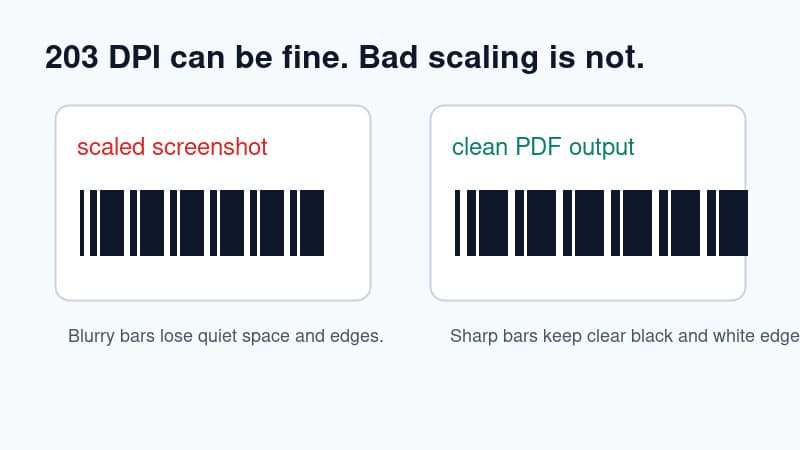
A lot of 4x6 thermal shipping-label printers are 203 DPI. That is normal. You do not automatically need a 300 DPI printer to print scannable shipping labels.
203 DPI can produce sharp carrier barcodes when the label PDF is clean, the page size is correct, scaling is set to 100 percent, the printer is calibrated and the darkness is tuned. Many shipping workflows are designed around this class of printer.
300 DPI can help with smaller text, dense graphics and some label layouts, but it will not fix a bad workflow. A 300 DPI printer can still print a blurry barcode if you feed it a screenshot, scale the page twice, use the wrong paper size or print through a dirty head.
Think of DPI as one part of the chain. Source PDF quality and print scaling matter just as much.
Where LabelChop fits
LabelChop is not a magic fix for a dirty print head, bad label roll or broken printer driver.
It helps with the workflow that often creates blurry labels in the first place: awkward shipping-label PDFs that sellers screenshot, crop by hand or resize in another app before printing. LabelChop watches a folder, detects compatible shipping-label PDFs, crops and resizes them for 4x6 or 100x150mm thermal output, then prints or saves them without the screenshot-and-resize loop.
That can help with PDFs from workflows such as USPS, Royal Mail, Australia Post, eBay, Shopify, Etsy and other carriers or marketplaces when the PDF format is compatible. It is not an official integration with those platforms. It is a PDF workflow fixer for sellers who already have label files and want cleaner, repeatable output.
If you are debugging one label today, start with the free converter and size checker. The A4 to 4x6 converter PDF workflow guide shows how to keep the crop PDF-based instead of screenshot-based. If the same PDF pain keeps coming back every shipping day, the LabelChop pricing page shows the desktop automation option after the free tools.
Final barcode test before sending orders
Before printing a batch, print one final label and inspect it like a scanner would.
The barcode should be dark but not bloated. The white spaces between bars should be clean. The barcode should have quiet space around it, not text or borders pressed against the edge. The address should be readable, and the label should not be stretched, rotated or clipped.
If you can, scan the barcode with a phone camera or the carrier app you normally use. That is not a perfect carrier acceptance test, but it is better than guessing from the packing bench.
Once the test passes, print the batch without changing the printer preset. Blurry barcodes usually come from one bad setting, not from printer mystery. Fix the source PDF first, print at 100 percent, tune heat carefully, then keep the working setup stable.