

A shipping label printing too big is usually a scale problem hiding in the print path. The PDF, the printer driver and the final print dialog are not agreeing on what one 4x6 label means.
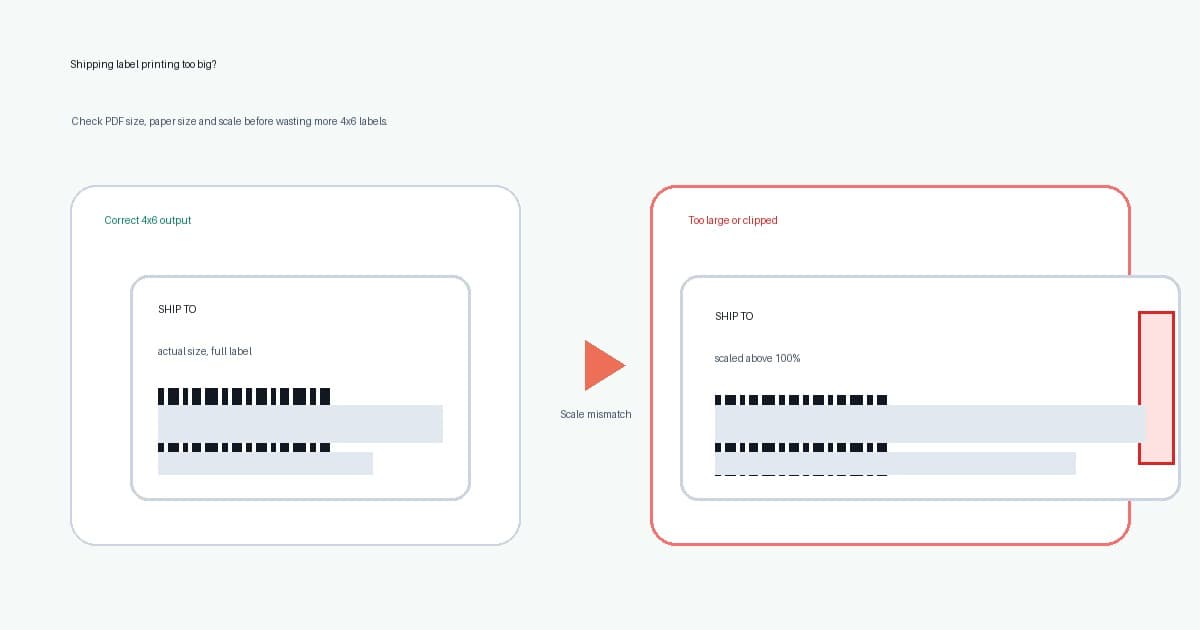
The result can look dramatic. The barcode runs off the side, the address is cropped, the label spreads across two physical labels, or the top half prints while the bottom half disappears. The printer is not necessarily broken. It may be printing exactly what an oversized preview told it to print.
Use this guide to reset the workflow without changing every setting at once. If your label is small instead of oversized, start with the shipping label printing too small guide. If you need to decide whether a smaller label is still safe to mail, use the smaller than 4x6 label guide. If the label is the right size but one edge is missing, use the shipping label cut-off checklist.
In this article:
- Fast oversized label checklist
- Why shipping labels print too big
- Check the PDF page before changing the printer
- Reset the 4x6 or 100x150mm paper size
- Use actual size or 100 percent scale first
- Check app and printer presets
- Check platform label format, DPI and updates
- Fix labels spread across two physical labels
- Fix A4 or Letter PDFs that expand badly
- Check margins, orientation and calibration
- Use a brand-specific reset when size still fails
- When to automate the PDF crop and print step
- Related articles and tools
- Final test before printing a batch
Fast oversized label checklist
If orders are waiting, run this in order.
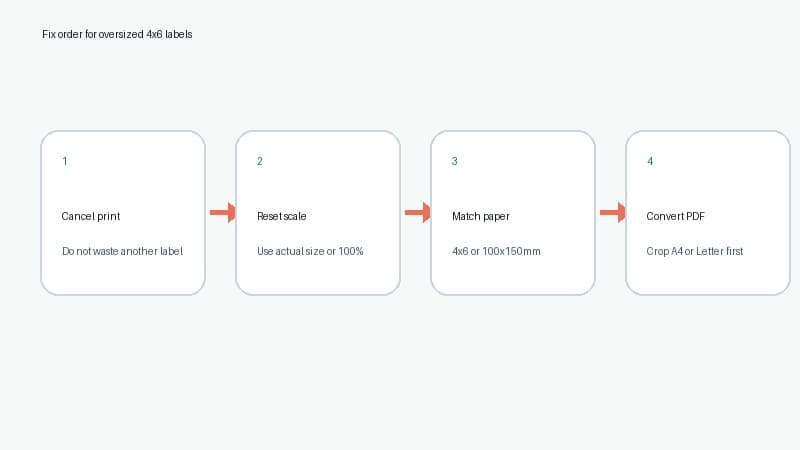
- Cancel the print job if the preview already shows the label touching the edge.
- Open the PDF and identify whether it is A4, Letter, A6, 4x6 or 100x150mm.
- Check the carrier, marketplace or shipping app label format before changing the printer.
- Set the printer driver paper size to match the physical label stock.
- For a true 4x6 PDF, print at actual size or 100 percent.
- Turn off custom scale values above 100 percent.
- Treat fit to page as a diagnosis, not the final saved preset.
- If the source PDF is A4 or Letter, crop or convert the label area before printing.
- Recheck the preset after browser, driver or shipping-app updates.
- Only check DPI after the paper size and scale are correct.
- Print one test label before sending a batch to the printer.
Do not begin by changing darkness, speed or label brand. Those settings matter for barcode quality, but they do not fix a label that is too large for the selected paper size.
Why shipping labels print too big
A thermal printer receives a page and a paper size. If those two values do not match, the PDF viewer or driver decides how to scale the job.
That decision is where oversized labels come from.
A correct 4x6 PDF can become too large if the print dialog uses a custom scale like 110 percent or 125 percent. It can also clip if the driver is set to a smaller custom label, such as A6, 100x100mm or a short saved preset.
An A4 or Letter PDF can create the opposite problem. If the viewer tries to enlarge only the label area, it may push the barcode past the thermal label edge. If it tries to fit the full office-paper page, it may make the label tiny instead. That is why the PDF page size comes before printer tweaks.
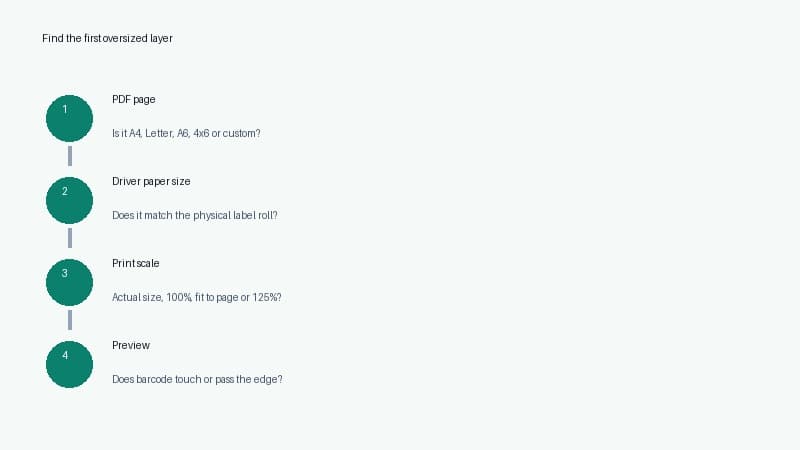
Think of the print job as four layers.
| Layer | What it controls | Oversized symptom | |---|---|---| | PDF page size | The digital page you downloaded | A4 or Letter workflow does not map cleanly to 4x6 | | Printer paper size | The physical label selected in the driver | A wrong custom size clips a normal label | | Print scale | The resize rule in the final dialog | 110 percent or 125 percent pushes content off the edge | | Margins and orientation | Printable area and feed direction | Barcode, QR code or address block shifts out of view |
Find the first wrong layer and fix that one. Changing all four at once makes the next failed print harder to diagnose.
Check the PDF page before changing the printer
Open the shipping label PDF and ask one question: does the PDF page already match your label stock?
A true 4x6 PDF usually fills the page. The barcode, address and service details are laid out for one thermal label. If that file prints too big, the issue is probably the driver paper size, scale, margins or orientation.
An A4 or Letter label PDF is different. The shipping label may sit in the corner, centre or half of a larger office-paper page. That file often needs cropping or conversion before it reaches a 4 inch thermal printer.
Some carriers, marketplaces and shipping tools can output 4x6 or A6 directly. Others may produce A4, Letter or custom PDFs depending on the account setting, browser flow, international service or marketplace export path. Do not assume the carrier is the issue. Inspect the file you actually downloaded.
If you are unsure, use the shipping label size checker or the carrier format label tool before you keep printing test labels.
Reset the 4x6 or 100x150mm paper size
For most ecommerce thermal printers, the target is 4x6 inches or 100x150mm. The exact wording depends on the printer driver and the label roll you bought.
On Windows, open printer preferences for the thermal printer and check the custom paper size. If a saved preset has the width and height swapped, the label may print sideways, too large or clipped. Some drivers also need the custom size created in Print server properties before it appears in the app print dialog.
On macOS, check both Page Setup and the final print dialog. A saved preset can be overridden by Preview, Acrobat, Chrome, Edge or the carrier download screen.
Use this baseline while troubleshooting.
| Setting | Choose first | Avoid until fixed | |---|---|---| | Paper size | 4x6 inches or 100x150mm | A4, Letter, A6, 100x100mm | | Scale | Actual size or 100 percent | 110 percent, 125 percent or saved custom scale | | Margins | None or minimum | Browser default margins and headers | | Orientation | The preview that fills one label | Blind portrait or landscape guesses | | Output | One PDF page to one physical label | A large page spread across multiple labels |
If the driver offers 101x152mm instead of 100x150mm, test one label and inspect the barcode edge. Small differences usually work, but they can matter when the carrier label already sits close to the border.
Use actual size or 100 percent scale first
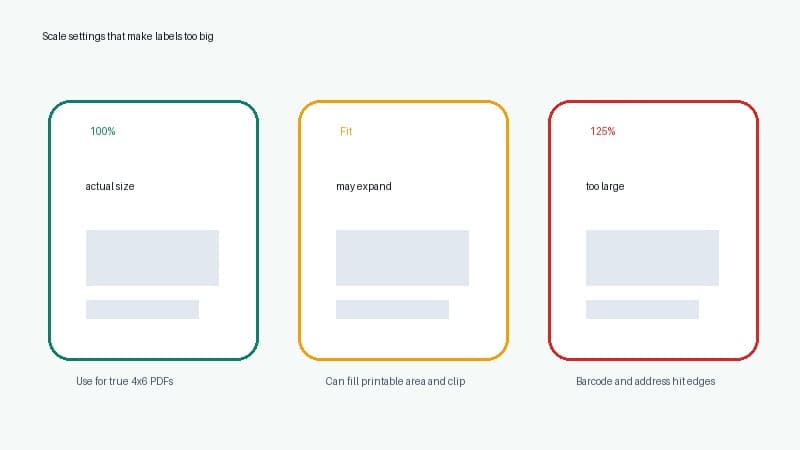
For a PDF that is already 4x6, start with actual size or 100 percent.
A saved custom scale is the most obvious cause of oversized labels. If the dialog says 110 percent, 125 percent or anything above 100 percent, reset it and print one test label.
Fit to page can be confusing. Sometimes it shrinks an oversized job enough to fit. Sometimes it expands the content to fill the printable area, which creates a clipped barcode. Use it to learn what the viewer is doing, but do not save it as your permanent preset until you have compared it against actual size.
The shipping label print scale calculator is useful when you want to compare actual size, fit to page and a custom percentage before wasting another label.
Check app and printer presets
Search results for this problem are full of printer-brand answers, but the missing step is usually simpler: the last app in the chain can override the setting you just fixed.
After choosing the thermal printer, reopen the final print dialog and check the paper size again. Chrome, Edge, Acrobat, Preview, ShipStation, eBay, Shopify and carrier download screens can each expose their own scale or paper-size controls. A clean driver preset can still print oversized if the browser kept a 125 percent scale from an old job.
Use this order when the preview and the printed label disagree.
- Select the thermal printer first.
- Re-select 4x6, 6x4 or 100x150mm after the printer changes.
- Re-select actual size or 100 percent.
- Remove saved custom scale values above 100 percent.
- Save the preset only after one physical label prints correctly.
If the label preview touches the edge before you print, stop there. The printed result will usually be worse than the preview, not better.
Check platform label format, DPI and updates
Some printing guides stop at the PDF viewer, but many seller workflows add one more layer: the shipping platform's own label format.
Check the label setting inside the platform before you keep changing printer preferences. ShipStation-style setups usually have a label format and a workstation printer setting. Pirate Ship-style flows ask you to choose the right template for the printer. eBay, Etsy, Shopify, USPS, UPS, FedEx, Royal Mail and Australia Post can also change the file shape depending on the service, account setting or download path.
For Australia Post, domestic MyPost Business labels can be set to A6 for many thermal-printer workflows, and the account also has sample label and margin-position checks. International labels are different. Australia Post's 2026 CN23 update added A6 CN23 printing for Contract business customers through Parcel Send, eParcel and API, but ordinary international MyPost workflows may still leave you with A4 paperwork.
Driver updates can make an old fix look broken again. After a browser, shipping-app or printer-driver update, re-select the thermal printer and confirm the paper size, scale, orientation, margin and DPI. ShipStation's support flow calls out 203 DPI versus 300 DPI for some printers; that matters after the page size is right. DPI will not rescue a Letter or A4 page being enlarged onto a 4x6 label.
If Chrome keeps forgetting the setting, try the system print dialog or Acrobat for one test. Do not switch apps because a forum comment said so. Switch apps to prove whether the browser or the PDF file is changing the scale.
Fix labels spread across two physical labels
If one label prints across two stickers, check the driver paper height and calibration first.
The printer may think the label is longer than the physical stock, or the custom paper size may be set to a full sheet instead of one 4x6 label. Reset the height, save the preset, then run the printer feed or calibration process.
If every label starts lower than the one before it, the printer is losing the label gap. That is usually calibration, sensor or roll-loading behaviour rather than PDF scale.
If the preview itself shows a page taller than one label, cancel before printing. The software is already telling you that the job does not fit one physical label.
Fix A4 or Letter PDFs that expand badly
If your source PDF is A4 or Letter, do not rely on the print dialog to guess the right crop.
For a one-off label, use the free A4 to 4x6 shipping label converter. Convert the label area to a clean 4x6 PDF, then print that converted file at 100 percent.
Avoid the screenshot workaround when possible. A screenshot turns a clean PDF barcode into pixels. If you then enlarge those pixels to fill a thermal label, the barcode can become both oversized and fuzzy. If that has already happened, use the blurry shipping label barcode troubleshooting guide before sending parcels.
If the PDF contains multiple labels on one page, convert the output to one 4x6 page per label. Do not print a whole office-paper sheet directly to one thermal label and hope the driver chooses the correct rectangle.
Check margins, orientation and calibration
Browser margins can make a normal label behave like an oversized page. If you are printing from a browser, turn off headers, footers, page titles, dates and default margins.
Orientation can also make the label look too big. A 4x6 label is often four inches wide and six inches long, but some drivers describe the same stock by feed direction. Choose the orientation where the whole label fits in the preview, not the one with the nicest name.
Calibration comes after digital size checks. Run the printer's feed or calibration process after changing rolls or paper sizes. Calibration will not turn an A4 PDF into a 4x6 file, but it can stop drift after the PDF and scale are correct.
If a clean test label prints correctly but carrier or marketplace PDFs still print too large, the printer hardware is probably not the root problem. The workflow is sending the wrong PDF size or scale.
Use a brand-specific reset when size still fails
Once the PDF size and scale are correct, switch to the printer's own reset path. This is where brand-specific advice helps.
| Printer family | What to recheck | Why it matters | |---|---|---| | Dymo LabelWriter 4XL or 5XL | Label size, roll type and saved paper preset | Old address-label presets can carry into shipping-label jobs. Use the Dymo 4XL USPS setup when the same issue happens on USPS PDFs | | Rollo | Custom 4x6 size, calibration and driver scale | A bad preset can make one PDF span two labels | | Zebra desktop printers | Media size, gap sensing and calibration | The printer may feed correctly but believe the label is a different length. The Zebra USPS setup checklist shows the driver and calibration order | | Brother QL-1100 or QL-1110NWB | 4 inch roll choice, auto cut and app paper size | The Brother app and the system print dialog can disagree | | MUNBYN and similar printers | 100x150mm preset, darkness after size is fixed and calibration | Darkness changes do not fix size, but calibration helps after the size is correct. Start with the MUNBYN USPS setup checklist for paper-size and scale checks |
Do not reinstall the driver as the first move. Reinstalling can help if the paper-size options are missing or corrupted, but it also resets working preferences. Capture the current good settings first if the printer still works for other labels.
When to automate the PDF crop and print step
If this happened once, a free converter and a saved print preset may be enough.
If it happens every day, the cost is the repeated workflow. Opening PDFs, checking page size, cropping the label, resetting scale and printing one test label is fine once. Doing it for every batch is slow packing-room admin.
LabelChop is built for recurring awkward-PDF workflows. It watches your Downloads folder, detects compatible shipping-label PDFs, crops or resizes them to 4x6 / 100x150mm, then prints or saves the output automatically.
It can help with PDF workflows from carriers and marketplaces like USPS, Royal Mail, Australia Post, eBay, Shopify and Etsy. That does not mean LabelChop is an official integration with those services. It means it helps when the PDF you already downloaded needs clean thermal-printer output.
For the broader setup baseline, read the 4x6 shipping labels print settings guide. For recurring batches, compare whether the LabelChop pricing makes more sense than repeating the crop and print steps by hand.
Related articles and tools
Use these next if the oversized-label fix points to a different problem.
- Shipping label cut-off troubleshooting, when the label is the right size but one edge, barcode or QR code is missing.
- 4x6 label test print troubleshooting, for separating printer setup problems from real carrier PDF problems.
- Sample 4x6 shipping label PDF guide, for testing scale without reprinting paid postage.
- How to crop a shipping label PDF to 4x6, when the source file is A4, Letter or a multi-label sheet.
- Batch print shipping labels on a thermal printer, for catching scale mistakes before a queue ruins a stack of labels.
- Shipping label print scale calculator, for checking whether the current scale will enlarge the file past the label edge.
Final test before printing a batch
Before printing twenty paid labels, print one and inspect it like an operator.
The address should be readable. The barcode should be complete and sharp. The service name, QR code, tracking number and return details should sit inside the label, not on the edge.
Run this final pass.
- PDF page size is 4x6 or has been converted to 4x6.
- Printer paper size matches the physical label stock.
- Scale is actual size or 100 percent for a true 4x6 PDF.
- No custom scale above 100 percent is saved.
- Fit to page has been tested, not blindly trusted.
- Browser headers, footers and default margins are off.
- Orientation fills the label without clipping.
- Calibration feeds one physical label at a time.
- One test print is full size, centred and not clipped.
Oversized labels feel random because several settings can cause the same symptom. Work through the chain in order: PDF size, paper size, scale, margins, orientation, calibration. Once those agree, the thermal printer usually goes back to being boring, which is exactly what you want during fulfilment.