

4x6 shipping labels should be the easy part of packing orders. The label is already the standard size for many thermal printers, so in theory you choose the printer, hit print and move on.
In practice, sellers lose time to tiny labels, cut-off barcodes, sideways prints and PDF viewers that quietly change the scale. The fix is not a magic printer brand. It is making the physical label, the PDF page size and the print dialog all agree.
This guide gives you the exact 4x6 shipping label setup to check before you waste another roll of labels. If you are already troubleshooting a failed print, the related guides on shipping labels printing too small, shipping labels printing too big, shipping labels printing sideways, shipping labels getting cut off and blurry barcode print quality cover those symptoms in more detail.
In this article:
- The quick 4x6 setup checklist
- 4x6 label size in inches and millimetres
- Check the PDF before changing printer settings
- Set the thermal printer paper size
- Print at 100 percent scale
- Fix common 4x6 label problems
- When A4 or Letter PDFs need conversion
- Final 4x6 print settings checklist
The quick 4x6 setup checklist
Start with this if you are mid-pack and just need the settings.
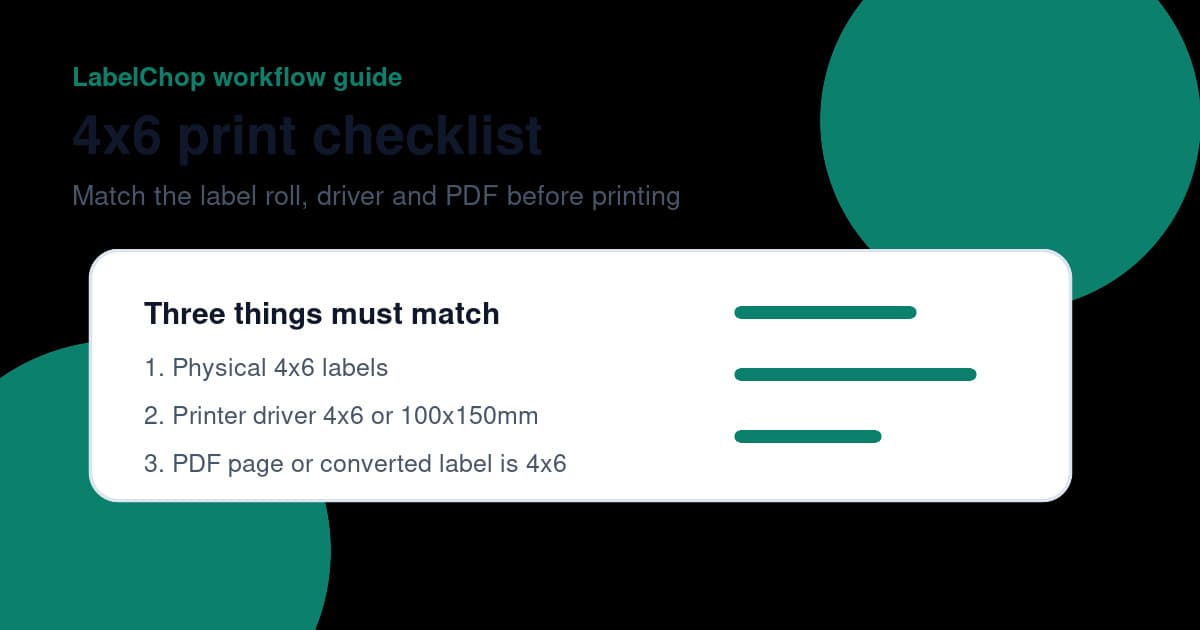
- Load 4x6 inch or 100x150mm direct thermal labels into the printer.
- Calibrate the printer so it detects each label gap correctly.
- Set the printer driver paper size to 4x6 inches or 100x150mm.
- Open the shipping label PDF and check whether the PDF page is already 4x6.
- If the PDF is already 4x6, print at actual size or 100 percent.
- If the label is sitting inside A4 or Letter, crop or convert the label first.
- Turn off fit to page, shrink oversized pages, browser margins and headers.
- Print one test label, then save the working preset.
That checklist works across common 4 inch thermal printers like Dymo LabelWriter 4XL and 5XL, Zebra desktop printers, Brother QL-1100 and QL-1110NWB, MUNBYN, Rollo and similar shipping label printers. If you are using a Dymo 4XL for USPS, the Dymo 4XL USPS 4x6 setup guide covers the model-specific paper-size and driver checks. If you run a Zebra ZD421, ZD220 or GK420d, the Zebra USPS 4x6 setup checklist covers calibration, gap sensing and Letter-PDF traps for USPS labels. MUNBYN users can use the MUNBYN USPS 4x6 setup checklist for model driver setup, direct thermal stock, USB testing and blank-label fixes. If you are setting up a new fulfilment desk, the small business shipping label printer setup guide walks through the full driver, paper-size, scaling and test-print workflow. USPS sellers who are still choosing a printer can use the best USPS label printer checklist to compare 4x6 support, PDF handling and barcode tests before buying. If your safe test file fails before you even try paid postage, use the 4x6 label test print troubleshooting checklist to read tiny, clipped, sideways, blurry or blank output. USPS sellers weighing parcels at home should also check the USPS scale and label printer setup so the weight, PDF page size and 4x6 print preset line up. If you use a Rollo, the Rollo 4x6 setup checklist goes deeper on that model.
For Royal Mail sellers who are still choosing hardware, the Click & Drop label printer checklist explains which 6x4 printer traits matter before print-scale troubleshooting. If you already own the printer, use the Dymo 4XL Royal Mail setup checklist or the Brother QL-1100 Royal Mail setup guide before changing every PDF setting at once.
If your search has turned into comparing Dymo, Zebra, Brother, Rollo and MUNBYN opinions, use the shipping label printer Reddit discussion checklist to separate hardware choice from PDF workflow problems.
The printer brand matters less than the mismatch. A good printer can still produce a bad label if a Letter PDF gets squeezed onto 4x6 stock.
If you are testing before a live order, the sample 4x6 shipping label PDF guide explains when to use a blank template, a calibration PDF or the real carrier label.
4x6 label size in inches and millimetres
A 4x6 shipping label is 4 inches wide and 6 inches tall. In metric, that is 101.6mm wide and 152.4mm tall.
Many thermal label rolls are sold as 100x150mm. That is very close to 4x6 and is common in Australia, the UK and parts of Europe. In most ecommerce workflows, 100x150mm and 4x6 are treated as the same practical label size. If you are trying to use a smaller sticker or a shrunken print, check whether shipping labels can be smaller than 4x6 before you trust the output.
If you are buying stock in Australia, the 4x6 thermal labels Australia guide explains the difference between 4x6 inch, 100x150mm, 102x152mm and A6 listings. If you are comparing roll labels, fanfold stacks, direct thermal stock and core sizes, use the 4x6 direct thermal shipping labels checklist before ordering a bulk box.
Do not confuse 4x6 with A6. A6 is about 105x148mm, so it is wider and shorter than 4x6. That difference sounds small, but it can push barcode quiet zones too close to the edge or make the printer drift over a batch.
Use this table when your driver offers several similar sizes.
| Label name | Size | Use it when | |---|---:|---| | 4x6 inch | 101.6x152.4mm | Your PDF or carrier setting says 4x6 | | 100x150mm | 100x150mm | Your label roll uses the metric equivalent | | A6 | 105x148mm | Your PDF and label stock are genuinely A6 | | Letter | 8.5x11 inches | You are printing on office paper, not a 4 inch thermal printer | | A4 | 210x297mm | You are printing on office paper, not a 4 inch thermal printer |
If your printer driver lets you create a custom size, make one named something obvious like Shipping label 4x6 or 100x150mm thermal label. That makes it easier to choose the right preset tomorrow when you are rushing orders.
Check the PDF before changing printer settings
Before you change drivers, cables or printer brands, inspect the PDF itself.
Open the label PDF and ask one question: is the whole PDF page the shipping label, or is the shipping label sitting inside a larger sheet?
A good 4x6 thermal-printer PDF fills the page. The address, barcode and carrier information are already laid out for the label. When you print it at 100 percent onto 4x6 stock, the printer does not need to guess.
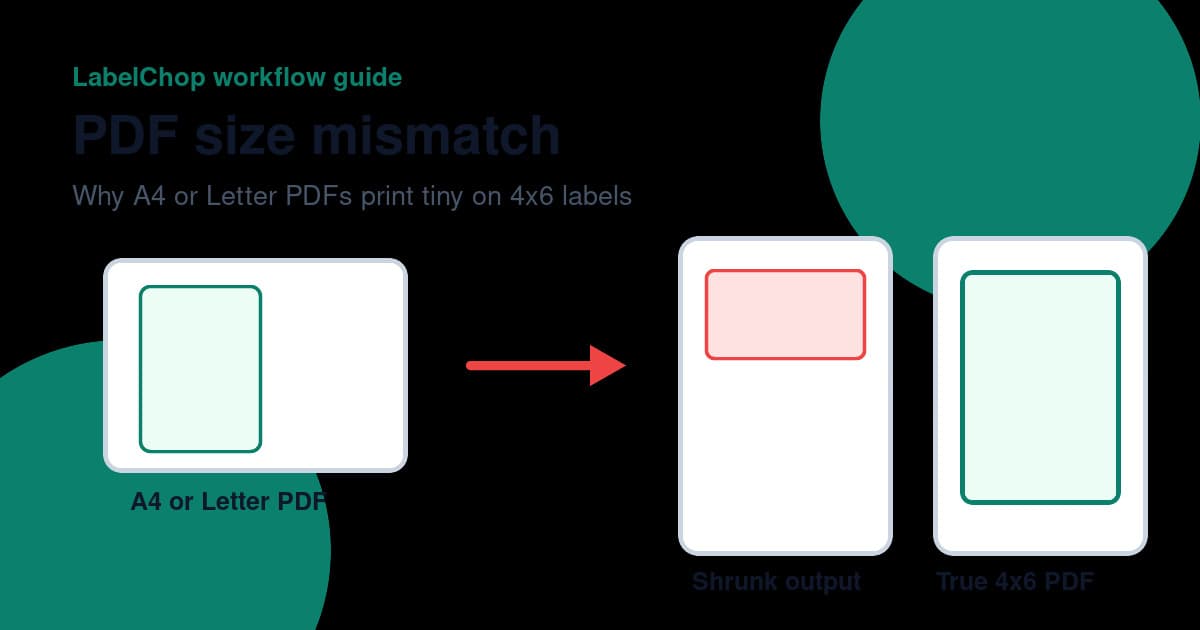
An awkward PDF is different. The label may sit in the top-left corner of A4 or Letter paper, or it may appear as a half-page label on a larger sheet. That PDF might be fine for an office printer, but a thermal printer will often shrink the entire sheet down to 4x6.
That is how sellers end up with tiny labels. The printer did what it was told. It fitted the whole A4 or Letter page onto a small thermal label.
Set the thermal printer paper size
Once the PDF is right, make the driver match the label roll.
On Windows, open printer preferences for the thermal printer and set the paper size to 4x6 inches or 100x150mm. If the size does not exist, create a custom paper size. Some drivers also need the size set in Print server properties before it appears in the app print dialog.
On macOS, check both Page Setup and the final print dialog. A saved printer preset can still be overridden by the PDF viewer, so confirm the size in the last screen before printing.
Use these baseline settings.
| Setting | Choose | Watch for | |---|---|---| | Paper size | 4x6 inches or 100x150mm | A6, A4 or Letter selected by mistake | | Scale | 100 percent or actual size | Fit to page, shrink, scale to printable area | | Orientation | Match the preview | Sideways output or 150x100mm confusion | | Margins | None or minimum | Browser headers, footers and white margins | | Media | Direct thermal labels | Wrong stock type or ribbon settings | | Darkness | Medium first | Too light, too dark or smeared barcodes |
After setting the driver, print a test label before printing a paid carrier label. Use the free thermal printer test label PDF if you want a clean calibration file that is not tied to a real parcel.
Print at 100 percent scale
The safest scale for a true 4x6 PDF is 100 percent.
The risky options are usually named something helpful, such as fit to page, shrink oversized pages, scale to printable area or automatically choose paper size. These settings can resize a label that was already the correct size.
If your PDF is 4x6 and your paper size is 4x6, the print preview should show one full label with no extra white page around it. The barcode should have clear space on both sides, and the address block should not touch the edge.
If the preview looks tiny, do not print. Go back and check whether the PDF page is A4 or Letter. If the preview is clipped, check whether the driver is set to A6, 100x100mm or another wrong custom size.
For browser printing, also turn off headers and footers. Browser print dialogs can add margins or page titles that have nothing to do with the shipping label.
Fix common 4x6 label problems
Use the symptom to find the setting that is likely wrong.
The label prints too small
This usually means the PDF page is larger than 4x6, or the print dialog is shrinking the label.
Open the PDF and check the page size. If it is A4 or Letter, convert the label area to 4x6 before printing. If the page is already 4x6, turn off fit to page and print at 100 percent. If the file came from an eBay order, the eBay tiny-label troubleshooting checklist shows the same PDF-size and 4x6 scale checks in the marketplace workflow.
The label is cut off
A cut-off label often means the driver paper size does not match the stock. It can also happen when the printer is calibrated for a different label gap.
Set the paper size again, calibrate the printer, then print a test label. If only one edge is clipped, check whether the orientation has flipped from 4x6 to 6x4.
The label prints sideways
Sideways labels usually come from portrait versus landscape confusion. A 4x6 shipping label is commonly thought of as 4 inches wide and 6 inches tall, but some drivers describe it as 6x4 depending on feed direction.
Check the print preview rather than the name alone. If the preview shows the address block rotated, change orientation before printing.
The barcode is blurry
Blur usually comes from scaling, screenshots or poor printer darkness settings.
Avoid screenshot-and-resize workflows. A screenshot turns a clean PDF label into a lower-quality image, then the print dialog may scale it again. Use the original PDF where possible, or convert the PDF label area cleanly to 4x6.
Blank labels come out
Blank labels usually point to hardware or stock, not PDF size. Check that direct thermal labels are loaded with the printable side facing the print head, then run a printer self-test. If the self-test is blank too, fix the printer before changing PDF settings.
When A4 or Letter PDFs need conversion
Some carriers, marketplaces and shipping tools can provide 4x6 output directly. Others may give you an A4, Letter, A6 or awkwardly sized PDF depending on the workflow, account setting, browser and label source.
That does not mean the carrier is broken. It means your input file is not ready for a 4 inch thermal printer.
For a one-off file, use the free A4 to 4x6 shipping label converter. It helps turn an A4 shipping-label PDF into a 4x6 PDF you can print at 100 percent.
If you are comparing crop tools, screenshots and manual PDF handling, the shipping label PDF crop workflow shows how to keep the label sharp before it reaches the print dialog.
If the file came from a carrier or marketplace and you are not sure whether it is A4, Letter, A6, 6x4 or 4x6, run it through the carrier format label tool before changing printer presets.
If this keeps happening every day, the manual process gets old fast. Opening PDFs, cropping labels, changing print settings and testing scale is exactly the workflow LabelChop was built to remove. For recurring batches, compare whether the LabelChop pricing makes more sense than repeating the same crop and print steps by hand.
LabelChop watches your Downloads folder, detects compatible shipping-label PDFs, crops or resizes them to 4x6 / 100x150mm, then prints or saves the result automatically. It helps with PDFs and workflows from carriers and marketplaces like Australia Post, USPS, Royal Mail, eBay, Shopify and Etsy, but it is not an official integration with those services.
Final 4x6 print settings checklist
Before you blame the printer, check these in order.
- The physical labels are 4x6 inches or 100x150mm.
- The printer is calibrated and feeds one label at a time.
- The printer driver paper size matches the label stock.
- The PDF page is already 4x6, or the label has been converted to 4x6.
- Scale is set to actual size or 100 percent.
- Fit to page, shrink and browser margins are off.
- The preview shows a full label with no extra A4 or Letter page around it.
- One test print is centred, sharp and not clipped.
Once those match, 4x6 shipping labels become boring again. That is the goal. The less time you spend fighting print settings, the faster parcels leave the bench.