
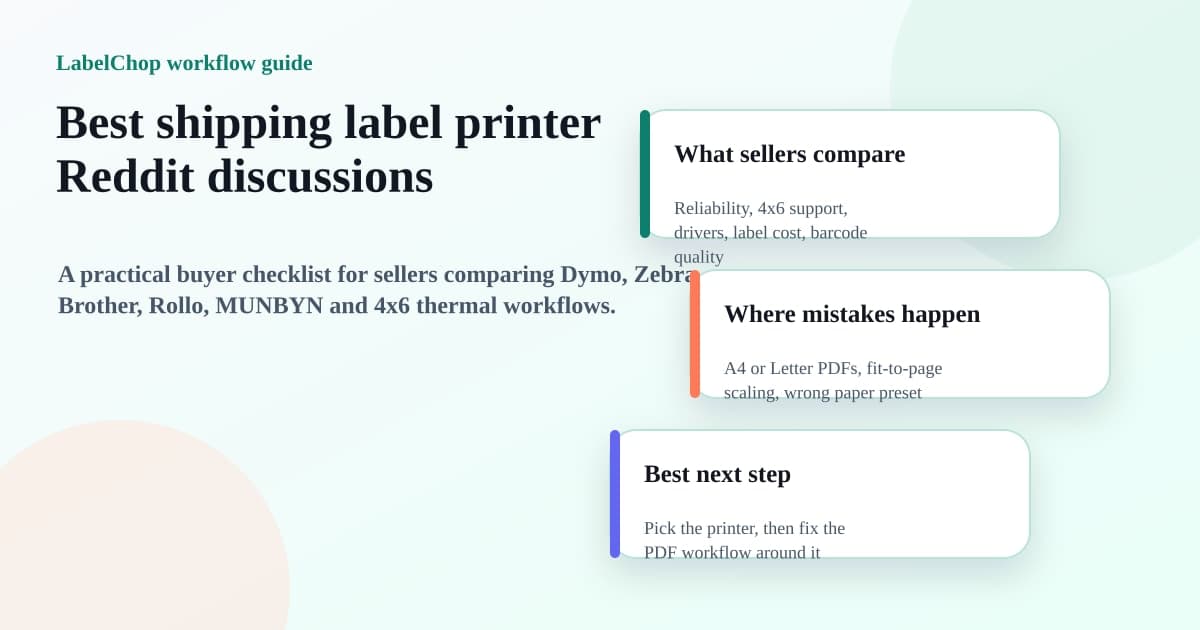
If you search for the best shipping label printer Reddit discussions, you are usually not looking for polished buying-guide copy. You want to know what real sellers regret after buying a Dymo, Zebra, Brother, Rollo, MUNBYN or another 4 inch thermal printer.
The useful part of those forum-style searches is not one magic brand recommendation. It is the pattern of concerns: will it print 4x6 labels, will the driver behave on my computer, are labels cheap, do barcodes stay sharp, and will it stop the A4 PDF cropping mess?
This guide is a neutral synthesis of those decision criteria. It does not copy Reddit comments, quote users, or imply Reddit endorses any printer. Use it as a practical checklist before you buy hardware or blame hardware for a PDF workflow problem.
In this article:
- What Reddit-style printer searches are really asking
- The fast shortlist checklist
- How the common printer brands differ
- The 4x6 label size trap
- Why a better printer may not fix bad PDFs
- Wireless, Bluetooth and desk setup trade-offs
- What to test before keeping the printer
- Where LabelChop fits
- Related shipping label guides
What Reddit-style printer searches are really asking
The phrase best shipping label printer Reddit is a shortcut. Sellers add Reddit because they are trying to filter out affiliate listicles and find practical warnings.
Those searches usually have a few hidden questions behind them.
- Which printer works without constant driver drama?
- Which one prints real 4x6 or 100x150mm shipping labels?
- Which one has cheap label stock that is easy to buy again?
- Which one prints readable barcodes without fiddling every week?
- Which one works with USPS, Royal Mail, Australia Post, Shopify, eBay, Etsy or the carrier workflow I actually use?
- Which one solves my print problem, and which problem is not really the printer?
That last question matters most. A better printer can make printing faster, quieter and cheaper. It cannot magically turn a full-page A4 or Letter PDF into a clean 4x6 label unless the PDF workflow also gets fixed.
If you are still setting up the whole fulfilment desk, start with the small business shipping label printer setup guide. It covers the driver, paper size, print scaling and calibration checks that apply across brands.
The fast shortlist checklist
Before comparing brand names, check the boring requirements.
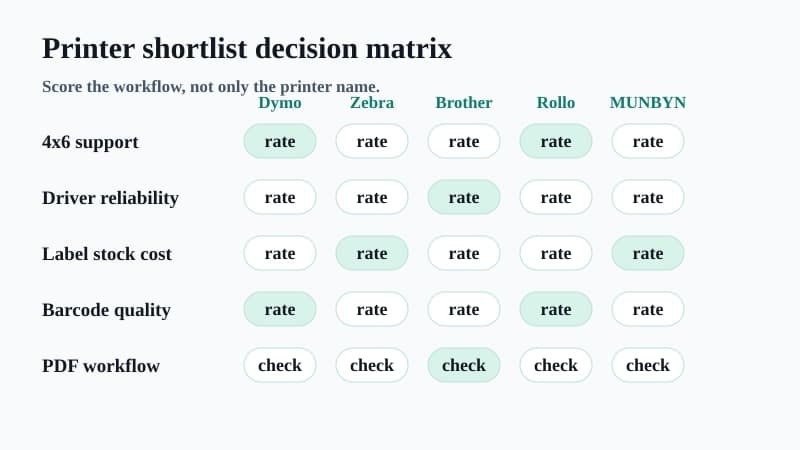
| Requirement | Why it matters | What to look for | |---|---|---| | 4 inch print width | Most parcel labels need 4x6 or 100x150mm output | 4x6 inch, 6x4, 100x150mm, 102x152mm support | | Current drivers | Old drivers cause paper-size and scaling pain | Windows and macOS support for your version | | Easy calibration | Misfeeds create cut-off labels and wasted stock | Simple gap detection or guided calibration | | Cheap label supply | Consumables cost more than the printer over time | Generic direct thermal 4x6 labels if supported | | Barcode quality | Poor print quality can delay parcels | Sharp output at 203dpi or 300dpi with correct darkness | | PDF workflow fit | Carrier files often vary by platform | Native 4x6 PDFs, or a clean way to crop awkward PDFs |
A printer that wins on all six is more useful than one that wins a popularity contest. The best choice is the one you can set up once, test, and stop thinking about.
How the common printer brands differ
The exact models change, but the trade-offs stay fairly stable.
Dymo
Dymo LabelWriter 4XL and 5XL models are common in ecommerce because they are compact and familiar. The usual question is whether the model, labels and driver support the exact 4x6 workflow you need.
Dymo can be a tidy choice for smaller desks, but check label compatibility and software support before buying second-hand hardware. A cheap used printer is less cheap if you cannot get labels, drivers or paper presets working.
If you already have a Dymo and use Australian shipping workflows, the Dymo 4XL MyPost Business setup guide covers common paper-size and label-output checks.
Zebra
Zebra desktop printers are common in higher-volume packing areas. They often feel more industrial than the small home-office label printers, which can be useful if you print a lot.
The trade-off is setup. Zebra models may expose more driver, language and calibration options than a casual seller expects. That flexibility is good when configured correctly and annoying when one preset is wrong.
For AU workflows, the Zebra Australia Post setup guide gives a model-specific starting point for ZD421, ZD220 and GK420d style setups.
Brother
Brother QL-1100 and QL-1110NWB style printers are popular with sellers who want a mainstream brand and a straightforward desktop setup. Brother's support site is a useful place to check model-specific downloads before buying or installing: Brother support.
Brother can work well when the label roll, driver and paper preset match the shipping workflow. As with every brand, the printer is only one layer. A full-page PDF still needs the right page handling before it reaches the printer.
Rollo
Rollo is a common 4x6 shipping-label choice for US sellers and marketplace desks. It is often considered because it is built around shipping labels rather than tiny address stickers.
Before buying, check your model, connection type and computer setup. Rollo's support home is the safest starting point for current setup files: Rollo support.
If you already have one, use the Rollo 4x6 setup checklist to separate driver problems from PDF page-size problems.
MUNBYN and other budget thermal printers
MUNBYN and similar budget thermal printers are attractive because the upfront price is often lower. The buying question is not only whether the first print works. It is whether the driver, label stock, support docs and calibration flow still feel fine when you are shipping orders every day.
Budget printers can be good value when your workflow is simple and you are comfortable troubleshooting. If you hate driver fiddling, a slightly more expensive printer with clearer setup docs may be cheaper in time.
The 4x6 label size trap
Most sellers in these discussions are really trying to print a 4x6 shipping label. In metric regions, that might appear as 100x150mm, 101x152mm, 102x152mm or 6x4.
That sounds simple until the printer driver, PDF viewer and carrier file use different language. One screen says 4x6. Another says 100x150mm. Another says A6. Another says Letter. If you pick the wrong one, the label may shrink, clip, rotate or print across two pieces of stock.
Use the 4x6 shipping labels print settings guide when you need the size reference. The core rule is simple: the physical label, PDF page and printer driver should all describe the same output.
A6 is close to 4x6, but it is not the same shape. A6 can be valid when the carrier or marketplace workflow and label stock are genuinely A6. It is not a universal substitute for 4x6.
Why a better printer may not fix bad PDFs
A lot of printer regret is actually PDF workflow regret.
If your shipping platform gives you a native 4x6 PDF, almost any decent 4 inch thermal printer should be able to print it cleanly after the driver and scale are set correctly. Print at actual size or 100 percent, avoid fit to page, calibrate the printer, and save the preset.
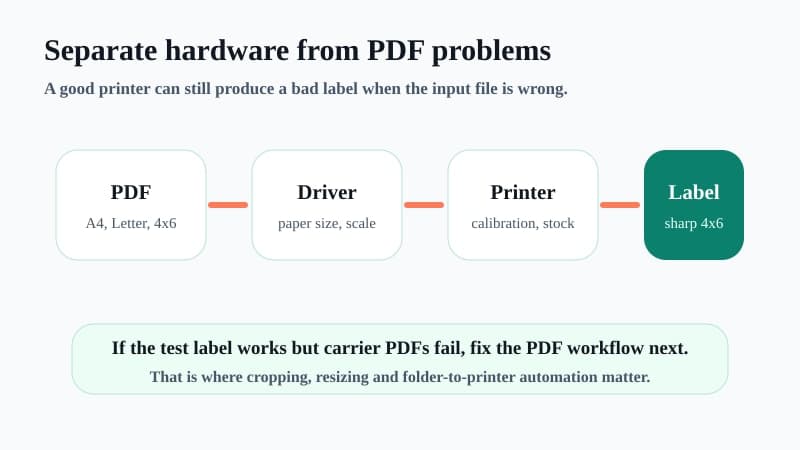
If your shipping platform gives you an A4 or Letter PDF with the label sitting in one corner, the printer has a different problem. Sending the whole page to a 4x6 printer often shrinks the label or cuts off part of the barcode.
That is why a seller can buy a better printer and still feel stuck. The input PDF is not ready for the output label.
For one-off files, use the free A4 to 4x6 shipping label converter. If you are not sure what size your PDF is, use the shipping label size checker first.
Wireless, Bluetooth and desk setup trade-offs
Wireless and Bluetooth sound convenient, especially for home offices. They can be useful, but they are rarely the first thing to optimise.
For daily shipping, reliable printing beats clever connectivity. A USB printer beside the packing bench can be less annoying than a wireless printer that disappears from the network when you are trying to ship the last order of the day.
Ask these questions before paying extra for wireless features.
- Will the printer sit next to the computer anyway?
- Do you need to print from more than one device?
- Does the wireless setup require a vendor app that you trust?
- Can the printer keep a stable connection in your packing area?
- If wireless fails, can you still print over USB?
For many sellers, the boring setup wins: one computer, one thermal printer, one saved 4x6 preset, one test label after major changes.
What to test before keeping the printer
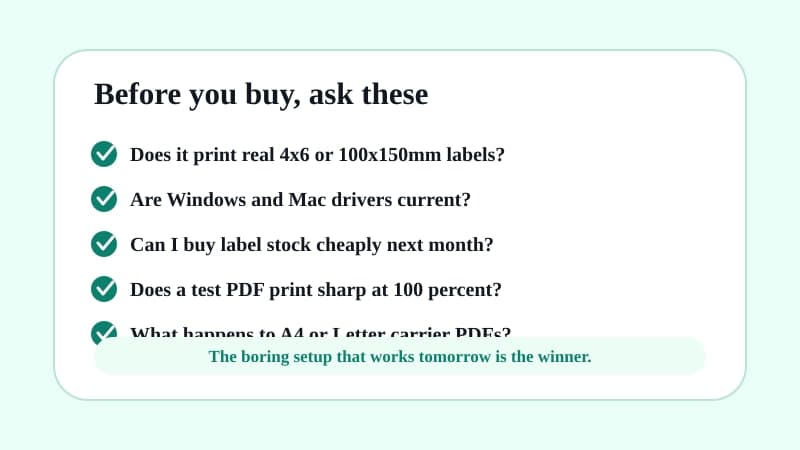
Do not judge the printer from one demo label. Test the full chain while you are still in the return window.
- Install the driver on the computer you actually ship from.
- Load the label stock you plan to keep buying.
- Create a 4x6 or 100x150mm paper preset.
- Print a neutral test PDF at 100 percent scale.
- Print a real label PDF from your main carrier or marketplace.
- Check barcode sharpness, quiet space, margins and orientation.
- Restart the computer and confirm the preset still appears.
- Print three labels in a row to check feed drift.
If the neutral test label fails, fix the printer layer: driver, calibration, darkness, label roll direction or stock. If the neutral test label works but your carrier PDF fails, fix the PDF layer: page size, crop, rotation or scaling.
Where LabelChop fits
LabelChop is not a printer brand, driver replacement or official integration with Dymo, Zebra, Brother, Rollo, MUNBYN, USPS, Royal Mail, Australia Post, Shopify, eBay or Etsy.
It sits before the print step. LabelChop watches a folder, detects compatible shipping-label PDFs, crops or resizes awkward labels to 4x6 or 100x150mm output, then prints or saves the cleaned file for your normal thermal printer workflow.
That matters when the printer itself is fine but the files keep changing. One PDF might be native 4x6. The next might be A4, Letter, A6 or a label placed awkwardly inside a larger page. Repeating the Acrobat, screenshot, resize and print-dialog dance is the part LabelChop is built to remove.
If you print one label a week, a free converter may be enough. If you print most days and the same PDF fixes keep coming back, compare the time cost with LabelChop pricing.
Related shipping label guides
Keep the buying decision connected to the workflow you need to run tomorrow.
- Shipping label printer setup for small business, for the brand-neutral setup flow.
- 4x6 shipping labels print settings, for paper size, scale and PDF page checks.
- Thermal printer versus inkjet shipping labels, for deciding whether to buy a thermal printer at all.
- Rollo shipping label printer setup, for a common 4x6 printer workflow.
- Shipping label printing problems and fixes, for symptoms after the printer is on your desk.
The best shipping label printer is the one that makes your shipping bench boring. Pick hardware that handles 4x6 labels cleanly, then fix the PDF workflow around it so tomorrow's labels print the same way as today's.