

A Rollo shipping label printer is simple when the PDF is already a clean 4x6 page. Load 4x6 stock, set the driver to 4x6, print at 100 percent, and you should get a sharp label.
The pain starts when one part of the workflow disagrees with the rest. Your carrier or marketplace might give you an A4 or Letter PDF, the browser might remember a fit-to-page setting, or the driver might be set to another paper size. The result is a label that prints too small, cut off, rotated, blurry or half on the next label.
This guide walks through the Rollo setup checks that matter for ecommerce sellers. It covers driver setup, 4x6 paper size, calibration, PDF scaling and the point where a PDF workflow fixer like LabelChop makes sense. LabelChop helps with compatible PDFs from workflows such as USPS, Shopify, eBay, Etsy, Royal Mail and Australia Post, but it is not an official integration with those platforms or with Rollo.
In this article:
- Fast setup checklist
- Install the Rollo driver or app first
- Set the paper size to 4x6 or 100x150mm
- Calibrate before blaming the PDF
- Print at 100 percent, not fit to page
- Check whether the source PDF is A4, Letter or 4x6
- Fix common Rollo 4x6 label problems
- Where LabelChop fits
- Final test before printing a batch
Fast setup checklist
Use this checklist before changing random settings.
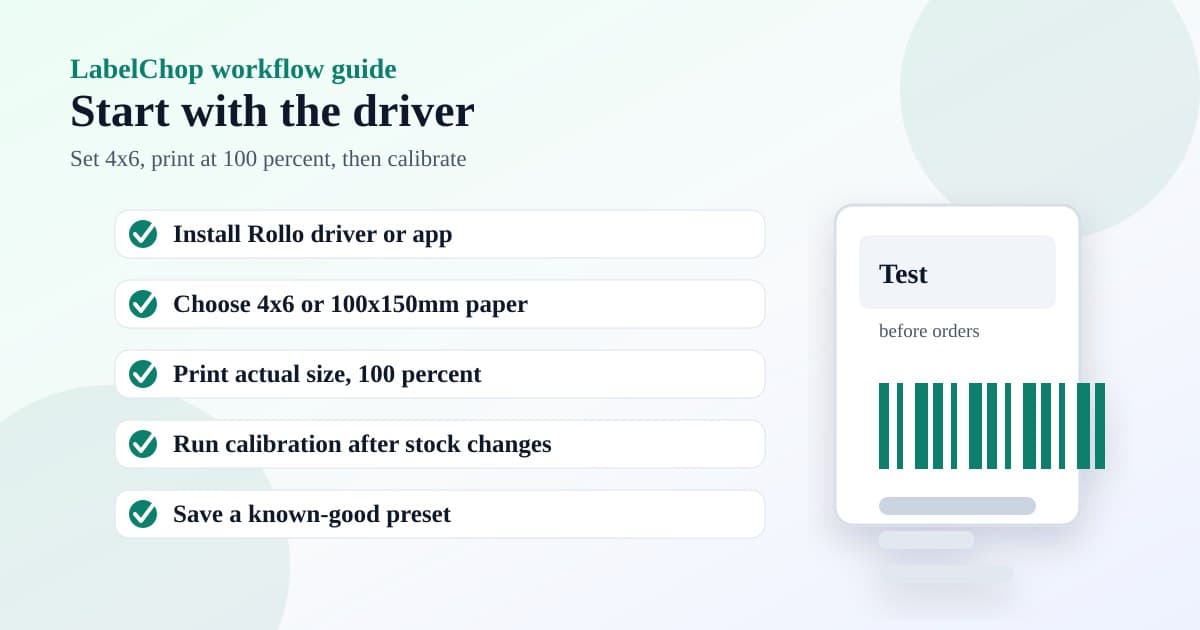
- Install the current Rollo driver or Rollo app for your model.
- Load direct thermal 4x6 shipping labels in the correct direction.
- Set the printer driver paper size to 4x6 inches, 100x150mm, 101x152mm or the closest 4x6 preset available.
- Run calibration after loading a new roll or changing label type.
- Open the shipping-label PDF in a PDF viewer, not only a browser preview.
- In the print dialog, choose actual size or 100 percent.
- Turn off fit to page, shrink oversized pages and border scaling.
- Print one test label before printing live orders.
- If the test label is good but carrier PDFs still fail, inspect the PDF page size.
- Save the working preset once it prints correctly.
If you need a neutral test file first, use the free thermal printer test label PDF. It helps separate a Rollo setup problem from a carrier PDF problem.
Install the Rollo driver or app first
Start with the software layer. A Rollo printer can appear in your system print list before the right driver or app settings are in place, but that does not mean the paper presets, density controls and calibration tools are correct.
Use Rollo's official support area for model-specific setup files and instructions: Rollo support. The exact path depends on whether you use a USB model, a wireless model, Windows, macOS or a shipping platform connection.
After installation, open your system printer settings and confirm that the Rollo printer is the device selected in your label workflow. If you have an old label printer still installed, browser print dialogs can silently choose the wrong device.
Rename the printer if needed. A clear name like Rollo 4x6 labels is boring, but it prevents mistakes when you also have an office printer, PDF printer and old thermal printer in the same dropdown.
Set the paper size to 4x6 or 100x150mm
Most shipping labels for ecommerce use a 4x6 inch page. In metric regions, the closest common label stock is usually called 100x150mm. Some drivers show 101x152mm, 102x152mm or 6x4 instead. Pick the closest native 4x6-style preset.
Do not choose A4, Letter or A6 in the driver unless your actual label stock matches that size. A6 sounds close to 4x6, but it is not the same shape. It can stretch the label, move the barcode, or clip the quiet space around the barcode.
The driver paper size and the print dialog paper size both matter. If your system driver says 4x6 but Chrome, Acrobat, Preview or the shipping platform print dialog says Letter, you can still get a bad output.
For a deeper page-size reference, the 4x6 shipping labels print settings guide covers inches, millimetres, driver presets and PDF page-size checks. For a brand-neutral version of the whole setup flow, use the small business shipping label printer setup guide. USPS sellers using a home scale can use the USPS scale and label printer setup before blaming the Rollo driver for a bad label.
If you are still deciding whether Rollo is the right choice, the best shipping label printer Reddit-style buyer checklist compares the recurring concerns sellers raise before choosing a 4x6 printer.
Calibrate before blaming the PDF
Calibration teaches the printer where each label starts and ends. If the printer does not detect the label gap correctly, it can stop too early, feed too far, print between labels, or cut content off near the edge.
Recalibrate after changing label rolls, changing suppliers, switching between fanfold and roll labels, moving the printer, or fixing a jam. Even small differences in backing paper and gap detection can change how the printer feeds.
A calibration issue usually affects every print, including test labels. If a clean 4x6 test label is shifted or split across two labels, fix calibration and label loading before changing carrier settings.
If the test label is perfect but a USPS, Shopify, eBay, Etsy or Royal Mail label fails, the printer is probably fine. Move up the chain and inspect the PDF page size and scaling.
Print at 100 percent, not fit to page
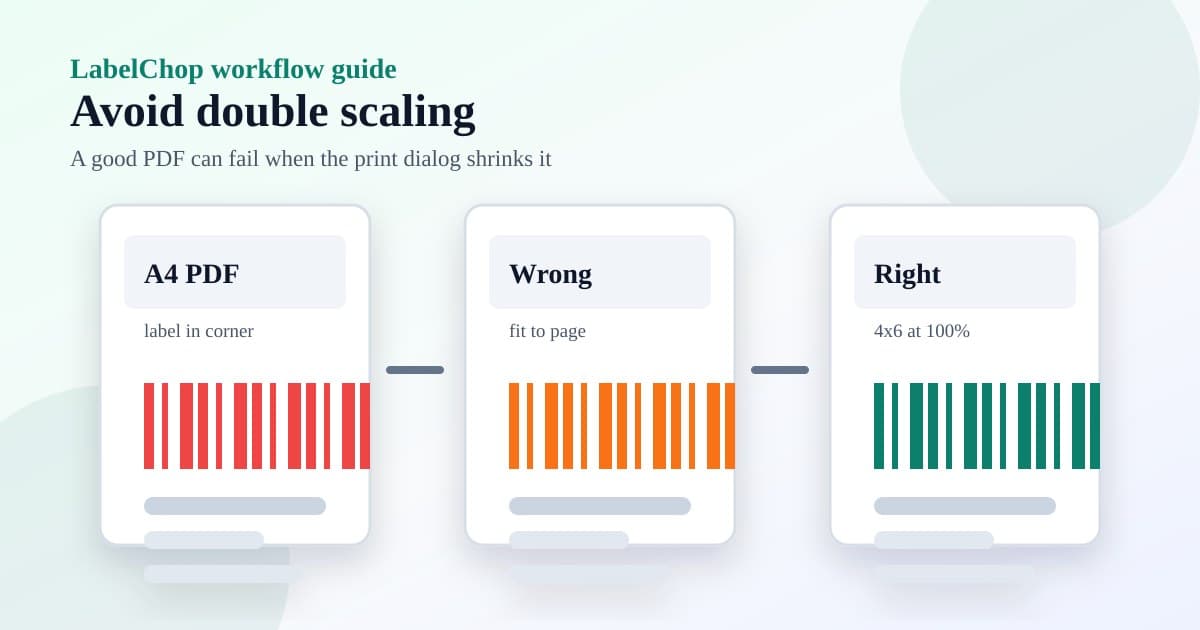
Fit-to-page is one of the most common causes of 4x6 label problems. It can shrink the label inside the printable area, rotate it unexpectedly, or scale an already-correct PDF a second time.
For a 4x6 PDF, choose actual size, 100 percent, no scaling or the closest equivalent in your print dialog. The wording changes by app, but the goal is the same: one PDF page maps directly to one physical 4x6 label.
Browser print previews are especially easy to misread. A browser may remember the last setting you used for a normal Letter or A4 document. If your Rollo label suddenly prints tiny, check the scale control before assuming the driver changed.
If you are printing many labels, do not fix each label manually with screenshots. That creates a new problem because screenshot resizing can blur barcodes. Use the original PDF wherever possible.
Check whether the source PDF is A4, Letter or 4x6
A Rollo printer can only print what it receives. If the file is a proper 4x6 page, the printer setup is straightforward. If the label is sitting inside an A4 or Letter page, your print dialog may shrink the whole page instead of extracting the shipping label area.
This is common with carrier, marketplace and shipping-tool exports. One workflow might download a clean 4x6 label. Another might download a full-page PDF with the actual label in one corner. Both are shipping-label PDFs, but they need different handling.
Before printing a batch, inspect the page size. Many PDF viewers show the dimensions in document properties. You can also use the shipping label size checker to confirm whether a PDF is A4, Letter, A6, 4x6, 100x150mm or an awkward custom size.
If the file is A4 or Letter, do not simply send it to the Rollo at fit to page. Crop or convert the label area first. For a one-off file, the free A4 to 4x6 shipping label converter can help. For recurring workflows, automation is the cleaner fix.
Fix common Rollo 4x6 label problems
Use the symptom to choose the next check.
| Symptom | Likely cause | What to do | |---|---|---| | Label prints too small | Fit-to-page scaling or A4/Letter PDF | Print at 100 percent or convert the PDF first | | Label is cut off | Wrong paper size, margins or PDF crop | Set 4x6 in the driver and check the source PDF | | Label prints sideways | Orientation mismatch or 100x150 versus 150x100 confusion | Rotate in the print dialog or use the correct preset | | Label is blurry | Screenshot workflow, scaling or darkness/speed | Use the original PDF and tune printer settings | | Printer feeds extra labels | Calibration or label gap detection | Recalibrate and check label loading | | Blank labels | Roll loaded wrong way, wrong stock or darkness issue | Check direct thermal side and run a test print |
For symptom-specific walkthroughs, use the shipping label printing too small guide, the shipping label cut-off guide, the sideways label guide, the blank thermal label checklist and the blurry barcode guide.
Where LabelChop fits
LabelChop is not printer hardware, and it is not an official Rollo integration. It sits before the print step.
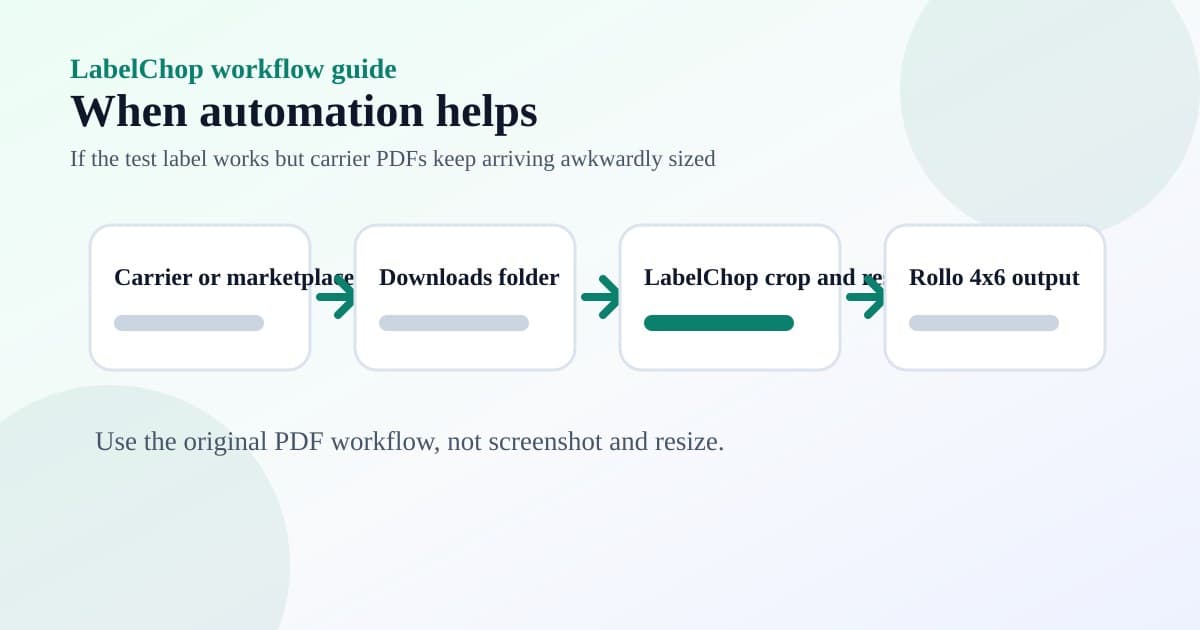
The job is to remove the repetitive PDF handling that often breaks 4x6 printing. LabelChop watches a folder, detects compatible shipping-label PDFs, crops and resizes awkward labels to 4x6 or 100x150mm output, then prints or saves the result for your thermal printer workflow.
That helps when the Rollo test label prints well but your real carrier or marketplace PDFs keep arriving as A4, Letter, A6, mixed-size or badly positioned files. Instead of opening Acrobat, cropping, screenshotting, pasting into another app and hoping the scale is right, the workflow becomes repeatable.
It can help with compatible PDFs from USPS, Royal Mail, Australia Post, eBay, Shopify, Etsy and similar workflows. Say compatible PDFs, not official integration. The value is clean PDF-to-thermal-label output and less print-dialog fiddling.
Final test before printing a batch
Before printing ten or fifty orders, print one label and inspect it properly.
The barcode should be sharp, not stretched, not clipped and not too close to the edge. The address block should be readable. The label should stop on one piece of stock, not drift onto the next label. The orientation should match how you apply labels to parcels.
If the printer test label is good and the real label is bad, check the source PDF and scaling. If every label is bad, check the driver, paper size, calibration, roll direction and printer hardware first.
Once one label works, save the preset and stop changing settings between orders. Most Rollo 4x6 problems come from one mismatch in the chain. Get the driver, page size, scale and PDF source aligned, then keep the working setup boring.
If awkward PDFs are the recurring part of the chain, try the free converter for a one-off label or use LabelChop when you want the crop-and-print step automated every shipping day.