

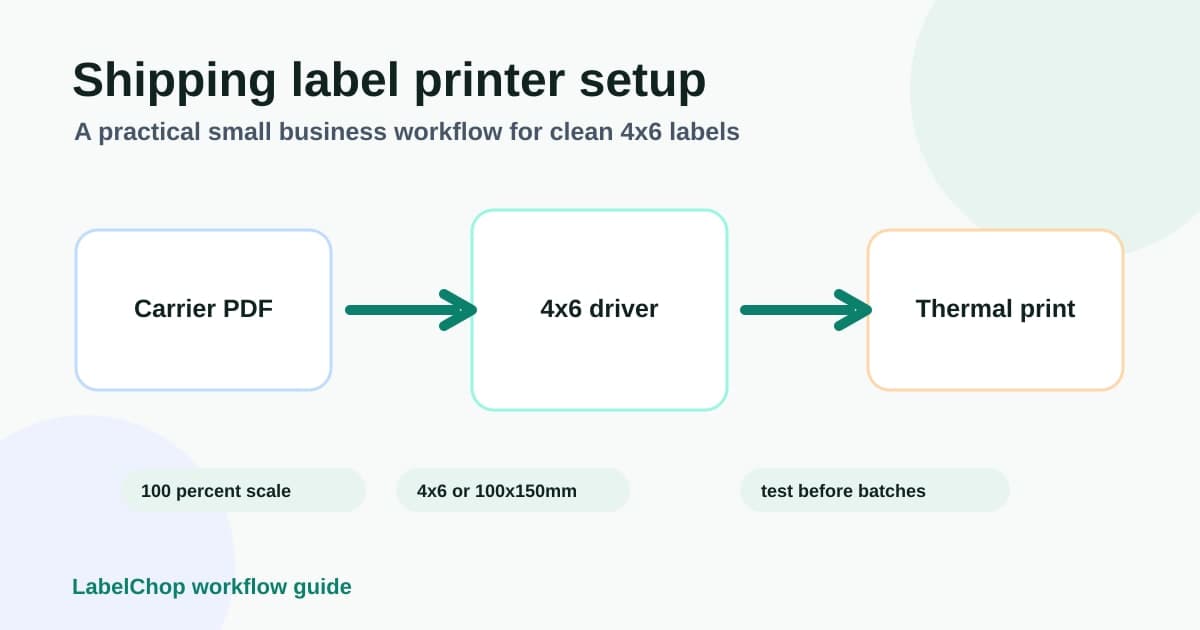
A shipping label printer should make fulfilment boring. Create the label, print it on a 4x6 thermal label, stick it on the parcel, move on to the next order.
Small business reality is messier. One carrier gives you a clean 4x6 PDF. Another marketplace downloads a Letter or A4 page with the label sitting in one corner. Your browser remembers a fit-to-page setting from yesterday. The driver is set to a random paper size. Suddenly the label is tiny, cut off, blurry, sideways or spread across two labels.
This guide is a practical setup checklist for ecommerce sellers using Dymo, Zebra, Brother, MUNBYN, Rollo or similar 4 inch thermal printers. It focuses on the workflow around the printer: label size, driver settings, PDF page size, scaling and when automation helps.
In this article:
- Fast setup checklist
- Choose the printer size before the brand
- Install the driver and create one boring preset
- Set 4x6, 6x4 or 100x150mm as the paper size
- Print at 100 percent, not fit to page
- Check whether the PDF is A4, Letter or 4x6
- Calibrate before printing a batch
- Fix the common small business label problems
- Where LabelChop fits in the workflow
- Final pre-shipping test
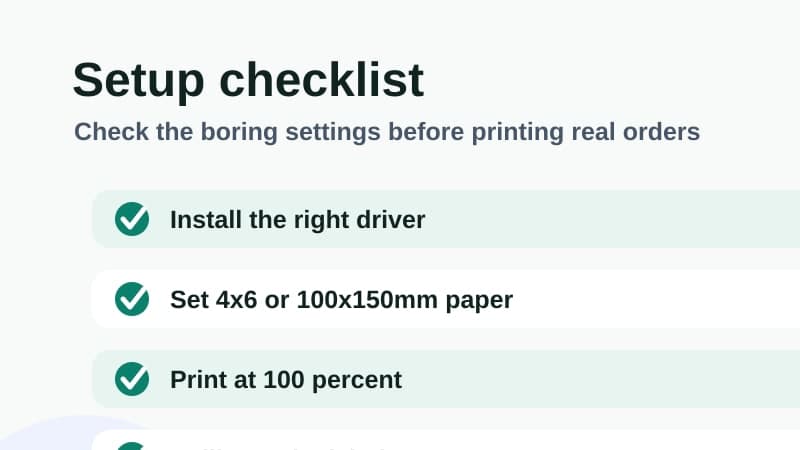
Fast setup checklist
Start here before changing random settings.
- Use a 4 inch thermal shipping label printer if you want standard 4x6 output.
- Load 4x6 inch, 6x4 inch or 100x150mm direct thermal labels.
- Install the current driver or setup app for the printer model.
- Set the printer driver paper size to 4x6, 6x4, 100x150mm or the closest 4x6 preset.
- Open the shipping-label PDF in a proper PDF viewer when browser print preview acts strangely.
- Print at actual size, 100 percent or no scaling.
- Turn off fit to page, shrink to printable area and border scaling for native 4x6 PDFs.
- Calibrate the printer after changing rolls, label stock or label size.
- Print one test label before printing a real batch.
- If the test label is good but carrier labels fail, inspect the source PDF page size.
The free thermal printer test label PDF is useful at this stage. If you need a realistic practice file before live postage, use the sample 4x6 shipping label PDF guide to choose between a template, a calibration PDF and a real carrier label. If you are still choosing label stock, check the direct thermal 4x6 labels guide before you buy rolls or fanfold stacks in bulk. If that test file prints cleanly, your printer can probably handle 4x6 output. If a carrier or marketplace label still fails, the problem is more likely the PDF page size or scaling chain.
For USPS desks that include a postal scale, the USPS scale and label printer setup guide adds the missing weight and service-choice step before the normal 4x6 print checks.
Choose the printer size before the brand
The brand matters less than the label size. For ecommerce shipping, most sellers want a 4 inch thermal printer that can handle 4x6 inch labels. In metric regions, that is usually sold as 100x150mm, 102x152mm or sometimes 6x4.
A narrow address-label printer can be useful for stickers, bins or envelopes, but it is not a safe default for parcel shipping labels. Carrier barcodes need enough width, quiet space and readable text. If the printer only supports small label rolls, you will fight the format every shipping day.
Common 4 inch shipping-label printers include Dymo LabelWriter 4XL and 5XL, Zebra desktop printers, Brother QL-1100 and QL-1110NWB, MUNBYN, Rollo and similar models. LabelChop is not printer hardware and does not create an official integration with those brands. The job is to prepare compatible shipping-label PDFs before they reach the normal printer flow.
Once the carrier and printer brand are known, switch from generic advice to the closest setup checklist. USPS benches can use the Dymo 4XL USPS setup guide, Zebra USPS 4x6 checklist or MUNBYN USPS 4x6 checklist. UK sellers can use the Brother Royal Mail Click and Drop setup or Dymo Royal Mail 6x4 setup for model-specific paper-size checks.
If you already have a Brother QL-1100 or QL-1110NWB on the bench, the Brother 4x6 settings checker gives you a faster DK roll, page-size and scale checklist before you print paid postage.
If you are comparing brand opinions before buying, the best shipping label printer Reddit-style checklist turns those forum-style concerns into a practical shortlist.
For US sellers choosing around USPS postage, the best USPS label printer checklist narrows the decision to 4x6 support, PDF output, barcode quality, scale setup and the tests to run before keeping the printer.
For UK sellers choosing hardware specifically for Click & Drop, the Royal Mail label printer buyer checklist narrows this to 6x4 support, label stock, driver presets and batch checks.
If you are still choosing hardware, the thermal versus inkjet shipping labels guide explains when a small seller should move from normal paper to thermal labels.
Install the driver and create one boring preset
A thermal printer can appear in your computer's printer list before the right settings are in place. That does not mean the driver has the correct paper sizes, darkness controls or calibration tools.
Install the official driver or setup utility for your exact model. Then open your system printer settings and create one boring preset for shipping labels. Name it something obvious like 4x6 shipping labels or 100x150 thermal labels.
That preset should hold the paper size, orientation, speed, darkness and quality settings that work for your label stock. The boring name matters because small businesses often have several printers installed: office inkjet, PDF printer, old label printer and the thermal printer. Picking the wrong device in a browser dialog can waste labels fast.
Do not tune ten settings at once. Change one thing, print one test label, then keep the working preset stable.
Set 4x6, 6x4 or 100x150mm as the paper size
For most shipping workflows, use a 4x6 inch page. In the UK and Australia you may see 6x4, 100x150mm, 101x152mm or 102x152mm instead. These are close enough for many printer drivers, but you should choose the native preset that matches your actual label stock.
Avoid A4 or Letter in the thermal printer driver unless that is the paper you are physically printing on. A driver set to A4 can shrink a proper 4x6 label. A driver set to 4x6 can also make a full-page PDF print badly if the label has not been cropped first.
A6 is close to 4x6, but it is not the same shape. Some carrier workflows can output A6 or one-label-per-page formats, and those can work well when the printer and label stock match. The mistake is assuming every A6, A4, Letter, 4x6 and 100x150mm PDF can be sent through the same print preset without checking.
For a deeper size reference, use the 4x6 shipping labels print settings guide or the shipping label size checker. If your UK workflow is Click & Drop, the Royal Mail label printer setup guide gives the 6x4-specific checks before you batch print.
Print at 100 percent, not fit to page
Print scaling is the setting that quietly breaks a lot of shipping labels.
For a native 4x6 PDF, choose actual size, 100 percent or no scaling. The wording changes between Chrome, Acrobat, Preview and Windows print dialogs, but the goal is simple: one PDF page should map to one physical label.
Fit to page sounds safe, but it often shrinks the label inside the printable area. Shrink oversized pages can do the same thing. Borderless and margin options can also move the label just enough to clip a barcode or address line.
Browser print previews are easy to misread because they remember old settings. If you printed an invoice yesterday on Letter or A4 paper, the browser may keep that paper size or scaling choice for your labels today.
If your label prints too small, the first question is not the printer brand. The first question is whether the PDF was printed at 100 percent to a matching 4x6 paper size. If it prints too large instead, use the shipping label printing too big guide to check saved scale values, wrong custom sizes and labels spread across two physical stickers.
Check whether the PDF is A4, Letter or 4x6
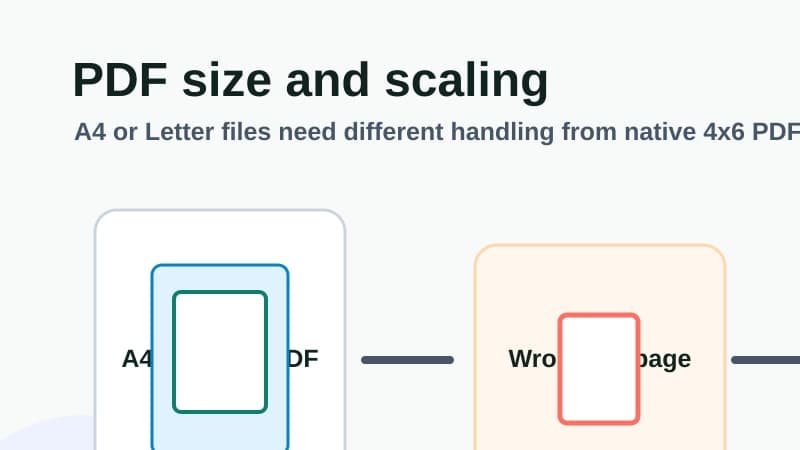
A shipping label printer prints the page it receives. If the file is a clean 4x6 PDF, setup is usually easy. If the label is embedded inside A4 or Letter, the print dialog may shrink the whole page onto one 4x6 label.
That is why two PDFs from the same business can behave differently. A USPS, Royal Mail, eBay, Shopify, Etsy, Australia Post, Sendle or other carrier workflow might produce a native 4x6 file in one path and a full-page PDF in another. The printer does not know which one you intended. For marketplace orders, the eBay shipping label too-small checklist narrows this same diagnosis to eBay PDFs, MyPost Business handoffs and carrier label downloads.
Before printing a batch, inspect the PDF page size. Many PDF viewers show it in document properties. The shipping label size checker can also tell you whether the file looks like A4, Letter, A6, 4x6, 100x150mm or a custom size.
If the label is sitting inside a full-page PDF, do not rely on fit to page. Use a one-off converter such as the A4 to 4x6 shipping label converter, then use the shipping label PDF crop workflow and the A4 to 4x6 converter workflow guide to decide whether this is a one-time rescue or a recurring workflow that should be automated.
Calibrate before printing a batch
Calibration teaches the printer where each label starts and ends. It is boring, but it saves the most labels.
Calibrate after loading a new roll, changing label supplier, switching between roll and fanfold labels, clearing a jam, moving the printer or changing label size. Small differences in backing paper and label gaps can change how the sensor feeds stock.
A calibration problem usually affects every print, including a neutral test label. A PDF page-size problem usually affects only the carrier or marketplace file that has the wrong dimensions. Separating those two cases stops you from blaming the wrong layer.
If the printer feeds an extra blank label, starts halfway down the next label, or splits one label across two pieces of stock, calibrate first. If the neutral test label is perfect but a real shipping label is wrong, check the PDF and print scaling next.
Fix the common small business label problems
Use the symptom to choose the next check.
| Symptom | Likely cause | What to do | | -------------------------- | -------------------------------------------------------- | ------------------------------------------------------ | | Label prints too small | Fit-to-page scaling, wrong paper size or A4/Letter PDF | Use 100 percent scaling or convert the PDF first | | Label is cut off | Driver size mismatch, margins or bad crop | Set 4x6 in the driver and inspect the source PDF | | Label prints sideways | Orientation mismatch or 100x150 versus 150x100 confusion | Rotate once in the print dialog and save the preset | | Barcode is blurry | Screenshot workflow, scaling, speed or darkness | Use the original PDF and tune printer quality settings | | Blank labels print | Roll loaded wrong way, wrong stock or heat issue | Check direct thermal side and run a test label | | Printer feeds extra labels | Calibration or label gap detection | Recalibrate and check label loading |
For exact walkthroughs, use the shipping label printing too small guide, shipping label cut-off guide, sideways label guide, blank labels checklist and blurry barcode guide. If a non-standard output still looks readable, check whether shipping labels can be smaller than 4x6 before trusting it on a parcel.
Where LabelChop fits in the workflow
LabelChop sits before the printer driver. It is not a hardware driver, and it is not an official integration with USPS, Royal Mail, Australia Post, Shopify, eBay, Etsy, Sendle or any printer brand.
Its job is the repetitive PDF handling step. LabelChop watches a folder, detects compatible shipping-label PDFs, crops and resizes awkward labels to 4x6 or 100x150mm output, then prints or saves the cleaned file for your normal thermal-printer workflow.
That helps when the printer setup is already correct but the incoming PDFs are inconsistent. One order might arrive as a clean 4x6 PDF. The next might be A4, Letter, A6, mixed-size or badly positioned. Instead of opening Acrobat, cropping, screenshotting and resizing by hand, you make the PDF preparation repeatable.
If you print one label a week, a free converter may be enough. If you print labels most days, the time loss comes from repeating the same PDF fixes and print-dialog checks over and over.
Final pre-shipping test
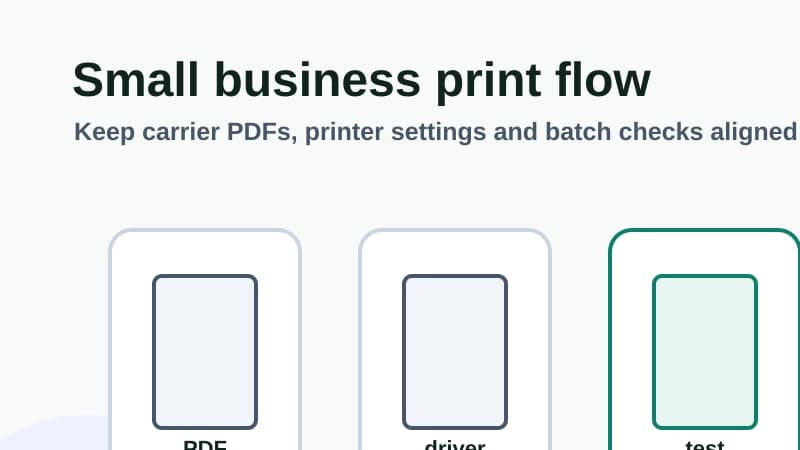
Before you print real orders, print one test label and inspect it like a customer will rely on it.
The barcode should be sharp, not stretched, not clipped and not too close to the edge. The address should be readable. The label should stop on one piece of stock. The orientation should match how you apply labels to parcels.
If every file prints badly, fix the printer layer: driver, paper size, calibration, roll direction and stock. If the test label prints well but a carrier or marketplace PDF fails, fix the PDF layer: page size, crop, orientation and scaling.
Once the setup works, save the preset and stop changing settings between orders. A good small business shipping label printer setup is not fancy. It is consistent: correct printer, correct label stock, correct paper size, 100 percent scaling, calibrated feed and a clean 4x6 PDF going into the queue.