
An eBay shipping label printing too small is usually a PDF and print-scale problem, not a reason to replace the printer.
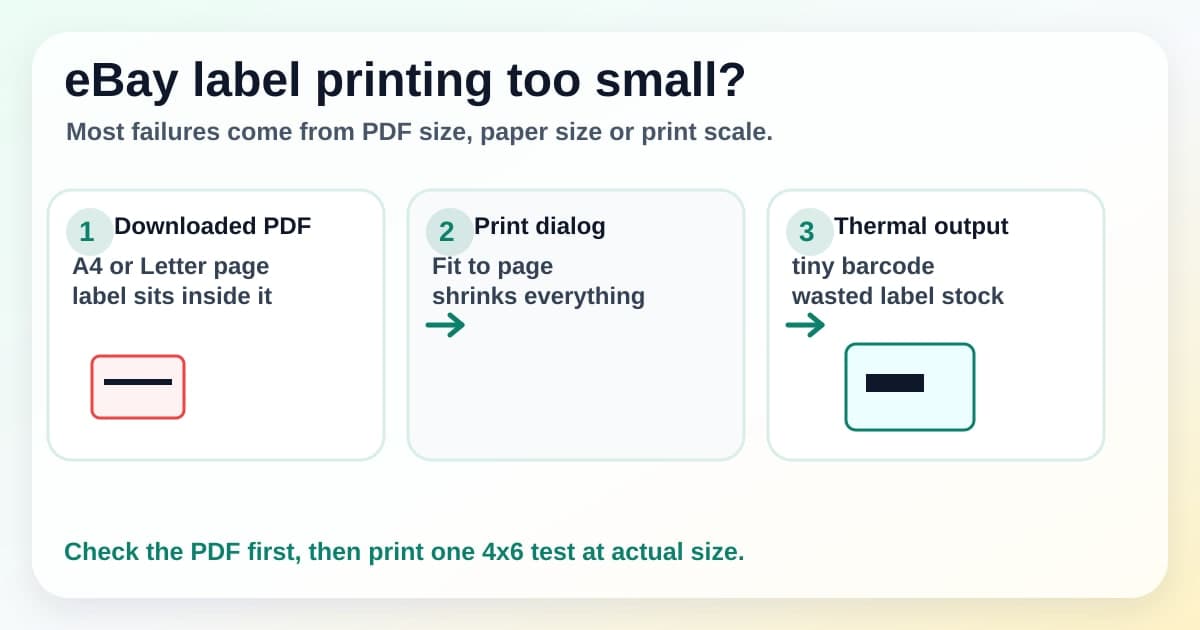
The common pattern is simple. You buy postage, download the label, send it to a 4x6 thermal printer, then the barcode comes out tiny in the corner of the label. Sometimes it is readable but too small. Sometimes the address block is squeezed, blurry or surrounded by wasted white space.
This guide is for eBay sellers using Australia Post, MyPost Business, USPS, Royal Mail, marketplace shipping labels or any compatible carrier PDF from an eBay workflow. It focuses on the print handoff: PDF page size, 4x6 or 100x150mm paper size, browser scaling and when to crop the label before printing.
LabelChop can help with compatible eBay and carrier PDF workflows, but it is not an official eBay, carrier or printer-brand integration. Think of it as the cleanup layer for awkward PDFs after the postage label has already been created.
In this article:
- The fast eBay label size checklist
- Why eBay labels print tiny on thermal printers
- Check whether the PDF is A4, Letter or 4x6
- Set the printer paper size before changing scale
- Use actual size for label-sized PDFs
- Fix eBay labels trapped on A4 or Letter pages
- When MyPost Business or carrier settings help
- Troubleshoot tiny, cut off, sideways or blurry output
- When LabelChop helps
- Related eBay and 4x6 label guides
The fast eBay label size checklist
If you need to ship the order now, run this sequence before changing random printer settings.
- Open the downloaded eBay or carrier label PDF.
- Check whether the PDF page itself is 4x6, 100x150mm, A6, A4 or Letter.
- If the PDF is already label-sized, set the printer paper to the same physical label size.
- Print at actual size or 100 percent.
- If the PDF is A4 or Letter, do not print the whole page directly to a 4x6 thermal printer.
- Crop or convert the label area to 4x6 first.
- Turn off fit to page, shrink to printable area, browser headers and browser margins.
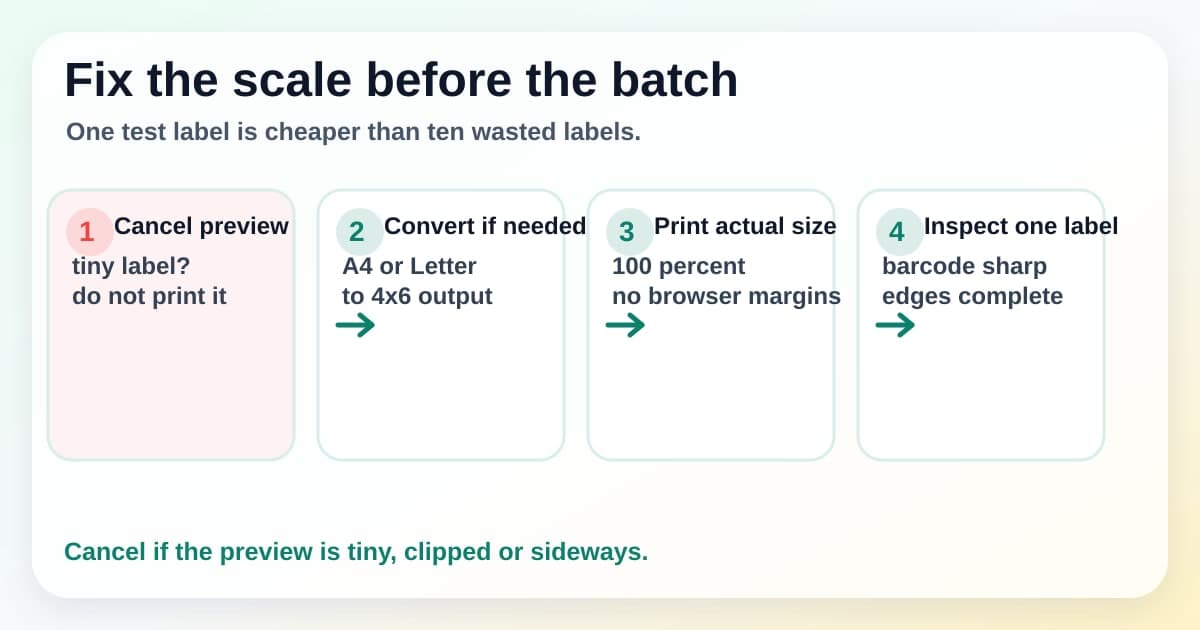
- Print one test label and check barcode size before printing the order batch.
That order matters. Darkness, speed and label roll brand will not fix a label that is tiny because a full-page PDF is being squeezed onto one thermal label.
If the same symptom happens outside eBay, use the broader shipping label printing too small checklist. If the label is full size but clipped at the edge, switch to the shipping label cut-off troubleshooting guide.
Why eBay labels print tiny on thermal printers
A thermal printer does not know that an eBay order is urgent. It only receives a page and a paper size.
If the PDF page is A4 or Letter and your printer paper is 4x6, the print dialog tries to fit the large page into the small label. The whole sheet shrinks, including the postage label area. That is how a normal label becomes a tiny barcode with lots of blank space around it.
The same can happen when the PDF is correct but the printer driver is not. A true 4x6 PDF sent to a driver set to A4, A6, 100x100mm or a stale custom size can shrink, rotate or clip.
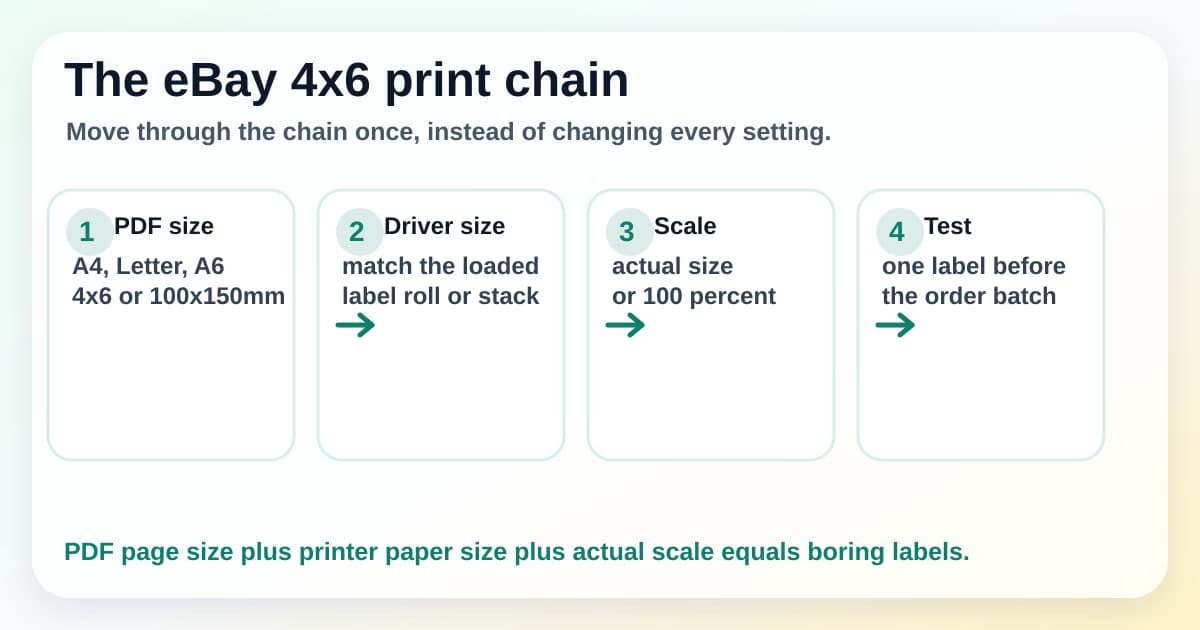
Keep the problem split into three layers.
| Layer | What to check | Tiny-label risk | |---|---|---| | eBay or carrier PDF | Is the page A4, Letter, A6, 4x6 or 100x150mm? | Full-page PDFs shrink on a 4x6 printer | | Printer paper size | Does the driver match the loaded stock? | Wrong preset changes the final output size | | Print scale | Is it actual size or fit to page? | Fit settings can shrink even a correct label |
Fix the first wrong layer you find. Do not change all three at once.
Check whether the PDF is A4, Letter or 4x6
Open the downloaded label before pressing print.
A label-sized PDF usually fills the page. The barcode, address and service details already sit inside one 4x6, 100x150mm or similar label page.
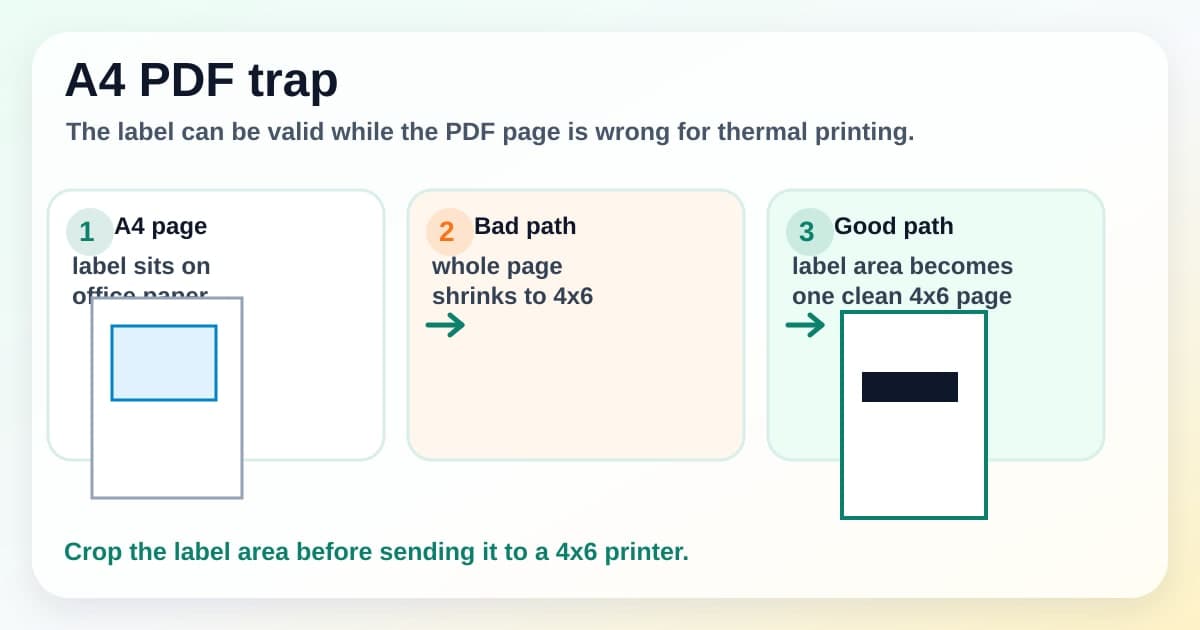
An A4 or Letter PDF looks different. The label may sit in the top half, top-left corner, centre of the page or inside a multi-label sheet. That can work on a home office printer, but it is not ready for direct thermal printing unless the print flow knows how to extract the label area.
The safe question is not only “did this come from eBay?” The safe question is “what page size did I download?” eBay, carrier and marketplace paths can change output depending on account settings, label format choices, browser flow, international service, old downloads or connected shipping tools.
If you are unsure, use the shipping label size checker. It helps separate a PDF-page problem from a printer-driver problem before you waste another label.
Set the printer paper size before changing scale
Once you know the PDF page size, make the printer driver match the physical label stock.
For most ecommerce thermal printers, the target is 4x6 inches or 100x150mm. In some UK contexts you may see 6x4. Some Australian carrier workflows may use A6 or one-label-per-page output. Those names can be close, but they are not always the same preset in your printer driver.
Use the option that matches the roll or fanfold labels in the printer. Do not choose A4 in the thermal printer driver just because the eBay PDF is A4. That tells the driver the wrong physical page size.
Use this baseline for a 4x6 eBay label test.
| Setting | Choose first | Avoid while diagnosing | |---|---|---| | Paper size | 4x6, 100x150mm or exact stock size | A4, Letter or old custom sizes | | Scale | Actual size or 100 percent | Fit to page as a permanent fix | | Margins | None or minimum | Browser default margins | | Orientation | Preview fills one label | Blind portrait or landscape changes | | Test | One label first | Printing the whole batch immediately |
If the label stock changed recently, calibrate the printer after setting the paper size. Calibration will not fix an A4 PDF, but it can stop drift once the PDF and scale are correct.
Use actual size for label-sized PDFs
For a true 4x6 PDF, print at actual size, 100 percent or no scaling.
Fit to page sounds safe, but it can shrink a correct label because the driver reports a small non-printable margin. Shrink oversized pages can do the same thing. Browser print settings can add headers, footers, dates or URLs that move the label area.
Look at the preview before printing. A good preview shows one label filling the physical stock with normal barcode size and clear edge space. A bad preview shows a tiny label floating on a white page, a barcode close to an edge or a rotated label squeezed into the wrong shape.
If you want to compare scale settings without guessing, use the shipping label print scale calculator. It is built for exactly this A4, Letter, A6 and 4x6 mismatch.
Fix eBay labels trapped on A4 or Letter pages
If the eBay or carrier PDF is A4 or Letter, crop or convert the label before printing on a thermal printer.
For a one-off label, use the free A4 to 4x6 shipping label converter. Convert the label area into a 4x6 output file, then print the converted PDF at 100 percent on the thermal printer.
Avoid screenshotting the label, pasting it into Word or resizing it by hand if barcode quality matters. A screenshot turns sharp PDF lines into pixels. Then the print dialog may scale those pixels again, which can make the final barcode both too small and blurry.
If the PDF has several labels on one page, check the converted output before sending it to the printer. You want one clean PDF page per physical label, not one office-paper page shrunk onto one sticker.
When MyPost Business or carrier settings help
If your eBay workflow routes through MyPost Business or another shipping platform, check whether that platform can produce a label-sized PDF before you build a workaround.
For many domestic MyPost Business cases, sellers can choose A6 or one-label-per-page style output. That can be the best fix because the file starts closer to the thermal label shape. The important thing is to check the actual PDF you downloaded, because older files, international labels, marketplace exports and some connected workflows may still arrive as A4 or another awkward format.
The same rule applies outside Australia. A USPS, Royal Mail, eBay, Shopify, Etsy or carrier workflow may offer a native 4x6 or 6x4 PDF in one path, then produce a full-page PDF in another path. Use the native thermal format when it is available. Crop or convert only when the PDF you already have does not match the printer.
If you are building the full Australian eBay flow, start with the eBay shipping labels Australia guide. If MyPost PDF size is the main pain, the MyPost A4 to 4x6 crop guide covers that workflow in more detail.
Troubleshoot tiny, cut off, sideways or blurry output
The symptom tells you where to look next.
| Symptom | Likely cause | Next check | |---|---|---| | Tiny eBay label in one corner | A4 or Letter PDF was shrunk to 4x6 | Crop or convert the PDF first | | Label slightly smaller than expected | Fit to page or printable-area scaling | Switch to actual size or 100 percent | | Barcode or address cut off | Paper size, margins or orientation mismatch | Recheck driver size and preview edges | | Label prints sideways | Width and height are reversed | Change one orientation setting and test | | Barcode looks blurry | Screenshot workflow or repeated scaling | Use the original PDF or converted PDF | | Blank labels feed | Roll direction, stock or printer layer | Run a neutral test label first |
If a neutral thermal printer test label PDF also prints badly, fix the printer layer before changing the eBay PDF. That means driver, paper size, roll loading, calibration or queue selection.
If the test label prints cleanly but eBay labels stay tiny, the printer is probably fine. Focus on PDF page size, crop and scale.
For adjacent symptoms, use the cut-off shipping label diagnostic, 4x6 label settings checker and blurry barcode checker.
When LabelChop helps
If this happens once, a free converter and a saved printer preset may be enough.
If it happens every shipping day, the real cost is the repeated hand work: download, open, inspect page size, crop, choose 4x6 paper, check scale, print one label, then do it again for the next awkward PDF.
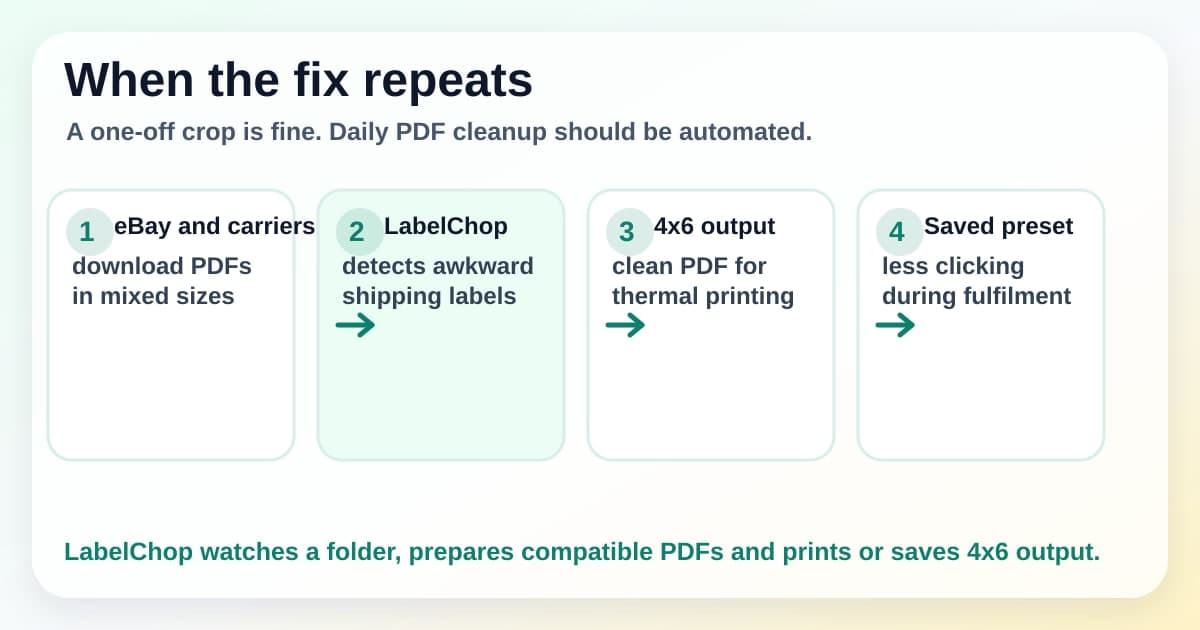
LabelChop watches a folder, detects compatible shipping-label PDFs, crops or resizes awkward A4, Letter, A6, 4x6 and 100x150mm files, then prints or saves clean thermal-printer output.
It can help with compatible PDF workflows from eBay, Australia Post, USPS, Royal Mail, Shopify, Etsy and other carrier or marketplace paths. That does not make it an official integration. It means it automates the boring PDF preparation step when the label you already downloaded needs to become clean 4x6 output.
If you print eBay labels most days, compare the manual time against LabelChop pricing. If your eBay labels already download as clean 4x6 PDFs and print at 100 percent, keep your saved preset and do not add another tool.
Related eBay and 4x6 label guides
Use these next depending on what your failed label looks like.
- Shipping label printing too small, for the general PDF, printer and scale diagnosis.
- eBay shipping labels Australia, for the broader Australian eBay setup.
- 4x6 shipping labels print settings, for the baseline paper size, 100 percent scale and label stock checks.
- A4 to 4x6 shipping label converter, for a one-off PDF rescue.
- Shipping label size checker, for checking whether the problem starts with the PDF page size.
- Thermal printer test label PDF, for testing the printer without using paid postage.
Before sending the parcel, check one final label. The barcode should be normal size, sharp, complete and surrounded by white space. The address should be readable. The label should fill the physical stock without shrinking into a corner. Once the PDF page, paper size and scale agree, eBay label printing becomes much less mysterious.