
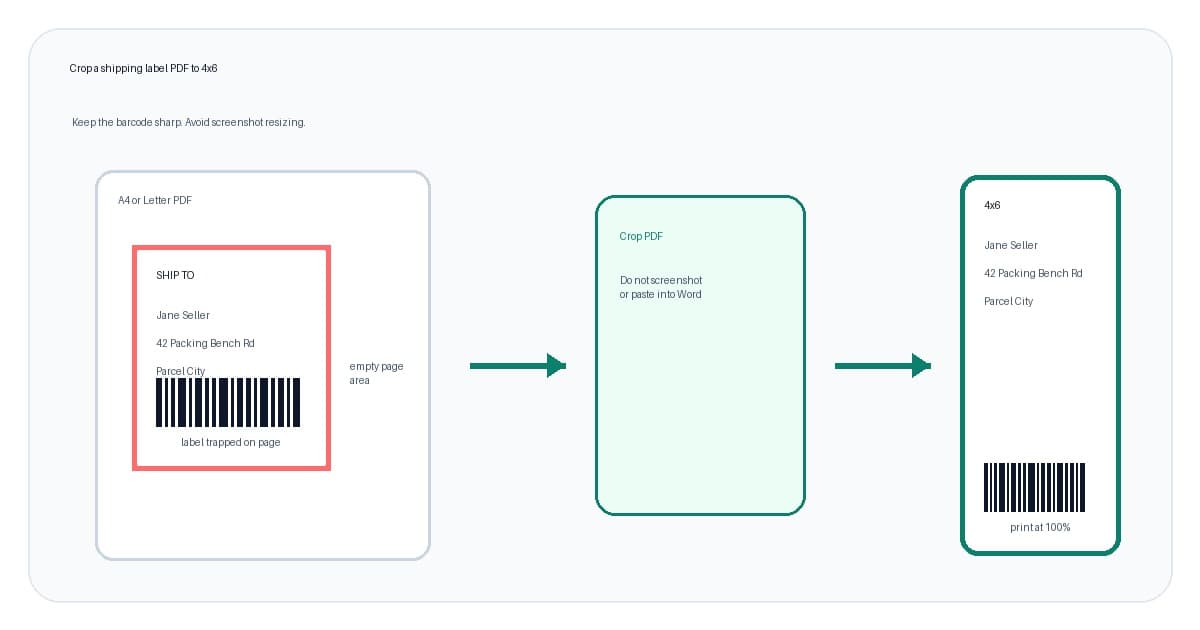
Cropping a shipping label PDF should be boring. You have a label on an A4 or Letter page, your thermal printer wants 4x6 or 100x150mm output, so you crop the label area and print it at the right scale.
The messy bit is what happens when you do it in a rush. A screenshot gets pasted into Word. The barcode gets resized twice. The printer is still set to A4. The label comes out tiny, clipped or fuzzy, then you waste another sticker trying to fix it.
This guide shows the cleaner workflow. It is for sellers with carrier, marketplace or shipping-tool PDFs from workflows such as USPS, Royal Mail, Australia Post, eBay, Etsy, Shopify and similar platforms. LabelChop helps with compatible PDF workflows after you have the file, but it is not an official carrier or marketplace integration.
In this article:
- The quick crop workflow
- Check whether the PDF needs cropping
- Crop the PDF, not a screenshot
- Print the cropped 4x6 PDF at actual size
- Handle multi-page PDFs before batching
- When to automate the crop step
- Related shipping label tools
The quick crop workflow
If orders need to leave today, use this order.
- Open the downloaded shipping-label PDF.
- Check whether the page is A4, Letter, A6, 4x6, 6x4 or 100x150mm.
- If the whole PDF page is already 4x6, do not crop it again.
- If the label sits inside A4 or Letter, crop the label area into a new 4x6 PDF.
- Keep the crop based on the original PDF, not a screenshot.
- Open the new 4x6 PDF in a PDF viewer.
- Set the printer paper size to 4x6 inches, 6x4 or the closest 100x150mm preset.
- Print at actual size or 100 percent scale.
- Print one test label before a batch.
- Save the working preset once the label is sharp and centred.
That sequence fixes the right layer first. A thermal printer cannot guess that the small label on an A4 page is the only part you want. You need to give it a label-sized PDF or a print workflow that reliably extracts the label area.
For a one-off file, start with the free A4 to 4x6 shipping label converter. If your search is specifically about resizing the downloaded label to fit 4x6 stock, use the resize shipping label to 4x6 converter after checking the source PDF. If you are not sure what page size you have, use the shipping label size checker first.
Check whether the PDF needs cropping
The first mistake is cropping a file that does not need it.
A true 4x6 PDF already has the label as the full page. The barcode, address block and service details fill the label-sized canvas. If you print that file at actual size on matching 4x6 stock, it should not need a crop tool.
An A4 or Letter shipping-label PDF is different. The label may sit in the top-left corner, in the centre of the page, or on a sheet with receipts, customs details or instructions around it. That file may be fine for an office printer, but a 4 inch thermal printer will usually shrink or clip the whole page if you send it directly.
Use this split:
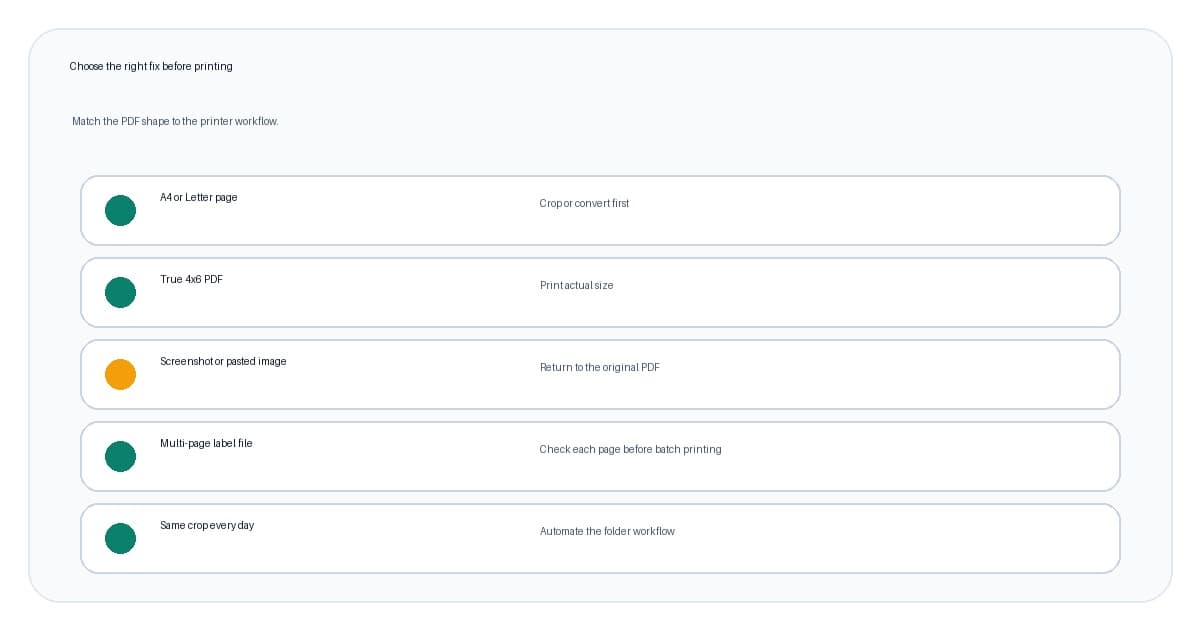
| What you see | What to do | Why | |---|---|---| | Label fills a 4x6, 6x4 or 100x150mm page | Print at actual size | The PDF already matches the stock | | Label sits inside A4 or Letter | Crop or convert first | The printer needs a label-sized page | | Label is A6 | Match A6 stock or convert carefully | A6 is close to 4x6, but not the same shape | | Label is a screenshot or pasted image | Find the original PDF | Resizing can blur barcode edges | | PDF has several pages | Check page count and page types | One upload can hide several labels or documents |
If you are working from a carrier or marketplace download, do not assume every file from that workflow is identical. One export path might give you 4x6 output, while another gives you a full-page PDF. That is common with returns, international shipments, marketplace postage and older downloads.
The carrier format label tool is useful when the source is unclear. It helps you identify whether you have A4, Letter, A6, 6x4, 4x6 or 100x150mm before you touch printer settings.
Crop the PDF, not a screenshot
The screenshot workaround feels fast because every computer can do it. Open the PDF, zoom in, screenshot the label, paste it into Word, Canva or another document, drag it to roughly 4x6 and print.
It can work once. It is still a bad default.
A proper shipping-label PDF usually keeps the barcode crisp. A screenshot turns that barcode into pixels at your screen resolution. When you paste and resize it, the black and white barcode edges can become grey, soft or uneven. A person may still read the address, but a scanner cares about the barcode contrast.
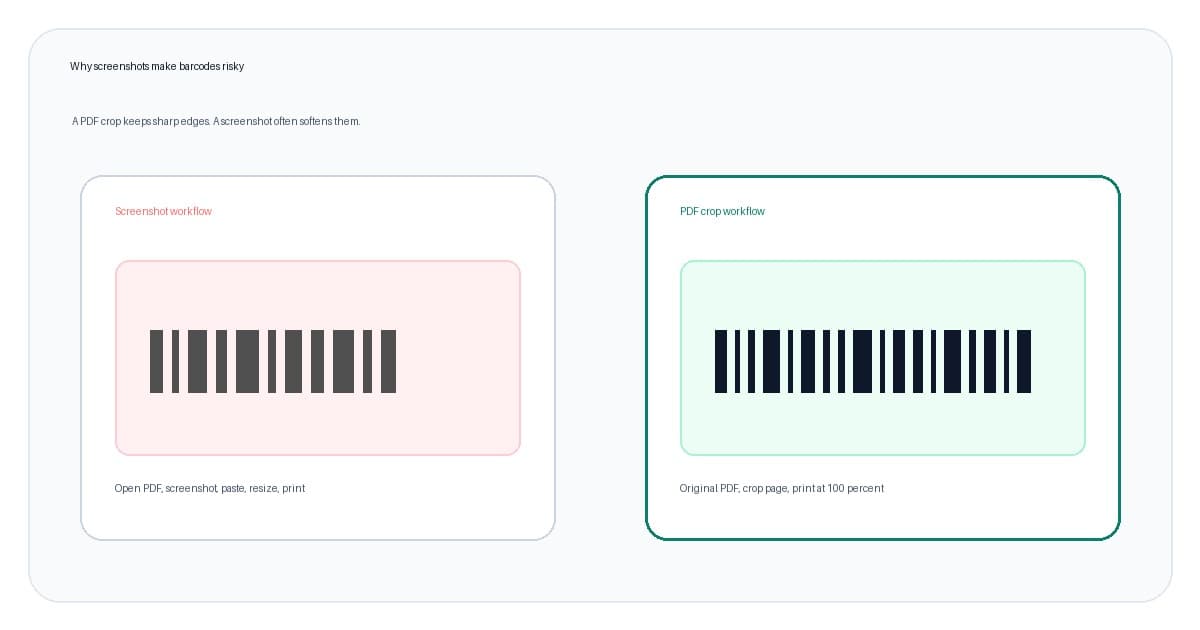
Use the original PDF wherever possible. Crop the PDF page or use a converter that outputs a new PDF page. That gives the print dialog a cleaner source and avoids guessing the label dimensions by dragging corners with a mouse.
If your label already looks fuzzy or the barcode will not scan, use the blurry shipping label barcode troubleshooting guide. If the problem is physical clipping at one edge, use the shipping label cut-off troubleshooting guide after you confirm the PDF page size.
Print the cropped 4x6 PDF at actual size
Cropping is only half the fix. The print dialog can still break a good output file.
After the crop, open the new PDF and set the printer to the physical stock you loaded. For common thermal shipping labels, that means 4x6 inches, 6x4, 100x150mm, 101x152mm, 102x152mm or the closest exact custom size your driver supports.
Then choose actual size, 100 percent, no scaling or the closest equivalent in your PDF viewer. Avoid fit to page for a converted 4x6 PDF. Fit to page sounds safe, but it can shrink the label inside the printable area or move the barcode too close to an edge.
Check these before you print live postage:
- The PDF preview shows one label, not a label inside an office-paper page.
- The printer paper size matches the label roll.
- Scale is actual size or 100 percent.
- Browser headers, footers and margins are off.
- Orientation matches the preview.
- The barcode has clear white space around it.
If the output is too small, run the shipping label print scale calculator. If the printer is new or recently changed rolls, print the thermal printer test label PDF before blaming the carrier file. The sample 4x6 shipping label PDF guide can help you choose a safe practice label instead of reprinting paid postage.
Handle multi-page PDFs before batching
A PDF upload is not always one label.
It might contain several label pages, a label plus receipt, a customs declaration, a return label, or mixed page sizes. If you crop only the first page and send the whole file to the printer, the second page may still be A4, Letter or another layout.
Before a batch, check:
- How many pages are in the PDF.
- Whether each page is the same size.
- Whether each page contains one label or several items.
- Whether receipts or customs pages should be printed separately.
- Whether the labels are in the same position on every page.
For small batches, the shipping label batch tool is a better fit than doing the same crop manually several times. For single-label page-size diagnosis, use the shipping label size checker. The goal is to avoid treating a mixed document as if every page were a clean label.
When to automate the crop step
A free converter is great for one awkward file. It is not a daily fulfilment system.
If you crop a label once a month, use the free tool and move on. If you crop labels every shipping day, the manual process becomes a hidden tax on packing. Open file, crop, preview, download, choose printer, check scale, print, repeat.
That is where LabelChop fits.
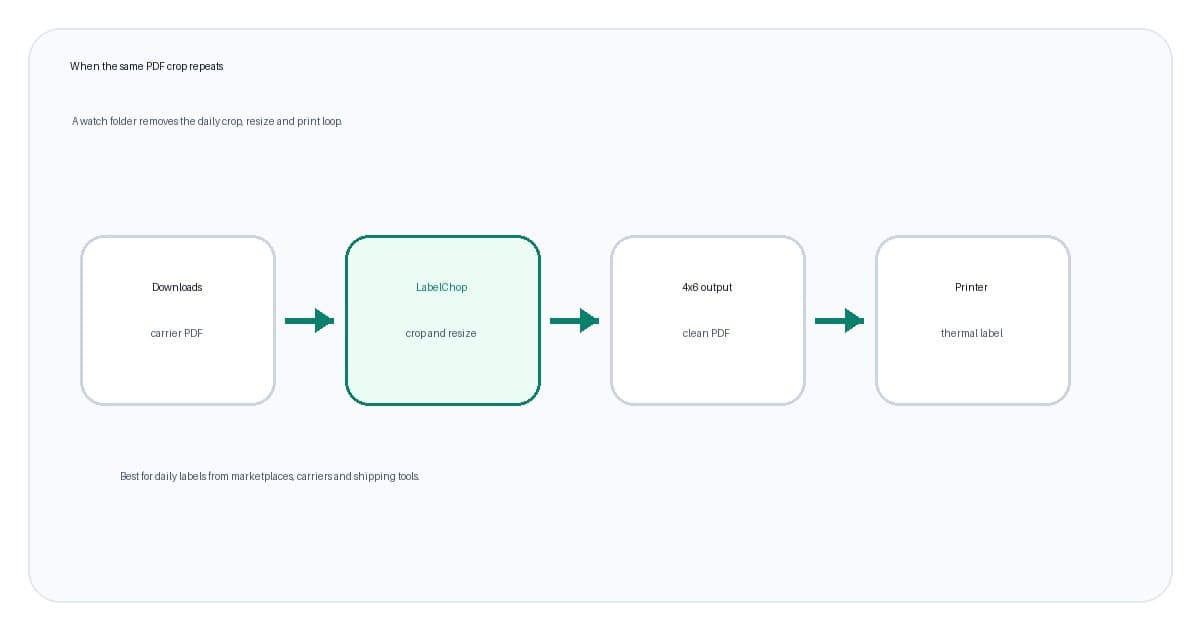
LabelChop watches a folder, detects compatible shipping-label PDFs, crops or resizes awkward pages into 4x6 or 100x150mm output, then prints or saves the result for your thermal-printer workflow. It works after the label PDF exists. It does not buy postage, replace your printer driver or create an official integration with carriers or marketplaces.
Use automation when:
- Carrier or marketplace PDFs keep arriving as A4 or Letter.
- Staff keep using screenshot or Word workarounds.
- One workflow gives clean 4x6 labels and another does not.
- A batch contains several labels that need the same output size.
- You want the crop-and-print step handled from Downloads.
For the broader automation setup, read the watch folder automatic label printing guide. If you want to compare the manual free-tool path with automation, the A4 to 4x6 converter PDF workflow guide covers that handoff in more detail.
Related shipping label tools
Use these next depending on what you are trying to fix.
- A4 to 4x6 shipping label converter, for one-off A4 or Letter PDF crops.
- Resize shipping label to 4x6, for A4, Letter and awkward PDFs when you want the resize-first converter path.
- Shipping label size checker, for identifying A4, Letter, A6, 4x6, 6x4 and 100x150mm PDFs before printing.
- Shipping label print scale calculator, for checking whether the output will shrink, clip or print at actual size.
- Shipping label batch tool, for multi-page PDFs and repeated label checks.
- Blurry shipping label barcode troubleshooting, if screenshotting or scaling has made the barcode hard to scan.
The safe rule is simple. Crop the original PDF into a true label-sized page, then print that page at 100 percent on matching stock. If the same crop keeps coming back, automate it instead of trusting the print dialog every morning.