

4x6 direct thermal shipping labels look simple until you buy the wrong box.
One listing says 4x6. Another says 100x150mm. A third says thermal transfer, fanfold, gap labels, 1 inch core or printer compatible. Then the labels arrive, the printer feeds badly, or the test label comes out blank.
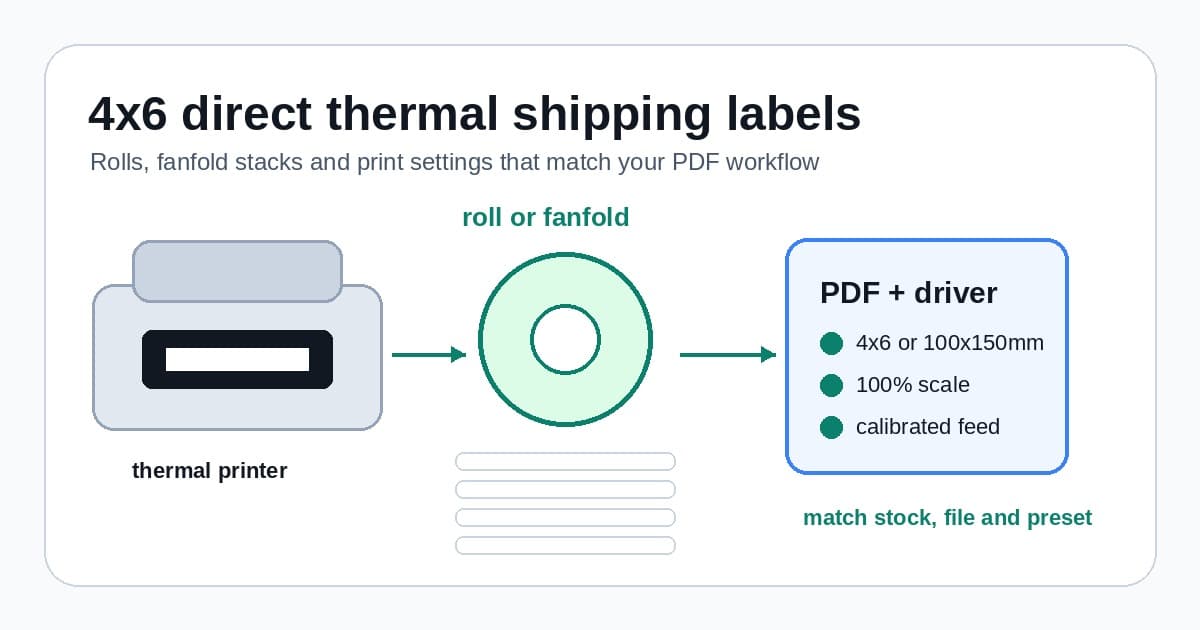
This guide is the practical stock and settings checklist. It helps you choose roll or fanfold 4x6 labels, match the printer driver, avoid A6 and 100x150mm confusion, and separate label-stock problems from PDF crop or scale problems.
In this article:
- The quick answer
- What 4x6 direct thermal labels are
- 4x6, 100x150mm, 102x152mm and A6
- Roll labels versus fanfold stacks
- What to check before buying a box
- Printer settings after the labels arrive
- Stock problem or PDF problem?
- When LabelChop helps
- Related 4x6 label guides
The quick answer
For most ecommerce shipping benches, start with 4x6 inch or 100x150mm direct thermal labels that match your printer's maximum width, feed style and driver preset.
Use this fast checklist before you order.
- Confirm your printer supports 4 inch wide shipping labels, not only narrow address labels.
- Choose direct thermal stock if your printer does not use a ribbon.
- Match the listing size to the driver size you can actually select.
- Pick roll labels if your desk is compact or your printer has an internal roll holder.
- Pick fanfold labels if you ship more volume and have space behind the printer.
- Check roll core size, roll diameter, label count and feed direction.
- Print one test label at actual size before trusting a paid carrier label.
If you are still setting up the printer, use the 4x6 shipping labels print settings guide with this stock checklist. If you only need to test scale and margins first, print the thermal printer test label PDF before using a live postage label.
What 4x6 direct thermal labels are
A direct thermal shipping label is a heat-sensitive label. The printer head heats the coated surface and creates the address, barcode and carrier text. You do not buy ink, toner or ribbon for ordinary direct thermal shipping labels.
That is why stock choice matters. Plain paper labels, laser sheets or thermal transfer labels can look similar online, but they may not darken in a direct thermal printer. The printer can feed a perfect blank label because the surface is wrong.
Direct thermal is the normal choice for small ecommerce parcel labels because the label only needs to survive packing, transit and delivery. It is fast, cheap per print and clean enough for USPS, Royal Mail, Australia Post, eBay, Shopify, Etsy and similar workflows when the actual carrier or marketplace label PDF is valid.
Thermal transfer stock is different. It uses a ribbon and suits longer-life warehouse, product or outdoor labels. It is not automatically better for ordinary parcel labels, and it can be the wrong stock for many common desktop shipping printers.
4x6, 100x150mm, 102x152mm and A6
The names are close enough to be annoying.
A true 4x6 inch label is 101.6mm by 152.4mm. Many Australian, UK and metric-region suppliers sell 100x150mm stock for the same shipping-label job. Some suppliers use 102x152mm. Many printer drivers treat these as practical 4x6-style options, but they are not mathematically identical.
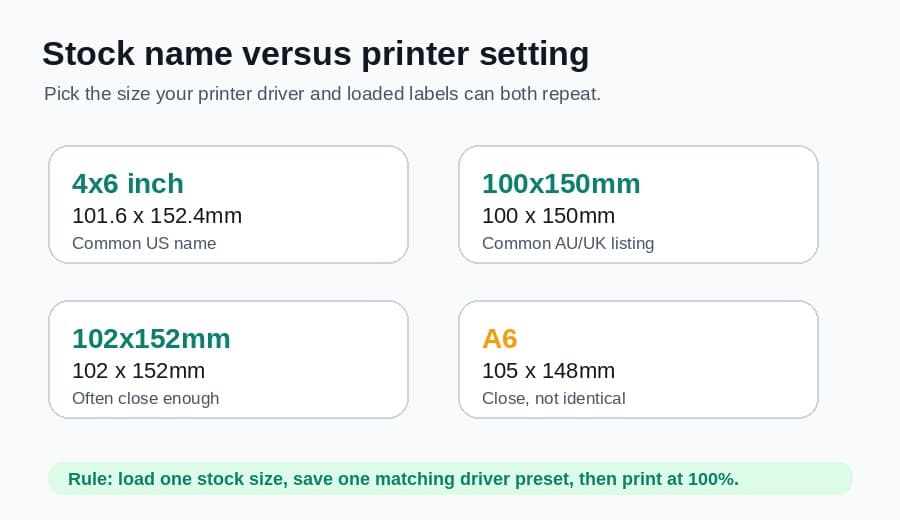
A6 is the trap. A6 is about 105x148mm, which is wider and shorter than true 4x6. A6 can work when the PDF, label stock and printer preset are all intended for A6. It is not a universal substitute for every 4x6 carrier label.
Use this rule: load one stock size, save one matching printer preset, then print a known-good PDF at 100 percent. If the driver lets you create a custom size, name it clearly, such as 4x6 shipping labels or 100x150mm direct thermal.
If you are not sure what size your PDF is, run it through the shipping label size checker before changing stock. A label printed on the wrong stock and a PDF printed at the wrong scale can look similar.
Roll labels versus fanfold stacks
The label shape is only one part of the purchase. The feed style matters too.
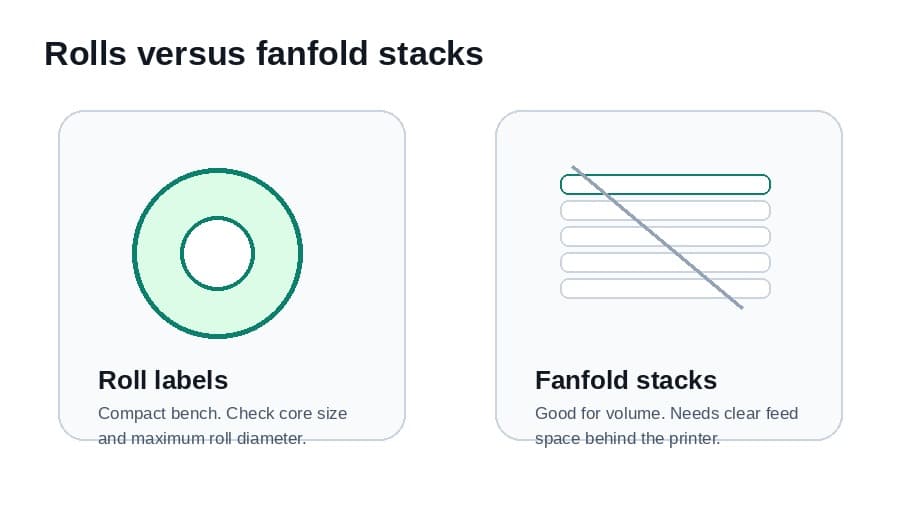
Roll labels are wound around a cardboard or plastic core. They work well for compact benches, printers with internal roll holders and sellers who want tidy storage. The risk is buying a roll with the wrong core size or outer diameter. It might be the right 4x6 label, but still not fit inside the printer.
Fanfold labels sit in a stack behind the printer and feed through the rear slot. They are often convenient for higher-volume packing because the stack can hold more labels and does not curl around a roll. The trade-off is desk space. You need room behind the printer so the stack feeds straight.
Use roll labels when:
- Your printer has an internal roll bay or small external holder.
- Desk space behind the printer is limited.
- You ship enough to want thermal labels, but not enough to justify a large fanfold box.
- You move the printer between benches or rooms.
Use fanfold labels when:
- You print batches and want fewer reloads.
- Your printer supports rear feed cleanly.
- You have space for the stack to sit flat.
- You want to compare lower cost per label across larger cartons.
Whatever you choose, load the stock squarely. Label guides should hold the backing without squeezing it. A roll that enters at a slight angle can make labels look off-centre even when the PDF and driver are correct.
What to check before buying a box
Do not buy 4x6 direct thermal labels from the title alone. Read the specs slowly.
Check these details before ordering.
| Spec | Why it matters | |---|---| | Actual size | The driver preset should match the physical stock | | Direct thermal | A direct thermal printer needs heat-sensitive stock | | Roll or fanfold | The feed path must match your printer and bench space | | Core size | Internal roll printers can reject oversized cores | | Outer diameter | A big roll may not fit inside compact printers | | Gap or black mark | The sensor must detect where each label starts | | Adhesive | Labels need to stay stuck to satchels, boxes and cartons | | Recent reviews | Watch for jamming, curling, faint print and weak adhesive |
Barcode quality deserves its own check. Cheap stock is not a bargain if every barcode prints grey, streaky or fuzzy. Start with a small pack when changing supplier, then print a test label and one real workflow label before buying a bulk carton.
Storage also matters. Direct thermal labels can darken or fade when exposed to heat, direct sun or long storage in a hot shed. Keep rolls sealed, dry and away from windows, heaters and cars.
Printer settings after the labels arrive
Once the labels arrive, do not start with live orders. Start with the printer layer.
- Load the labels with the coated side facing the print head.
- Set the driver paper size to the actual stock, such as 4x6 or 100x150mm.
- Choose direct thermal media if the driver asks for media type.
- Calibrate the gap or black-mark sensor.
- Print a neutral test label at 100 percent.
- Check border, barcode-like lines, darkness, feed stop and orientation.
- Save the working preset before printing carrier PDFs.
If the test label comes out blank, stop. Do not change the carrier PDF yet. Check roll direction, direct thermal stock, media type, darkness and calibration. The blank thermal labels checklist walks through that split in more detail.
If the test label prints but a real label is tiny or clipped, the stock is probably not the first problem. The PDF page size, crop or print scale is more likely wrong. Use the shipping label cut-off troubleshooting guide when one edge, barcode or QR code is missing after the stock test passes.
Stock problem or PDF problem?
This is the mistake that wastes the most labels.
A bad stock setup usually affects every file. A neutral test label, a sample PDF and a carrier label all print blank, drift, feed extra labels or look faint. Fix the physical layer first: stock type, roll side, guides, calibration, darkness and driver paper size.
A bad PDF workflow often affects only the real label. The test label prints perfectly, then a USPS, Royal Mail, Australia Post, eBay, Shopify or Etsy PDF prints tiny because the label is sitting inside Letter or A4. In that case, buying different stock will not fix the file.
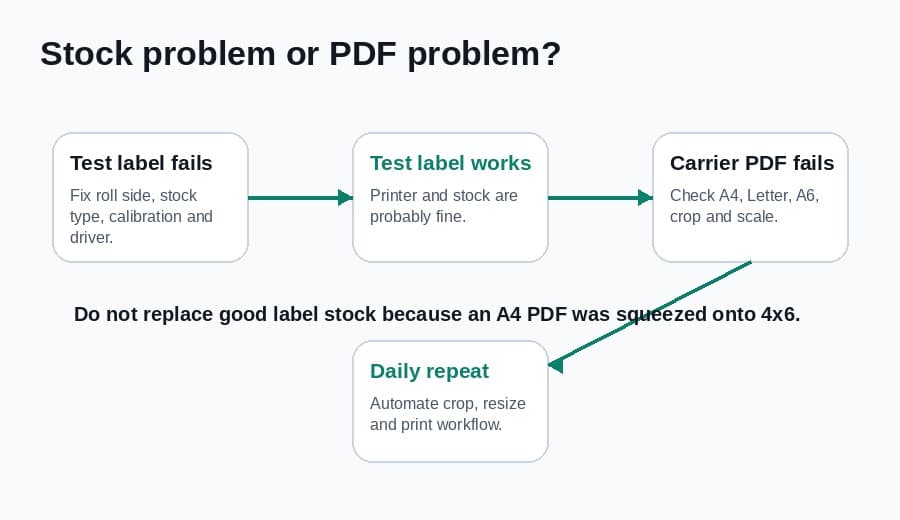
Use this split when diagnosing.
| Symptom | More likely stock or printer | More likely PDF or scale | |---|---|---| | Blank output | Roll side, wrong stock, darkness or driver | PDF viewer only if test labels work | | Every label drifts | Calibration, guides or feed path | Rare unless the page size changes per file | | One carrier label is tiny | Less likely | A4 or Letter PDF sent to 4x6 stock | | Barcode is fuzzy | Stock, darkness, speed or dirty print head | Screenshot workflow or double scaling | | One edge is clipped | Paper size, calibration or guides | Bad crop, wrong orientation or margins |
If the PDF is the problem, start with the carrier format label tool or the shipping label print scale calculator. If the label is embedded in A4 or Letter, use the A4 to 4x6 shipping label converter for a one-off fix.
When LabelChop helps
LabelChop does not make bad labels good. It will not fix the wrong roll side, non-direct-thermal stock, a dirty print head or a printer that cannot feed 4x6 labels.
It helps after the physical printer setup is working, when the repeated pain is PDF handling.
Many sellers have a good thermal printer and good 4x6 direct thermal labels, but the files still vary. One carrier workflow gives a native 4x6 PDF. Another marketplace export gives A4 or Letter. A returns label lands in a different corner. An international label uses a format that needs checking before it hits the printer.
LabelChop watches a folder, detects compatible shipping-label PDFs, crops or resizes awkward files to 4x6 or 100x150mm output, then prints or saves the cleaned label for your normal thermal printer workflow. It helps with compatible PDFs and workflows from carriers and marketplaces, but it is not an official carrier, marketplace or printer-brand integration.
For one-off files, use the free converter. For recurring PDF cleanup, compare the time saved with LabelChop pricing.
Related 4x6 label guides
Keep the stock decision connected to the actual printing workflow.
- 4x6 shipping labels print settings, for PDF page size, 100 percent scale and driver setup.
- 4x6 thermal labels Australia guide, for Australian 100x150mm buying and MyPost-safe workflow notes.
- Shipping label printer setup for small business, for the full printer, driver, calibration and PDF sequence.
- Thermal printer blank labels checklist, for roll direction and direct thermal stock problems.
- Sample 4x6 shipping label PDF, for safe test files before live postage.
- A4 to 4x6 shipping label converter, for one-off awkward PDFs before printing.
Buy label stock that matches the printer. Save the printer preset that matches the stock. Then make sure the PDF matches both. When those three agree, 4x6 direct thermal labels become boring in the best possible way.