

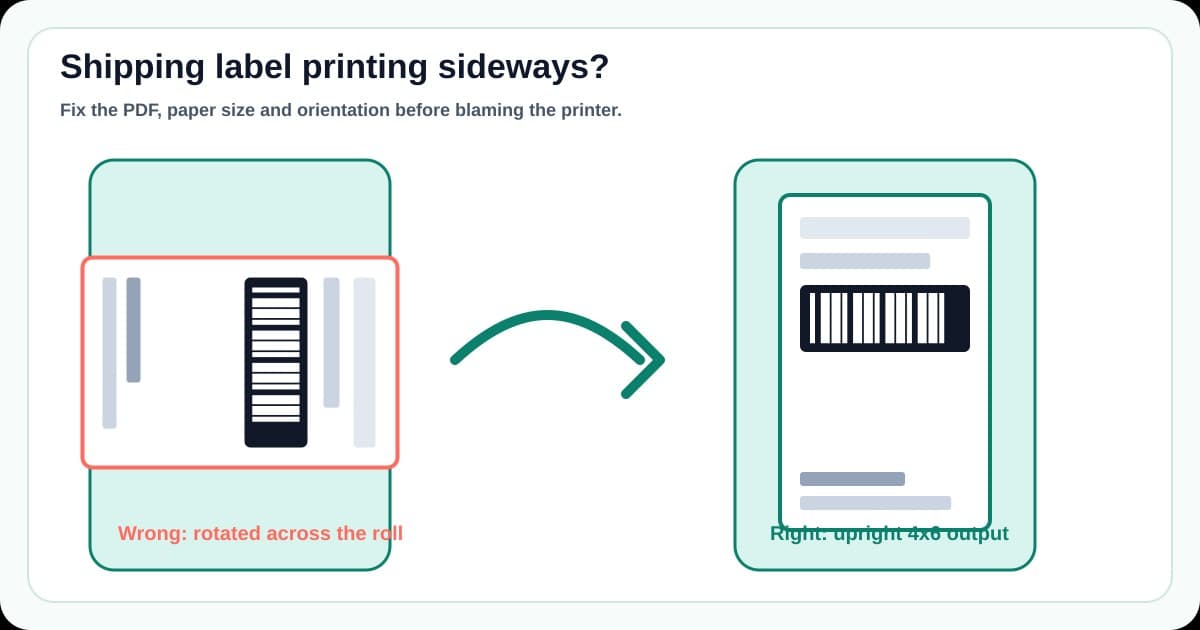
A shipping label printing sideways is usually an orientation mismatch, not a sign that your thermal printer is broken.
The confusing part is that everyone describes the same label differently. One app says 4x6. Another says 6x4. A printer driver might call it 100x150mm, 150x100mm, portrait or landscape. If one layer picks the opposite direction, the label rotates, shrinks, clips, or prints across the roll instead of along it.
Use this guide to work through the PDF, printer driver and print preview in the right order. If your label is not sideways but is cut off at the edge, use the shipping label cut-off guide. If it is tiny, use the shipping label printing too small guide.
In this article:
- Fast sideways label checklist
- Why shipping labels print sideways
- Check whether the PDF is already rotated
- Understand 4x6, 6x4, 100x150mm and 150x100mm
- Fix the printer driver paper size
- Set orientation in the print preview
- Stop saved presets overriding the correct setting
- Test browser labels, downloaded PDFs and marketplace exports
- Calibrate after changing orientation or stock
- When to convert the PDF instead of fighting settings
- One-label test before printing a batch
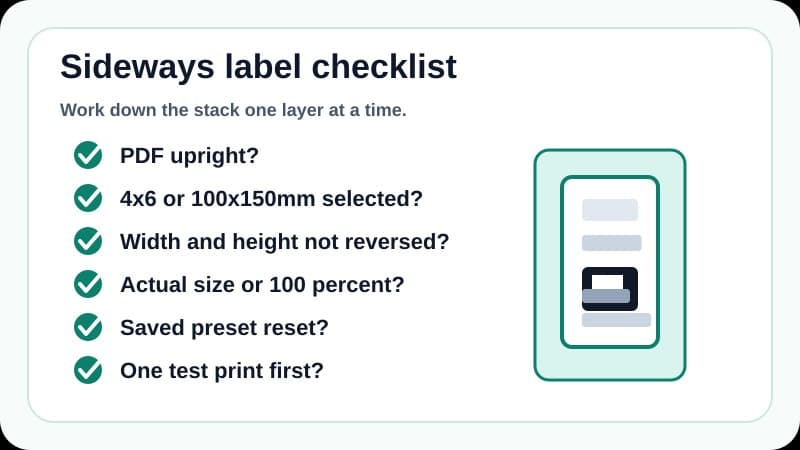
Fast sideways label checklist
If parcels are waiting, start here.
- Open the shipping-label PDF and check whether the label itself is upright on the page.
- Confirm the physical label stock is 4x6 inches or 100x150mm.
- In the printer driver, choose the matching paper size. Try the alternate 6x4 or 150x100mm option only if the preview is clearly rotated.
- Print from the PDF viewer at actual size or 100 percent scale.
- In print preview, pick the orientation where the barcode and address fill the label without touching the edge.
- Remove saved printer presets that may be forcing portrait or landscape from an old job.
- Print one test label before printing a batch.
- If the source PDF is A4, Letter or has multiple labels per page, convert the label area to 4x6 first.
Do not start by changing darkness, speed or label brand. Those can affect barcode quality, but they will not fix a rotated page.
Why shipping labels print sideways
A sideways print means at least one part of the workflow thinks the label is wider than it is tall, or taller than it is wide.
That can happen in four places.
| Layer | What goes wrong | Sideways symptom | |---|---|---| | PDF page | The downloaded label is rotated inside the file | Preview starts sideways before printing | | Paper size | Driver uses 150x100mm instead of 100x150mm, or the reverse | Label rotates or clips across the roll | | Print orientation | Viewer chooses portrait when the driver expects landscape | Preview looks short and wide | | Saved preset | Old settings override the current print dialog | Preview looks right, output is wrong |
The trick is to find which layer first introduces the rotation. If the PDF is sideways before you open the print dialog, fix or rotate the PDF. If the PDF looks right but preview rotates it, fix the print dialog or driver. If preview looks right but the label comes out sideways, look for driver presets or custom paper sizes.
Changing every setting at once can make the next print worse. Move one layer at a time.
Check whether the PDF is already rotated
Open the PDF before you touch printer settings.
If the label is sideways inside the viewer, the printer is only following the file. Rotate the page in the viewer if that option exists, then print one label. In many PDF viewers, rotate view is only a screen setting, not a permanent change to the PDF, so confirm the print preview after rotating.
If the PDF has a full A4 or Letter page with a small label inside it, orientation might not be the real problem. The file may need cropping or conversion before it can print properly on a thermal label printer.
A true 4x6 PDF usually has one shipping label per page. The barcode, address, service name and tracking number should already fill a page shaped like your label stock.
A marketplace or carrier export can be different. USPS, Royal Mail, Australia Post, eBay, Shopify, Etsy and other workflows can give sellers PDFs in different layouts depending on account settings, service type, browser flow, international labels, old downloads or bulk export options. LabelChop can help with compatible PDFs from those workflows, but that is not the same as an official integration with any carrier or marketplace.
Understand 4x6, 6x4, 100x150mm and 150x100mm
Most ecommerce thermal labels are described as 4x6 inches in the US and often as 100x150mm in metric workflows.
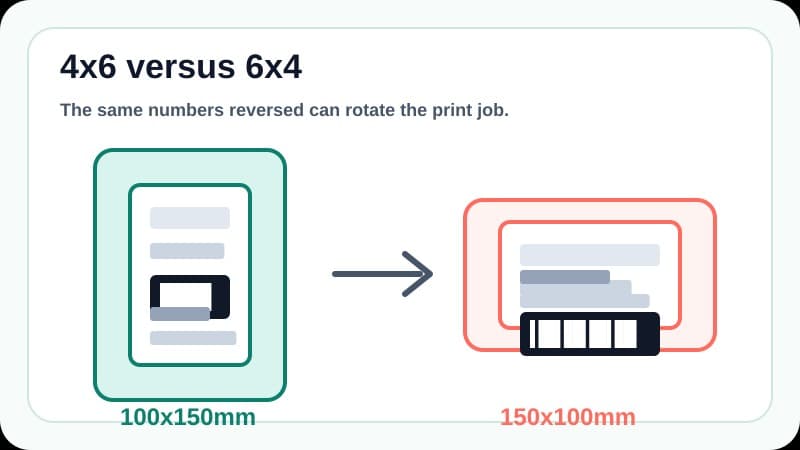
Those numbers are nearly the same physical size, but drivers do not always name them in the same direction. A roll-fed printer may treat the feed direction as the height. A PDF viewer may treat the page on screen as portrait or landscape. A custom paper dialog may ask for width first and height second.
Use this translation table when checking settings.
| Setting name | Usually means | Watch out for | |---|---|---| | 4x6 inches | 4 inches wide, 6 inches tall | Some drivers also offer 6x4 | | 6x4 inches | 6 inches wide, 4 inches tall | Often rotates the label if your roll is 4 inches wide | | 100x150mm | About 4x6, metric | Usually the right shape for 100mm-wide rolls | | 150x100mm | Same dimensions reversed | Can print sideways on 100mm-wide rolls | | Portrait | Taller than wide | Correct in one viewer, wrong in another | | Landscape | Wider than tall | May be needed if the driver names the stock differently |
Do not choose portrait or landscape by name alone. Choose the option where the preview matches the physical label in your hand.
Fix the printer driver paper size
The printer driver is the source of truth for the physical stock.
On Windows, open the printer preferences for your thermal printer and check the paper size. If 4x6 or 100x150mm is missing, create a custom size in the printer or print server settings, then select it again in the final print dialog.
On macOS, check Page Setup as well as the app print dialog. Preview, Chrome, Acrobat and marketplace print screens can each show a slightly different set of paper sizes and presets.
For a 100mm-wide label roll, start with 4x6 inches or 100x150mm. If the preview is rotated sideways, test the alternate orientation once, but do not leave both the driver and viewer fighting each other.
If your label stock is physically loaded sideways in a printer that supports fanfold labels, straighten the stack and feed path. Digital settings cannot fix stock that is entering the printer skewed.
Set orientation in the print preview
The print preview should show the complete label inside the printable area.
Check three things before pressing Print.
- The address block is upright for the person reading the parcel.
- The barcode has white space around it and is not touching an edge.
- The label fills the page without being stretched, shrunk or clipped.
For a true 4x6 PDF, print at actual size or 100 percent. Fit to page can be useful as a test, but it can also shrink a correct label or rotate it unexpectedly because the driver reports a non-printable area.
If the viewer has an auto-rotate option, test it carefully. Auto-rotate may fix one file and break another because it tries to infer the best orientation from page shape. For shipping labels, predictable settings are better than clever settings.
If the PDF viewer shows a rotate button, remember that rotating the view is not always the same as rotating the print output. Always confirm the final print preview, not just the on-screen page.
Stop saved presets overriding the correct setting
Saved presets are a common reason sideways labels come back after you fixed them.
A seller might print invoices on A4, product labels on 50x30mm stock and shipping labels on 4x6 stock from the same computer. The operating system remembers old choices. The browser remembers old choices. The printer driver remembers old choices.
If preview and output disagree, reset the print path.
- Choose the thermal printer again from the printer list.
- Re-select 4x6 or 100x150mm paper size.
- Re-select actual size or 100 percent scale.
- Remove headers, footers and browser margins.
- Save a new preset named clearly, such as Shipping labels 4x6.
Do not rely on the last-used setting if several apps share the same printer.
Test browser labels, downloaded PDFs and marketplace exports
A browser print screen is not the same as a downloaded PDF.
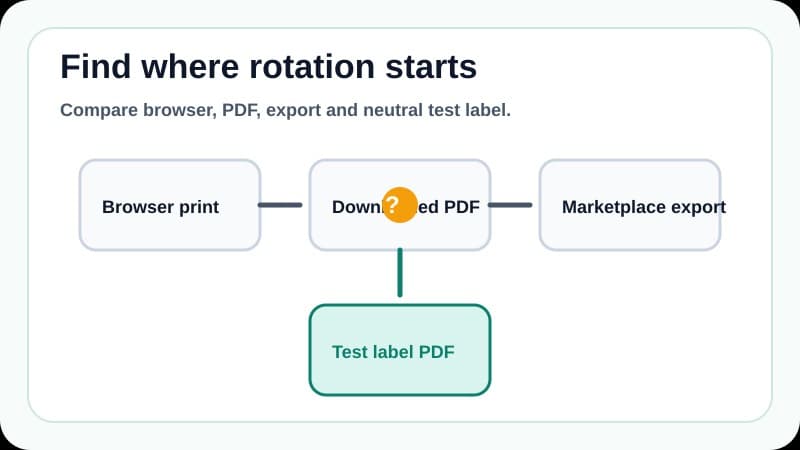
If the label prints sideways from the browser, download the PDF and print it from a PDF viewer. If the downloaded PDF prints correctly, the browser print layer is probably causing the orientation problem.
If the downloaded PDF is also sideways, check whether the carrier or marketplace has a label format setting. Some workflows let you choose 4x6, A6 or one-label-per-page output. Others may give you A4, Letter or mixed layouts depending on the order, service or export path.
For Royal Mail Click & Drop, the practical checks are the same: confirm the label format you download, set the printer to the matching 6x4 or 100x150mm stock, then print at 100 percent. For USPS and marketplace labels, use the same sequence rather than guessing based on the carrier name.
If you need a clean non-carrier test, print the free thermal printer test label PDF. If that prints upright and centred, your printer is probably fine. The issue is likely the carrier or marketplace PDF layout.
Calibrate after changing orientation or stock
Calibration will not rotate a PDF, but it can make a corrected setup print consistently.
Run the printer feed or calibration process after changing rolls, switching between label sizes, moving from roll to fanfold stock, or changing driver paper size. Dymo, Zebra, Brother, Rollo and MUNBYN models all handle calibration differently, so use the printer manual if you are not sure which button sequence applies.
Bad calibration usually looks like drift or clipping, not a clean 90-degree rotation. The first label may be close, then the second label starts lower or higher. If every label is sideways in exactly the same way, fix orientation first. If each label moves further out of place, calibrate next.
When to convert the PDF instead of fighting settings
If the source PDF is A4, Letter, A6 or a multi-label sheet, the cleanest fix may be conversion rather than more print-dialog tweaking.
Printing a full A4 PDF straight to a 4x6 thermal printer often creates one of three bad outcomes: a tiny label, a sideways label, or a clipped label. The printer is trying to fit a page shape that was never designed for that stock.
For a one-off awkward PDF, use the free A4 to 4x6 shipping label converter. It extracts the useful label area into a thermal-printer friendly size.
For recurring workflows, LabelChop is built to remove the repeated crop and print step. It watches your Downloads folder, detects compatible shipping-label PDFs, crops or resizes them to 4x6 / 100x150mm, then prints or saves the result automatically.
That can help when you get awkward PDFs from carrier and marketplace workflows such as USPS, Royal Mail, Australia Post, eBay, Shopify and Etsy. It does not mean LabelChop is an official integration with those services. It means it helps when the PDF you already downloaded needs clean thermal-printer output.
One-label test before printing a batch
Before you print twenty labels, print one and inspect it.
The address should be upright. The barcode should be complete and readable. The label should fill the stock without being stretched, shrunk, clipped or rotated. The next label should feed to the correct starting point.
Use this final pass.
- PDF page shape matches the label stock, or has been converted first.
- Driver paper size is 4x6 inches or 100x150mm.
- Width and height are not reversed in the custom size.
- Print scale is actual size or 100 percent for a true 4x6 PDF.
- Orientation preview matches the physical roll direction.
- Old presets are not overriding the current print job.
- Calibration feeds one physical label at a time.
Related orientation and 4x6 setup guides:
- 4x6 shipping labels print settings, for the baseline paper size, scale and PDF checks.
- 4x6 label test print troubleshooting, for separating printer setup failures from carrier or marketplace PDF problems.
- How to crop a shipping label PDF to 4x6, when an A4 or Letter source file is causing the rotation problem.
- Shipping label too big troubleshooting, if the rotated label also clips or spreads across two labels.
- Sample 4x6 shipping label PDF guide, for testing orientation without reprinting paid postage.
Sideways shipping labels are annoying because the wrong option can look sensible. Once the PDF shape, driver paper size and preview orientation agree, the printer should become boring again. That is the goal during fulfilment.