
The best label printer for Royal Mail Click & Drop is not the one with the loudest product listing. It is the one that can print a boring, sharp 6x4 label every time your postage workflow gives you a usable PDF.
For most small UK sellers, that means a 4 inch thermal printer, 6x4 or 100x150mm direct thermal labels, a driver preset that matches the stock, and a print dialog set to actual size. The brand still matters, but the workflow matters more.
If your Click & Drop labels are already printing tiny, cut off or sideways, start with the Royal Mail label printer setup guide. If you already have the PDF and need the practical home-print path, use the Royal Mail label at home 6x4 workflow. This page is for choosing or sanity-checking the printer setup before you waste more rolls.
In this article:
- The short answer
- What to look for before the brand name
- How common printer types compare
- The Click & Drop settings chain
- When the printer is fine but the PDF is wrong
- Which setup should you choose
- Related Royal Mail and 6x4 guides
The short answer
Choose a 4 inch thermal label printer that can handle 6x4 inch labels, or the metric equivalent your supplier sells as 100x150mm or 102x152mm.
Then check these four things before you buy or before you blame the printer:
- The printer supports the physical label width you plan to load.
- The driver lets you save a 6x4, 4x6 or 100x150mm paper preset.
- The printer can calibrate cleanly after changing rolls or fanfold labels.
- The barcode prints dark and sharp from the original PDF at actual size.
That setup can work with common 4 inch thermal printer brands such as Dymo, Zebra, Brother, MUNBYN, Rollo and similar models. LabelChop is not printer hardware, and it is not an official integration with any of those brands or with Royal Mail. It helps with the PDF step when compatible labels still arrive in awkward formats.
If you are still confused by the size names, use the Royal Mail label size guide before ordering stock. If you already have a test PDF, the Royal Mail 6x4 label settings checker is the faster way to compare the PDF, printer preset and scale setting.
What to look for before the brand name
Printer comparison pages often jump straight into model names. That is not where a shipping seller should start.
Start with the output you need: a clean 6x4 label on thermal stock. If the printer cannot reliably feed that stock, or if the driver hides the paper-size controls, the brand badge will not save you during a busy packing session.
Check 6x4 support
For Royal Mail Click & Drop workflows, the practical target is usually called 6x4 in the UK. Some printer drivers and label suppliers say 4x6, 100x150mm, 101x152mm or 102x152mm.
Those names are close, but they are not magic. The PDF page, driver preset and loaded stock still need to match. If the driver only offers small address-label sizes, avoid it for parcel labels.
Check driver control
A good shipping-label printer gives you boring control over paper size, orientation, darkness, speed and calibration.
That matters because browser print dialogs can remember old A4 settings. If your printer preset is clear and saved at the operating-system level, it is easier to spot when Chrome, Edge, Acrobat or Preview is trying to override it.
Check stock cost and feeding
Roll labels save space. Fanfold labels usually cost less per label and suit higher volume benches. Neither is automatically better.
Check the roll core, maximum roll diameter, fanfold support, gap sensing and whether the printer needs branded labels. A cheap printer can become expensive if every label roll costs more than expected.
Check barcode quality
A shipping label is only useful if the barcode scans.
A 203 dpi printer can be enough for many parcel labels when the PDF is clean and the printer is tuned. A 300 dpi printer can give sharper small text and barcodes, but it does not fix screenshots, double-scaling or a full A4 PDF being squeezed onto one 6x4 label.
If barcode softness is already your problem, read the blurry shipping label barcode troubleshooting guide before replacing the printer.
How common printer types compare
Use this as a workflow comparison, not a ranked affiliate list.
| Printer type | Good fit | Watch out for | |---|---|---| | Dymo wide label printers | Simple USB desks and roll labels | Label costs, model-specific roll restrictions and software changes | | Zebra desktop printers | Higher volume benches and reliable calibration | More setup steps than plug-and-play budget printers | | Brother wide QL printers | Sharp labels and office-friendly setup | Roll format and label costs can vary | | MUNBYN-style budget printers | Low upfront cost and generic fanfold labels | Driver quality, support and calibration differ by model | | Rollo-style printers | 4x6 ecommerce workflows and generic labels | Still needs correct PDF size, scale and calibration |
If Brother is on your shortlist, use the Brother QL-1100 Royal Mail Click and Drop setup before printing live postage. It covers the QL-1100 and QL-1110NWB queue, media-size and PDF scale checks that are easy to miss in a broad buying guide.
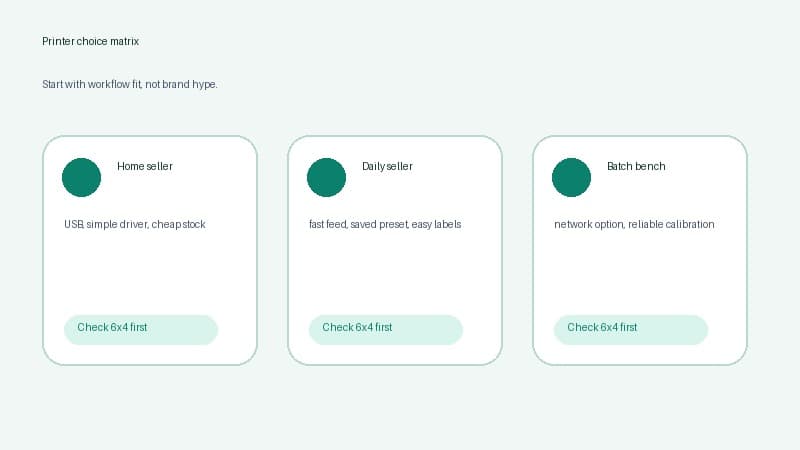
The best choice depends on volume, desk setup and label stock. A home seller doing five parcels a day may value simple USB setup and cheap generic labels. A warehouse bench printing batches may value network printing, faster feed, rugged build and predictable calibration.
If you already own a 4 inch thermal printer, do not replace it until you have tested the PDF and print settings. A clean test label proves the printer can print. A bad Click & Drop label after that usually points to the downloaded file, scaling or driver preset.
The Click & Drop settings chain
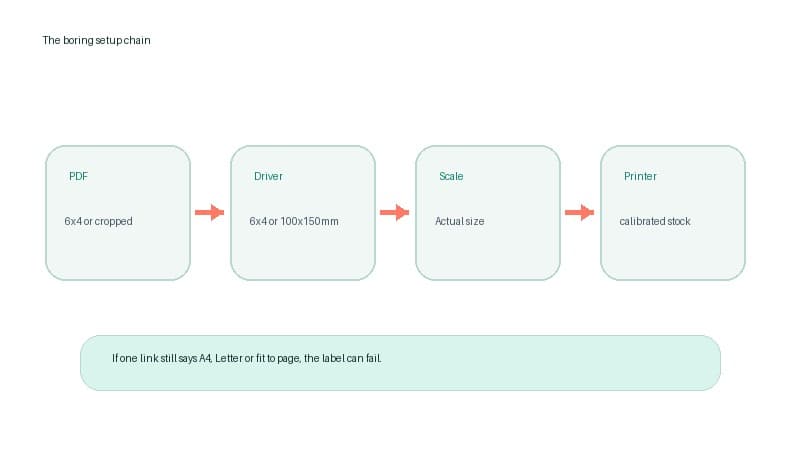
A reliable Royal Mail label printer setup has four links.
The PDF
Open one downloaded label before printing a batch. If the PDF page itself is already 6x4, 4x6 or close to 100x150mm, it should print at actual size once the driver matches.
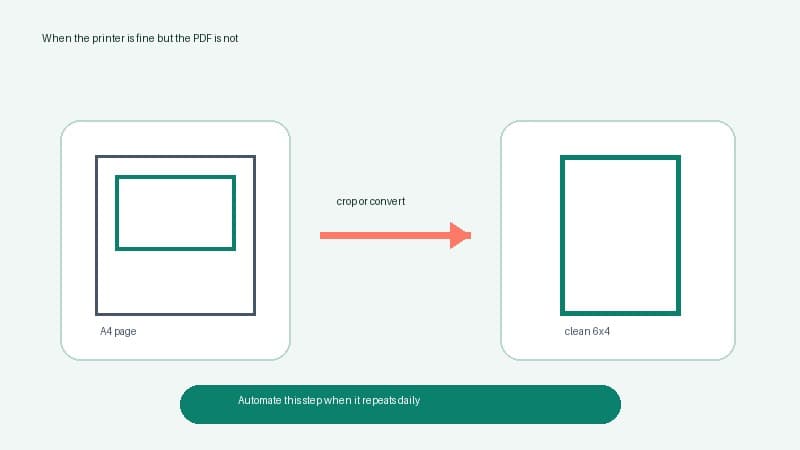
If the label sits inside an A4 page, the thermal printer sees the whole A4 page. That is how labels become tiny or clipped.
The driver
Set the operating-system printer preferences to the physical stock in the printer. Do not leave the driver on A4 just because the source file came from a web portal.
For UK shipping labels, the saved preset might be called Royal Mail 6x4, 4x6 shipping labels or 100x150mm thermal labels. The name matters less than the dimensions.
The scale
Use actual size, no scaling or 100 percent for a true label-sized PDF.
Avoid fit to page, shrink oversized pages and browser margins for normal label PDFs. They sound safe, but they often resize a label that was already correct.
The calibration
Calibrate after changing label rolls, label supplier, stock size, roll holder or fanfold stack.
Calibration issues usually affect every print, including test labels. PDF size issues usually affect only certain carrier or marketplace files. Separating those two saves a lot of guessing.
When the printer is fine but the PDF is wrong
This is the most common trap. A seller buys a decent printer, loads good 6x4 labels, prints a test label nicely, then a real Royal Mail or marketplace PDF still fails.
That usually means the printer is not the broken part.
A PDF can fail for boring reasons:
- It is A4 with the actual label inside the page.
- It is a screenshot instead of the original PDF.
- It has been scaled once by the browser and again by the driver.
- It is rotated compared with the paper preset.
- It came from a marketplace or older workflow with different defaults.
For one awkward PDF, use the free A4 to 4x6 shipping label converter. If you are not sure what size the file is, run it through the shipping label size checker or the carrier format label tool.
For recurring Click & Drop, marketplace or carrier PDFs, LabelChop can watch a folder, detect compatible shipping-label PDFs, crop or resize them to 4x6 or 100x150mm output, then print or save the result for your normal thermal printer. It helps after the label file exists. It does not buy postage, manage Royal Mail orders or create an official Royal Mail integration. If that cleanup is becoming a daily packing cost, compare the manual fix with LabelChop pricing before replacing otherwise good printer hardware.
Which setup should you choose
Use the simplest setup that matches your volume.
If you ship a few parcels per week
Pick a simple 4 inch thermal printer with affordable labels and a driver that lets you save a 6x4 preset.
USB is fine. Roll or fanfold is fine. The important part is proving one label prints cleanly at actual size before you trust it with a live parcel.
If you ship most days
Prioritise label cost, calibration and repeatable presets.
A printer that is slightly slower but boringly reliable is better than a cheap one that needs a settings hunt every morning. Save a preset, keep one label stock size, and avoid changing PDF viewers unless you have to.
If you print batches
Prioritise feed reliability, shared access if needed, and one test label before the batch.
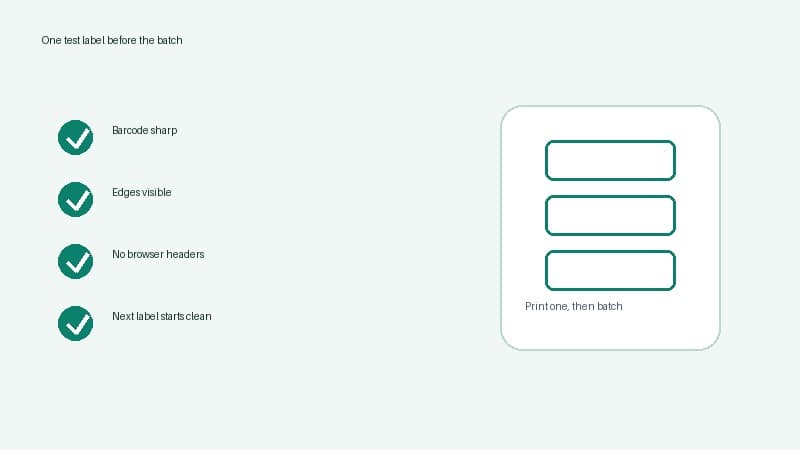
Before printing ten or fifty labels, check the first output properly. The barcode should be sharp. The edges should not be clipped. The next blank label should start in the right place. The browser should not add headers, footers or margins. If the preview is oversized before the first label prints, use the shipping label printing too big troubleshooting guide and fix scale before you blame the printer model.
Thermal printers are fast. That is great when the settings are right and painful when they are wrong.
Related Royal Mail and 6x4 guides
Keep these nearby if you are building a Click & Drop thermal-printer workflow:
- Royal Mail QR code label printing guide, for deciding whether you need a printer or a counter-scanned code.
- Royal Mail 6x4 label settings checker, for checking a specific PDF, driver preset and scale setting.
- Dymo 4XL Royal Mail 6x4 setup checklist, for Dymo-specific paper size, PDF scaling and one-label tests.
- Brother QL-1100 Royal Mail Click and Drop setup, for Brother QL-1100 and QL-1110NWB workflows.
- How to print a Royal Mail label at home on 6x4, for the downloaded-PDF home-print sequence.
- 4x6 shipping labels print settings, for the broader paper-size and scale checklist.
- Shipping label cut-off troubleshooting, for clipped barcode edges after the printer is chosen.
The printer choice matters, but the boring chain matters more. Pick a 4 inch thermal printer that supports the stock you actually use, save the 6x4 preset, print at actual size, calibrate the printer, then automate the PDF cleanup step if it keeps coming back.