

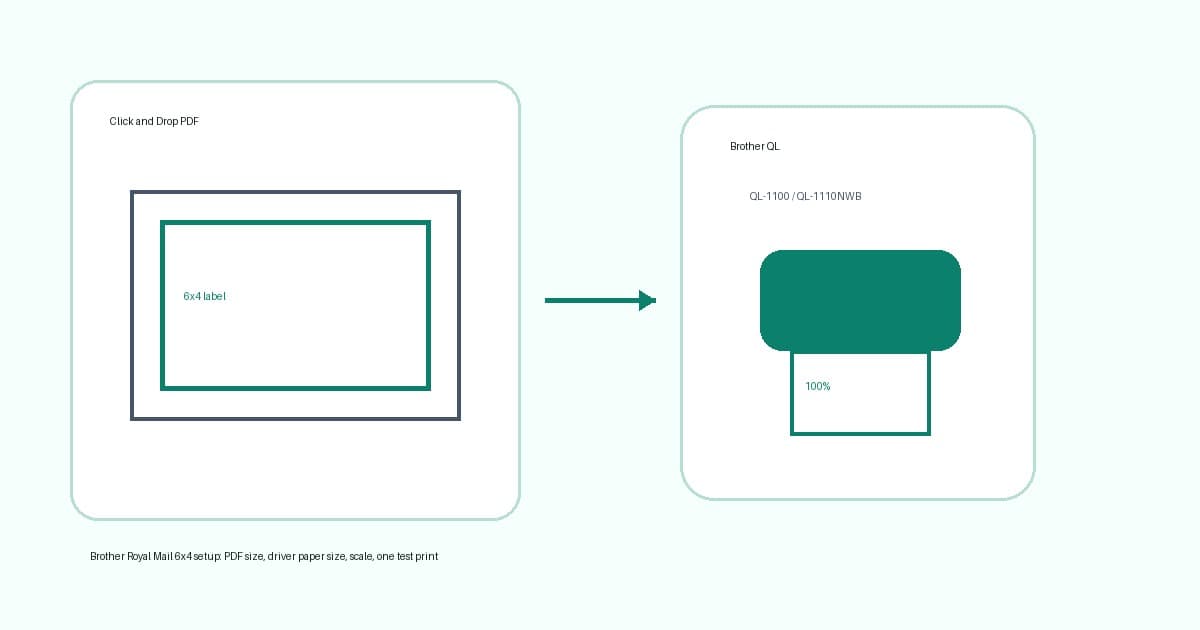
A Brother QL-1100 or QL-1110NWB can be a clean Royal Mail Click and Drop label printer, but the printer is only one part of the workflow.
The usual failure looks like this: the Brother printer is connected, the label roll is loaded, Click and Drop has produced a PDF, then the barcode prints tiny, clipped or sideways. The hardware may be fine. The problem is often the handoff between the Royal Mail PDF, the Brother media size and the print scale.
This guide is for UK sellers using a wide Brother QL printer with Royal Mail, Click and Drop, marketplace exports or other compatible shipping-label PDFs. It focuses on 6x4 thermal printing, driver defaults, A4 PDF traps and the checks to run before printing a live batch.
LabelChop can help with compatible Royal Mail PDF workflows, but it is not an official Brother, Royal Mail or Click and Drop integration. Use it as the PDF cleanup layer when labels keep arriving in awkward page sizes.
In this article:
- The quick Brother Royal Mail checklist
- Choose the right Brother queue and media size
- Check whether the Click and Drop PDF is A4 or 6x4
- Print at actual size before changing anything else
- Fix common Brother Royal Mail print problems
- When LabelChop helps
- Related Brother and Royal Mail guides
The quick Brother Royal Mail checklist
Start with this sequence if a paid label is waiting to be printed.
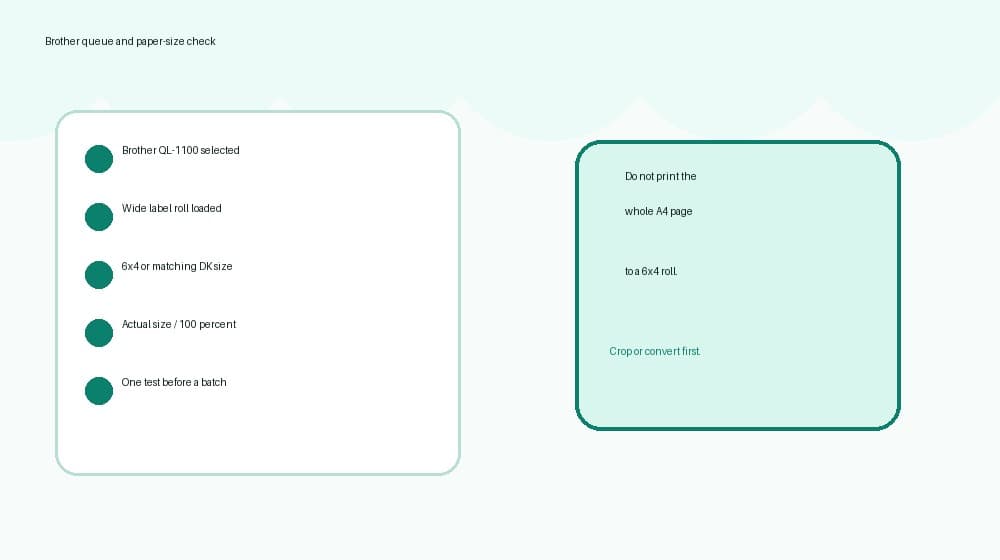
- Confirm the printer is a wide Brother model such as the QL-1100 or QL-1110NWB.
- Install the full Brother driver or software package for your operating system.
- Load shipping-label stock that matches a real Brother media preset or custom size.
- Select the correct Brother printer queue, not a duplicate AirPrint, PDF or office-printer queue.
- Set the driver paper size to 6x4, 4x6, 100x150mm, 102x152mm or the exact loaded stock size.
- Download one Royal Mail or Click and Drop label PDF.
- Check whether the PDF page is already label-sized or still A4.
- Print at actual size or 100 percent after the PDF page size is correct.
- Print one test label, then inspect barcode sharpness, quiet space, edge position and feed.
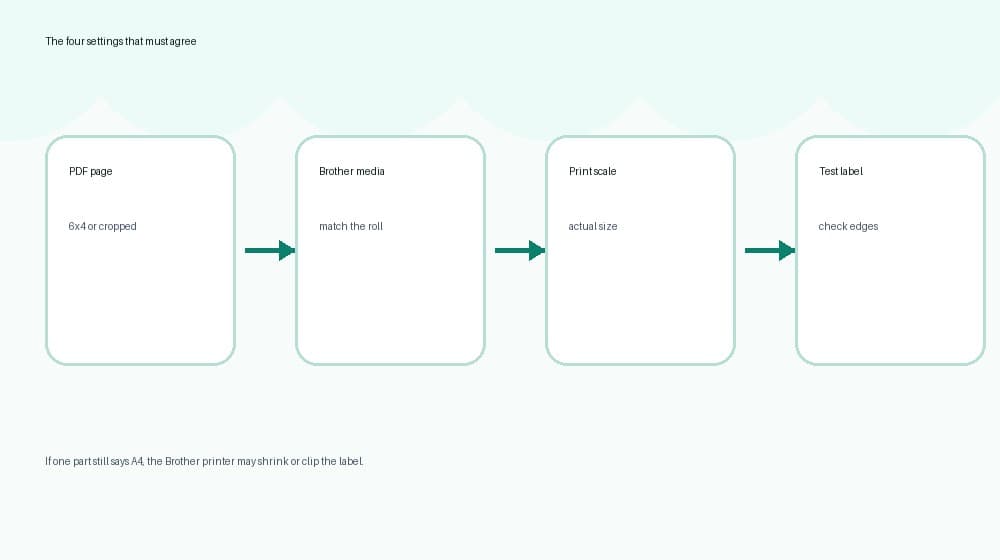
Do those checks in order. If you change the Brother driver, browser preview and PDF crop all at once, you will not know which setting fixed the label.
The same logic applies across the Royal Mail cluster. If you need the broader carrier setup first, start with the Royal Mail label printer setup guide. If the size terms are confusing, use the Royal Mail 6x4 label settings checker before blaming the printer.
Choose the right Brother queue and media size
Brother QL-1100 and QL-1110NWB printers are wide label printers. That is why sellers consider them for 6x4 shipping-label workflows. Narrow Brother QL models are useful for address labels and small stickers, but they are not the right target for standard shipping labels.
Use the official Brother support pages when installing or reinstalling the driver:
The QL-1100 is the simpler USB path. It suits one packing desk where the printer is attached to one computer. Fewer connection choices usually means fewer duplicate queues.
The QL-1110NWB adds Wi-Fi, Ethernet and Bluetooth style workflows, depending on your setup. That can be useful at a shared packing bench, but it also makes duplicate printer queues more likely. One queue may have the full Brother driver and the correct media list. Another may be a basic network or AirPrint-style queue with missing label sizes.
Open your system printer settings and check the queue name before printing. If two Brother queues exist, print a harmless test from each and keep the one with the full paper-size options. Rename the working queue so staff do not pick the wrong one during a busy shipping run.
Match the driver to the roll, not the A4 PDF
Your Brother driver should match the physical label stock loaded in the machine.
For Royal Mail and Click and Drop 6x4 printing, the working size may be called one of these:
- 6x4 inch
- 4x6 inch
- 100x150mm
- 102x152mm
- A Brother DK shipping-label preset
- A custom size that exactly matches your loaded labels
Do not choose A4 because the downloaded PDF is A4. The Brother printer does not know you only want the label area inside that page. If the driver is set to the wrong media size, a perfect PDF can still come out clipped, tiny or offset.
If you use third-party compatible labels, check the physical dimensions on the box. The phrase shipping labels is not specific enough. A small mismatch between the loaded stock and the driver preset can create extra blank feed or push the barcode close to the edge.
Check whether the Click and Drop PDF is A4 or 6x4
Before touching more Brother settings, open the downloaded Royal Mail or Click and Drop PDF.
Ask one simple question: is the whole PDF page the label, or is the label sitting inside a bigger A4 page?
A true 6x4 or label-sized PDF is the easy case. Set the Brother driver to the same size, choose actual size, and print one test.
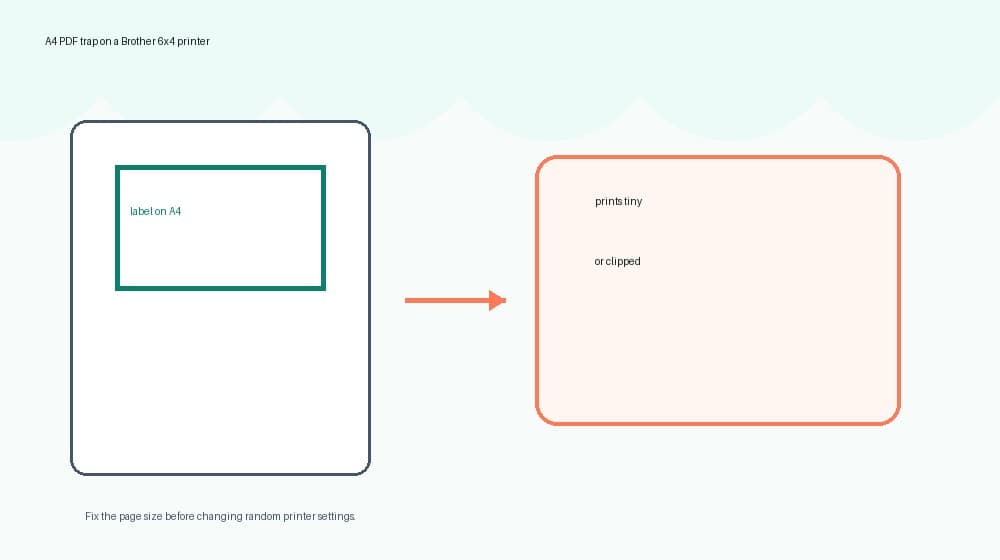
An A4 PDF is different. If the label sits on an A4 page and you send the whole page to a 6x4 roll, the Brother driver must squeeze the entire page down. That is how a normal postage label becomes a tiny barcode in one corner.
Use native 6x4 or thermal output when your Royal Mail, Click and Drop or marketplace workflow offers it. Native label-sized PDFs are cleaner than fixing A4 files later.
If you already have an A4 label PDF, crop or convert the label area before printing. For one-off files, use the free A4 to 4x6 shipping label converter. If you are not sure what size the file is, run it through the shipping label size checker first.
For a shorter carrier sequence, read how to print a Royal Mail label at home on 6x4. For the Click and Drop-specific version, use the Royal Mail Click and Drop label printer workflow.
Print at actual size before changing anything else
Once the PDF page size is correct, print at actual size or 100 percent.
Avoid these settings for the first test:
- Fit to page
- Shrink to printable area
- Fill entire page
- Borderless enlargement
- Browser headers and footers
- A saved margin preset from another printer
Those options can help office documents, but shipping labels need predictable barcode size. You want one PDF page mapped to one physical label, with readable text and enough quiet space around the barcode.
Print one label before a batch. Check the barcode, address block, edge margins and next-label feed. If a neutral thermal printer test label fails too, fix the Brother layer first. That means driver, roll loading, sensor, media size or queue selection. If the test label works but Royal Mail PDFs fail, focus on the PDF page size, crop and print scale.
Fix common Brother Royal Mail print problems
Use the symptom to choose the next check.
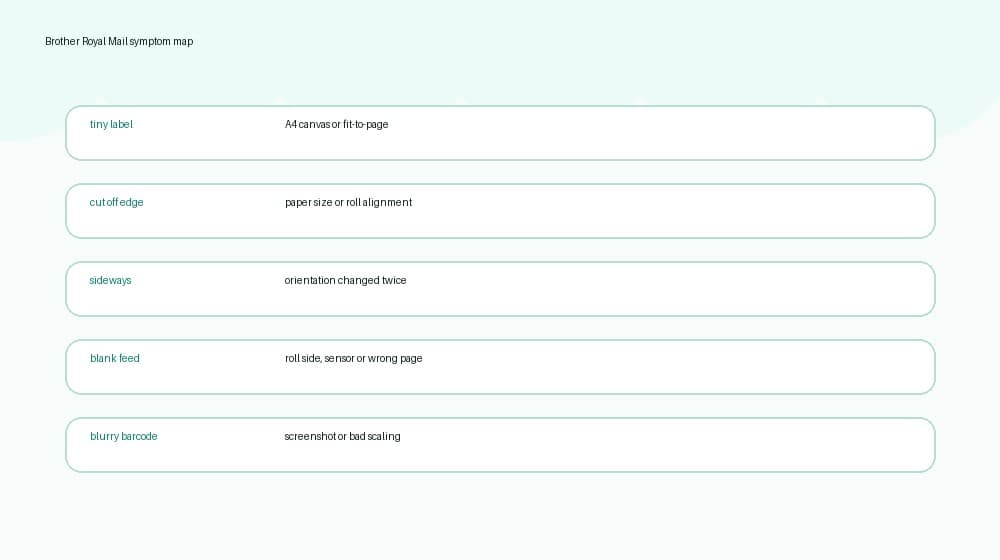
The label prints tiny
This is usually an A4 PDF or a fit-to-page setting.
Open the PDF and check the page size. If the label sits on A4, crop or convert it before printing on the Brother QL. If the PDF is already 6x4 or close to 100x150mm, turn off fit-to-page and print at actual size.
The shipping label printing too small guide gives the broader diagnosis for browser, PDF viewer and driver scaling problems.
The barcode or address is cut off
Cut-off labels usually mean the driver paper size, PDF page size or loaded stock do not agree.
Set the Brother media size again. Check the preview. Then print one test. If the preview is clean but the physical label clips near the same edge, check the roll is seated straight and the guides are not pushing it sideways.
For a symptom-first path, use the shipping label cut-off troubleshooting guide or the cut-off shipping label diagnostic.
The label prints sideways
Sideways output is usually orientation confusion.
A label can be described as 6x4, 4x6, 100x150mm or 150x100mm depending on the app. Do not rotate the PDF and the driver at the same time. Change one setting, print one test, then keep or undo that change.
The 4x6 shipping-label settings checker is useful when you need to separate page size from orientation.
Blank labels feed through
Blank Brother output often starts with the roll.
Check the labels are direct thermal, loaded with the printable side facing the print head and seated correctly. If a printer self-test is blank, fix the Brother layer before changing Royal Mail settings. If the self-test works but the shipping PDF fails, make sure you are not printing a blank receipt page from a multi-page PDF.
Use the thermal printer blank labels checklist if every file feeds blank stock.
The barcode looks blurry
Avoid screenshot workflows.
A screenshot turns a sharp PDF into a lower-quality image, then the print dialog may scale it again. Use the original PDF where possible. If the page size is wrong, crop or convert the PDF instead of pasting the label into Word, Canva or another document editor.
The blurry shipping label barcode guide covers DPI, darkness, speed, print-head cleaning and screenshot quality loss.
When LabelChop helps
LabelChop is not a Brother driver, Royal Mail account, postage tool or official Click and Drop integration.
It helps when the Brother printer is working, but your shipping-label PDFs keep arriving in awkward formats. One Royal Mail label may be a clean 6x4 PDF. Another marketplace export may be A4. A returns label may sit in a different part of the page. A browser may remember yesterday's scale setting.
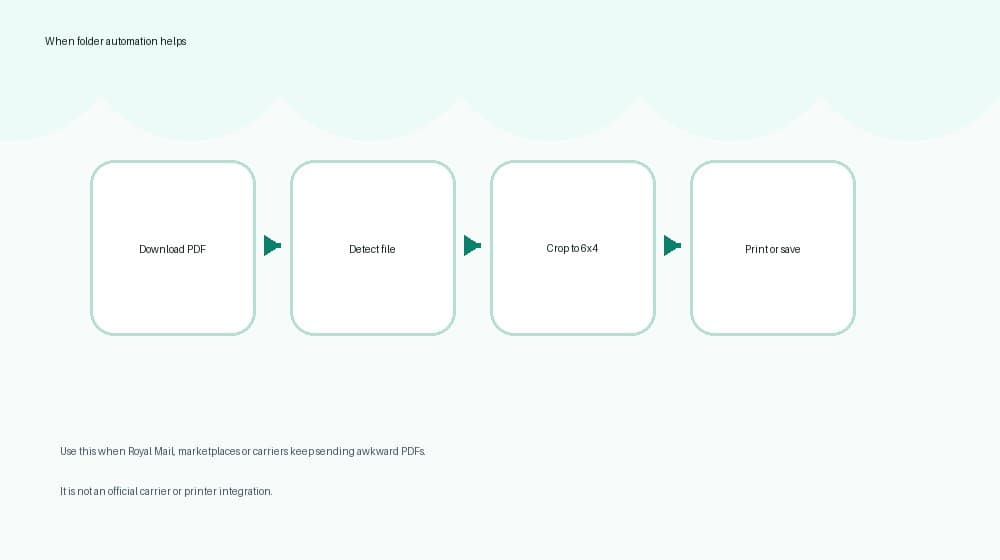
For one file, the free converter is enough. For repeated shipping days, the manual loop becomes the cost: download, open, crop, select the Brother queue, confirm 100 percent scale, print one test and repeat tomorrow.
LabelChop watches a folder, detects compatible shipping-label PDFs, crops or resizes awkward A4, Letter, A6, 4x6 and 100x150mm files, then prints or saves cleaned thermal-printer output.
If you do that cleanup most shipping days, compare the time against LabelChop pricing. If your Click and Drop PDFs are already native 6x4 and print cleanly, save the Brother preset and keep the workflow simple.
Related Brother and Royal Mail guides
Keep this page connected to the rest of the setup chain.
- Royal Mail label printer setup, for the broader 6x4 Royal Mail workflow.
- Royal Mail Click and Drop label printer setup, for Click and Drop PDF output and browser-print traps.
- Royal Mail label size guide, for 6x4, 4x6, 100x150mm, A6 and A4 naming.
- How to print a Royal Mail label at home on 6x4, for the home-print sequence.
- Best label printer for Royal Mail Click and Drop, for choosing between Brother, Dymo, Zebra, MUNBYN, Rollo and similar printers.
- Brother 4x6 shipping-label settings checker, for a fast Brother-specific settings check.
- Brother MyPost Business setup guide, for the Australian Brother version of the same PDF-size problem.
- A4 to 4x6 shipping label converter, for one-off awkward PDFs before printing.
Once the Brother queue, Royal Mail PDF, media size and scale agree, the printer should become boring. Save the working preset, test one label after any workflow change and stop resizing postage labels by screenshot.