

A Dymo LabelWriter 4XL can be a good USPS label printer, but only when the file, driver and label roll agree.
The printer is not magic. If you send it a Letter PDF and ask the driver to fit the whole page onto one 4x6 label, the USPS label will print tiny. If the Dymo driver is still set to another paper size, the barcode can get clipped. If you screenshot the label to resize it, the barcode may look soft even when the printer is fine.
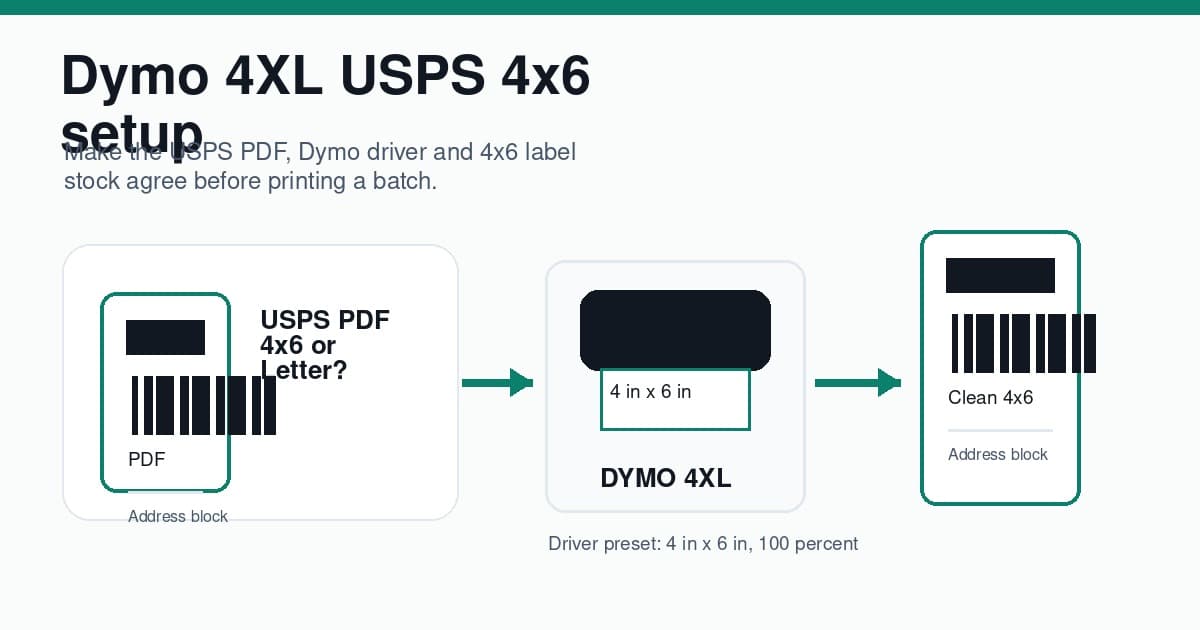
This guide is the Dymo-specific version of the USPS 4x6 workflow. It covers the 4XL driver preset, Click-N-Ship or marketplace PDFs, 100 percent scale, common symptoms and when LabelChop helps with repeated PDF cleanup. LabelChop helps with compatible PDFs from USPS and marketplace workflows, but it is not an official USPS or Dymo integration.
In this article:
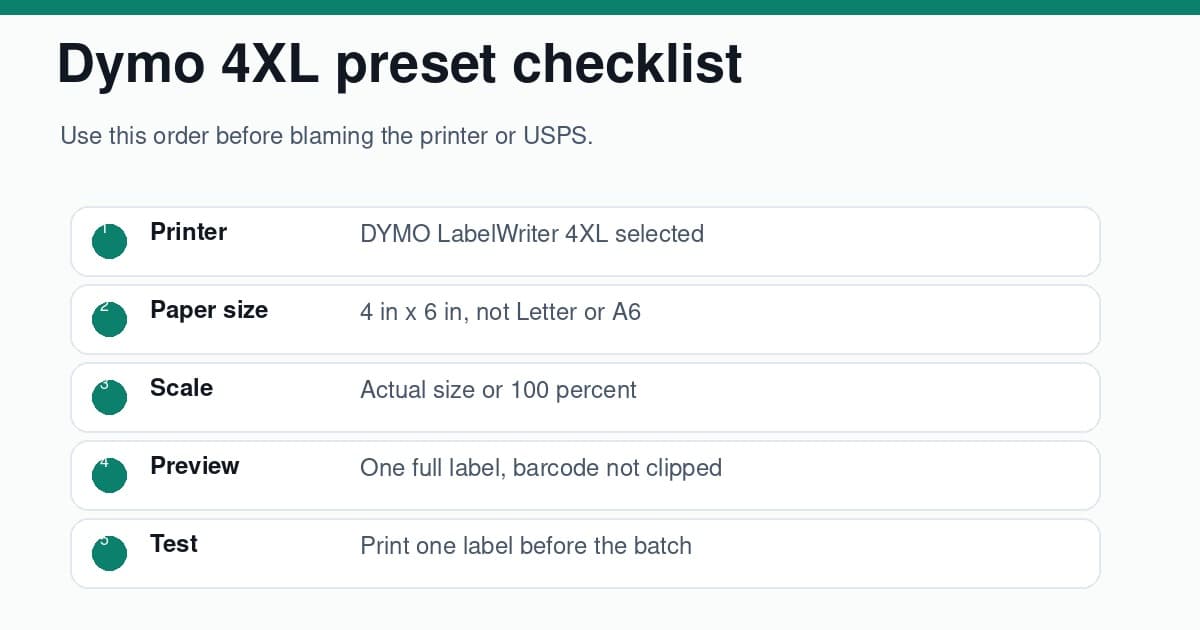
- The quick Dymo 4XL USPS checklist
- Install the Dymo driver before testing labels
- Set the 4XL paper size to 4 in x 6 in
- Check whether the USPS PDF is 4x6 or Letter
- Print at actual size on the first test
- Fix common Dymo 4XL USPS label problems
- When LabelChop helps
- Related USPS and Dymo guides
The quick Dymo 4XL USPS checklist
Start here if you are mid-pack and wasting labels.
- Install DYMO Connect or the current Dymo driver for your operating system.
- Load 4x6 Dymo-compatible direct thermal label stock.
- Select DYMO LabelWriter 4XL in the print dialog.
- Set the printer paper size to 4 in x 6 in.
- Download the USPS, Click-N-Ship or marketplace label PDF.
- Open the PDF and check whether the page is already 4x6 or still Letter.
- If the PDF is already 4x6, print at actual size or 100 percent.
- If the label sits on a Letter page, crop or convert it before printing.
- Print one test label and inspect barcode sharpness, margins and orientation.
- Save the working preset once the test is clean.
That order matters because the Dymo 4XL only sees a page, a paper size and scale instructions. It does not know whether the label came from USPS Click-N-Ship, eBay, Etsy, Shopify or another postage workflow.
If you are not using a Dymo, start with the broader USPS label printer setup guide. Zebra owners can use the Zebra USPS 4x6 setup checklist for ZD421, ZD220 and GK420d calibration, gap-sensing and paper-size checks. MUNBYN owners can use the MUNBYN USPS 4x6 setup checklist for USB-first setup, direct thermal stock and Letter-PDF scaling. If the same packing bench uses a postal scale, the USPS scale and label printer setup keeps weight, service choice, PDF page size and 4x6 print settings in the right order. If you are still choosing hardware, the best USPS label printer workflow checklist explains which 4x6 printer traits matter before you buy.
Install the Dymo driver before testing labels
A Dymo 4XL can appear in the operating-system printer list before every useful preset is available. Do not trust that alone.
Install the current Dymo software for your system, then connect the printer by USB and confirm it appears as DYMO LabelWriter 4XL. If the computer grabbed a generic driver earlier, remove the printer, reinstall the Dymo software and add the printer again.
After installation, open the printer preferences before printing a live USPS label. Confirm these basics.
- The selected printer is the 4XL, not an office printer or PDF printer.
- The paper size list includes 4 in x 6 in or a close Dymo shipping-label preset.
- The driver is using direct thermal label stock.
- The printer is not paused or offline.
- The roll sits straight inside the printer and feeds without dragging.
This driver check is boring, but it prevents a lot of false troubleshooting. A bad driver or missing 4x6 preset can make a correct USPS PDF look broken.
Set the 4XL paper size to 4 in x 6 in
For most Dymo 4XL shipping-label workflows, the driver should use 4 in x 6 in.
That setting must match the label roll loaded in the printer. Do not choose Letter because the USPS PDF downloaded as Letter. Do not choose A4 because a browser remembered the last office-printer job. Do not choose A6 as a rough substitute unless your actual PDF and stock are genuinely A6.
Use this baseline.
| Setting | Choose | Why it matters | |---|---|---| | Printer | DYMO LabelWriter 4XL | Avoids sending labels to the wrong device | | Paper size | 4 in x 6 in | Matches common Dymo 4XL shipping-label stock | | Scale | Actual size or 100 percent | Stops the label shrinking or growing | | Orientation | Match the preview | Prevents sideways output | | Margins | None or minimum | Keeps barcode quiet space visible | | Test print | One label first | Catches drift before a batch |
On Windows, check printer preferences and the final app print dialog. On macOS, check Page Setup and the final print screen. A saved preset can still be overridden by the app you print from.
The 4x6 shipping labels print settings guide covers the size names in more detail, including 4x6 inches, 100x150mm, 102x152mm, A6, Letter and A4.
Check whether the USPS PDF is 4x6 or Letter
This is the step that separates a Dymo problem from a PDF problem.
Open the downloaded label before you print. Ask whether the whole PDF page is the USPS label, or whether the label is sitting inside a larger Letter page.
A true 4x6 PDF is ready for the 4XL once the Dymo driver is also set to 4 in x 6 in. The label fills the page, the barcode has quiet space and the preview should map to one physical label.
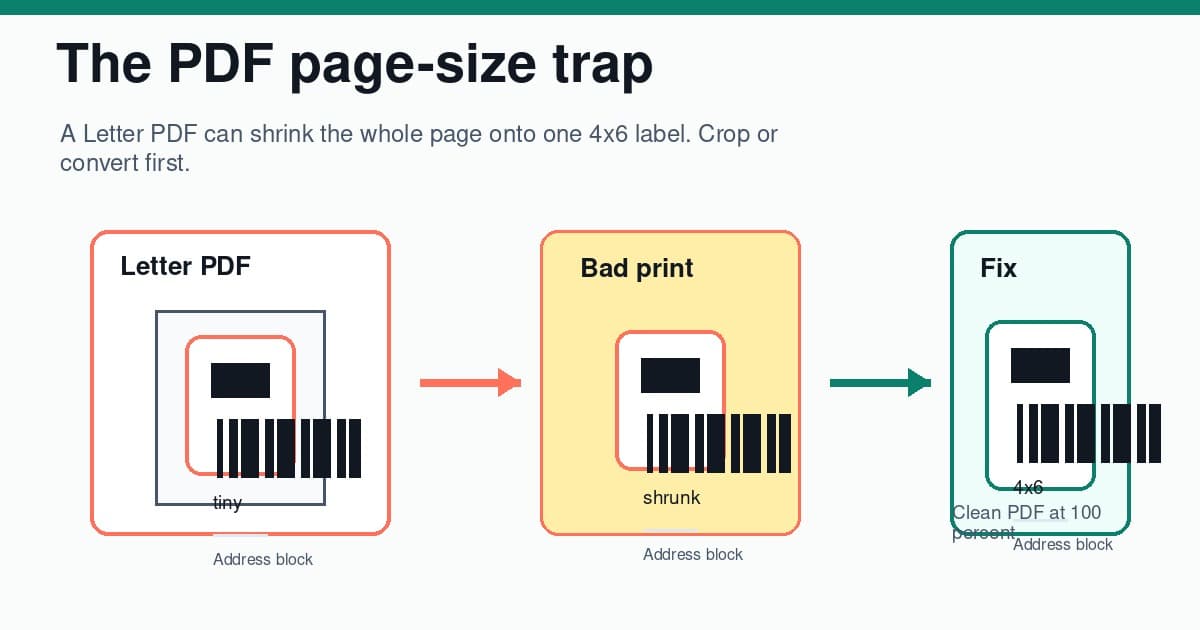
A Letter PDF is different. It may be valid for an office printer, but it is not ready to send straight to a 4x6 thermal printer. If the print dialog shrinks the whole Letter page to the 4XL, the actual USPS label becomes tiny.
USPS documents the account and postage side in its Click-N-Ship basics. For the printer side, your practical check is the downloaded PDF after the label exists.
If the file is Letter, crop or convert the label area to 4x6 first. For a one-off PDF, use the free A4 to 4x6 shipping label converter. If you are not sure what size the file is, use the shipping label size checker before changing the Dymo driver again.
Print at actual size on the first test
For a correct 4x6 PDF, use actual size, 100 percent scale or no scaling. The wording changes by app, but the goal is simple: one PDF page maps to one physical 4x6 label.
Turn off settings like these.
- Fit to page
- Shrink oversized pages
- Scale to printable area
- Browser headers and footers
- Default browser margins
- Auto-rotate if the preview changes orientation incorrectly
Print one test label and inspect it before printing a batch. The barcode should be sharp, not stretched, not clipped and not too close to an edge. The address should be readable. The label should feed to the next gap instead of drifting down the roll.
If a neutral test label fails, fix the printer layer first: driver, stock, paper size, roll loading or sensor. If the neutral test label works but USPS or marketplace PDFs fail, fix the PDF layer: page size, crop, orientation or scale.
The 4x6 label test print troubleshooting guide is useful when you want a safe test before printing paid postage.
Fix common Dymo 4XL USPS label problems
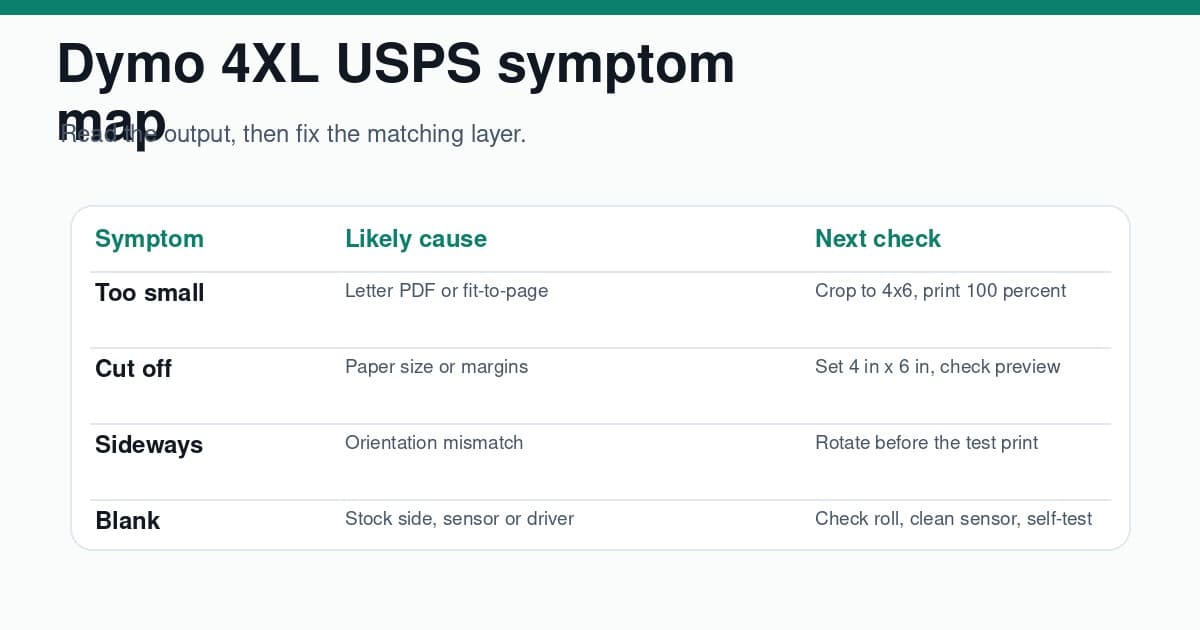
Use the symptom to decide which layer to check next.
The USPS label prints too small
This is usually a Letter PDF or scaling issue.
Open the PDF. If the page is Letter, crop or convert the label area before printing on the 4XL. If the PDF is already 4x6, turn off fit-to-page settings and print at 100 percent.
For a symptom-first walkthrough, use the shipping label printing too small guide.
The USPS label prints too big
Oversized output usually means the Dymo paper size, PDF page size or final scale setting changed after you selected the printer. Reset the 4 in x 6 in preset, remove custom scale values above 100 percent and check whether the preview already touches the label edge.
Use the shipping label printing too big checklist if the barcode runs off the side, the address is cropped or one USPS label spreads across two physical labels.
The barcode is cut off
A cut-off barcode usually means the paper size, orientation or margins are wrong.
Set the Dymo paper size back to 4 in x 6 in, check the preview and print one test. If the preview is clean but the physical output clips near an edge, check the roll alignment and the label guide inside the printer.
The shipping label cut-off troubleshooting guide goes deeper on edge clipping, margins and page-size mismatches.
The label prints sideways
Sideways labels usually come from orientation confusion.
Some apps describe the page by width first, while others care about feed direction. Look at the preview instead of trusting the size name alone. If the address block is rotated on screen, change orientation before printing.
Blank labels feed through
Blank Dymo labels are usually stock, roll direction, sensor or driver issues. Check the labels are direct thermal, loaded with the print side facing the head and feeding straight through the printer.
If a printer self-test is blank too, fix the Dymo layer before changing USPS settings. If the self-test works but the USPS PDF prints blank or wrong, return to the PDF page-size and scale checks.
Use the thermal printer blank labels checklist if every file is feeding blank stock.
The barcode looks blurry
Avoid screenshot workflows.
A screenshot turns a sharp PDF label into a lower-quality image, then the print dialog may scale it again. Use the original PDF where possible. If the page size is wrong, crop or convert the PDF rather than pasting the label into a document.
The blurry shipping label barcode guide covers DPI expectations, darkness, speed, scaling and screenshot quality loss.
When LabelChop helps
LabelChop is not a Dymo driver, postage-buying tool or official integration with USPS, Dymo, eBay, Shopify, Etsy or any carrier.
It sits before the print step. LabelChop watches a folder, detects compatible shipping-label PDFs, crops or resizes awkward pages to 4x6 or 100x150mm output, then prints or saves the cleaned file for your normal thermal-printer workflow.
That helps when the 4XL itself is fine but the files keep changing. One USPS label may be native 4x6. A marketplace export may be Letter. A returns label may place the label in another part of the page. If you repeat the crop, resize and print-dialog check most shipping days, the bottleneck is the PDF workflow.
For one-off files, use the free converter. For recurring folder-to-Dymo output, compare the manual time cost with LabelChop pricing.
Related USPS and Dymo guides
Keep the Dymo fix connected to the rest of the shipping workflow.
- USPS label printer setup, for the broader 4x6 USPS print workflow.
- USPS Click-N-Ship 4x6 workflow, for downloaded Click-N-Ship PDF checks.
- Best USPS label printer workflow checklist, for choosing hardware that fits daily shipping.
- Zebra USPS 4x6 setup, for the Zebra version of USPS driver, calibration and PDF-size checks.
- 4x6 shipping labels print settings, for paper size, orientation, margins and scale.
- Dymo 4XL MyPost Business setup, for the Australia Post version of the Dymo setup problem.
- A4 to 4x6 shipping label converter, for awkward PDFs before printing.
Once the Dymo driver, PDF page, scale and stock agree, the 4XL should be boring. Save the preset, test one label after any workflow change and stop resizing USPS labels by screenshot.